About the examples: Examples and screenshots in this guide use BEAT, a demo company in a Dynamics 365 test environment. Use your own company's codes and values instead of copying them.
Setup steps on this page
Impair a right-of-use asset
Write down a right-of-use asset after an impairment test and spread the rest over the remaining periods.
Steps from Microsoft
Go to Asset leasing > Leases > Lease summary, select the lease and select Books.
Select Impairment and enter Impairment amount as a positive value, Transaction date and Periods remaining.
Select Preview, and set Close book to Yes only if the book should close.
Select Post, or submit to workflow when an impairment workflow is active.
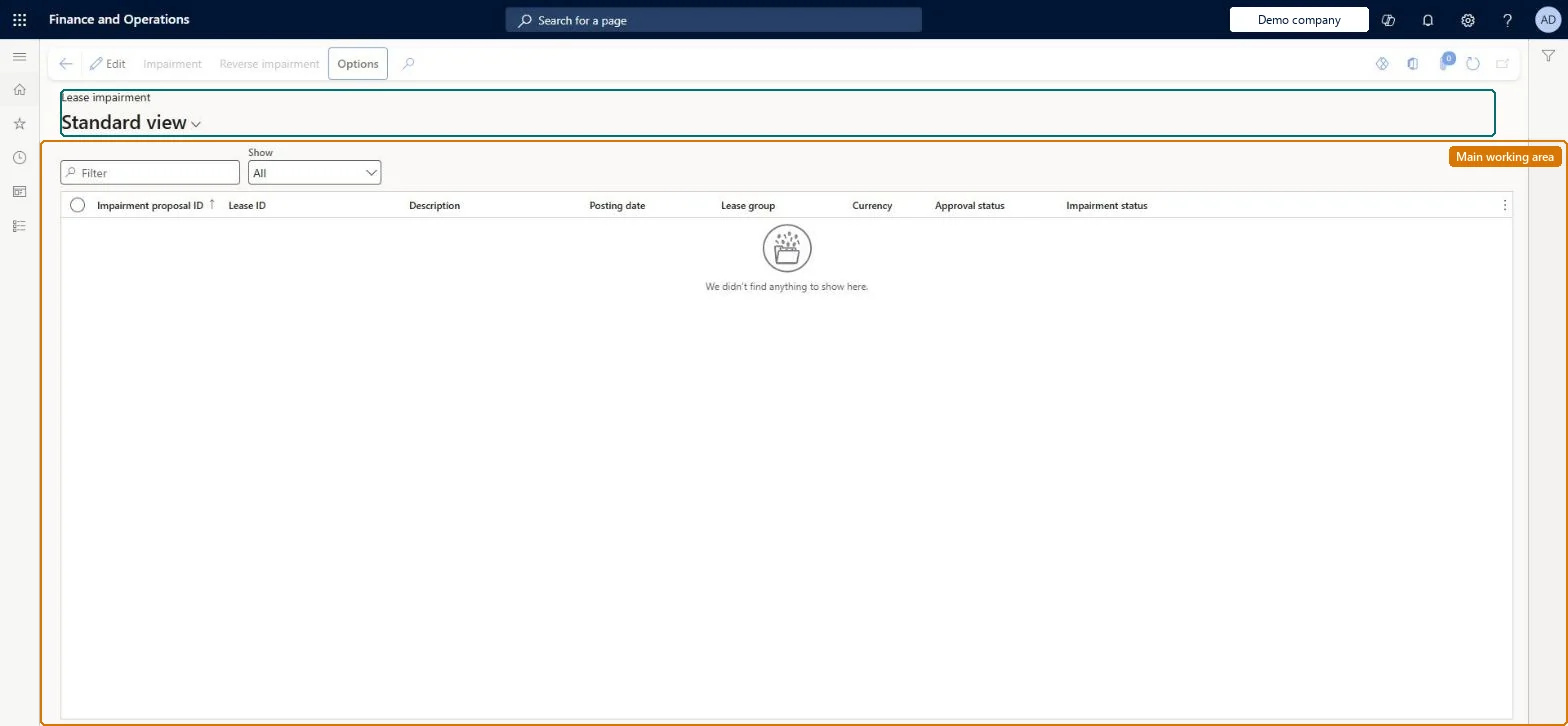
Go to Asset leasing > Leases > Lease impairment to approve, review or reverse the impairment.
The number of months over which the remaining asset is amortised.Microsoft Learn
Close book
Closes the lease book so no further entries or adjustments can be made against it.Microsoft Learn
Common errors and fixes
Message
What to do
Post isn't shown in the impairment dialog
An impairment workflow is configured. Submit the impairment to workflow and finish it after approval. Microsoft Learn
Impairment is unavailable for the lease
The lease is linked to a fixed asset. Impair the asset in Fixed assets. Microsoft Learn
Test checklist
Check that the impairment number sequence is set on Asset leasing parameters.
On a lease book with a posted initial recognition, select Impairment, enter a positive Impairment amount, Transaction date and Periods remaining, and turn on Preview.
With the impairment workflow active, check that Post isn't available and submit the impairment; approve it and check it finishes on Lease impairment.
Open Asset leasing journal and check the entry debits the impairment expense account and credits the lease asset account.
Open Asset transactions and Liability transactions and check the ROU asset is reduced while the lease liability is unchanged.
Enter the impairment from the lease's Books page with the impairment test date and the remaining months, preview it, and leave Close book at No unless the asset is no longer used.The impairment debits impairment expense and credits the lease asset; the liability doesn't change, and the remaining right-of-use asset is depreciated straight-line over Periods remaining. A closed book can't be posted to or adjusted.
Asset leasing must be turned on in Feature management (feature Asset leasing). Microsoft Learn describes three Asset leasing roles: Maintain lease (add, edit and post leases), View lease (view leases and schedules and run reports) and Lease clerk (create new leases only). Maintain lease users impair right-of-use assets; approvers act through workflow.
Per company: leases with their books, schedules and journals belong to the legal entity you are working in, and Lease ID numbers come from a number sequence set per company. Turn on Cross entity batch in Asset leasing parameters to create journals for other legal entities from the current one. Microsoft Learn
Can it be undone
Hard to reverse: Posting creates a new book version; use Reverse impairment on this page to undo it.
If you change it later
Posting an impairment creates a new book version and reduces the right-of-use asset without changing the lease liability; the remaining asset is then depreciated straight-line. Microsoft Learn
Technical architect
6Technical
Menu item
AssetLeaseImpairmentLeaseListPageChecked in Dynamics 365
Form
AssetLeaseImpairmentLeaseListPageChecked in Dynamics 365
Table
AssetLeaseLeaseImpairmenShown as “LEASE IMPAIRMENT TABLE” in Record infoChecked in Dynamics 365
To set it up or change itLease accountant AssetLeaseLeaseMaintainAccountant LedgerAccountantTo use itLease manager AssetLeaseLeaseViewAccounting manager LedgerAccountingManagerLease clerk AssetLeaseClerkRoleAccounts payable payments clerk PaymAccountsPayablePaymentsClerkGive people one of these roles. On this system, 6 roles can open this page.Checked in Dynamics 365
Actions on the page
(Action Pane without tabs): Impairment, Reverse impairmentChecked in Dynamics 365
Load order: A lease impairment has no data entity in Data management, so it can't be loaded from a file or a configuration template. Impairments are posted from the lease book; migrate the right-of-use asset at its impaired carrying value through the lease and post future impairments in the new system.Microsoft Learn