PAGE GUIDEWhat the page does and how to use it8 sections. Choose a role to highlight what matters to you.
Everyone
1What it is and why
What it is
A list page of prospects: the organizations and people your company may do business with.
What you do here
Use this page to store information about prospective customers and vendors and to create leads, opportunities or quotations from them.
Example
For example, BEAT creates prospect BEAT-P-000318 for Northwind Pumps, quotes it 12,480.00 USD, and when the quote is won converts it, so customer BEAT-P-000318 appears with the default customer group WHOLESALE.
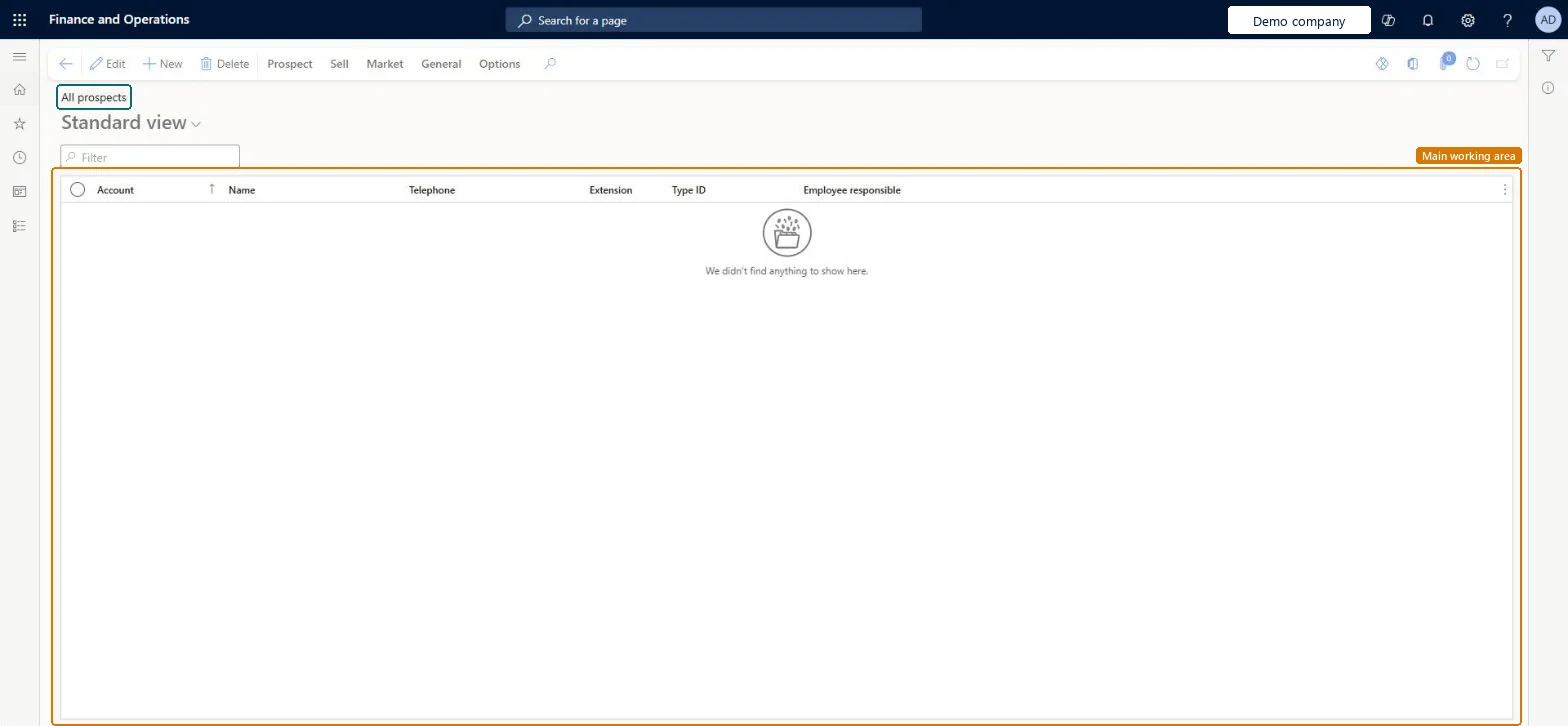
The page in Dynamics 365. page title tab to open what to set or check
About the examples: Examples and screenshots in this guide use BEAT, a demo company in a Dynamics 365 test environment. Use your own company's codes and values instead of copying them.
Setup steps on this page
Set the prospect conversion defaults before the first conversion
Use this page to hold potential customers until they buy, then convert them.
Steps from Microsoft
Go to Sales and marketing > Relationships > Prospects > All prospects.
Create a prospect of the Organization or Person type; it takes its number from the prospect number sequence.
Add an address of the Delivery role and an address of the Invoice role, and create a contact for the prospect.
When the prospect becomes a customer, on the Action Pane, on the General tab, in the Convert group, select Convert to customer.
Open All customers and check the new customer has the prospect's account number and the default customer group.
The person in your organization who is responsible for the prospect.Microsoft Learn
MainContactWorker
Customer group
The customer group the prospect gets when it is converted; by default it comes from the Prospects tab of Sales and marketing parameters.Microsoft Learn
WHOLESALE
One-time customer or vendor
Marks a prospect that will only do business with you once.Microsoft Learn
The converted customer has an unexpected customer group, or a number outside the customer number sequence.
Conversion always keeps the prospect's account number and takes the default customer group from the Prospects tab of Sales and marketing parameters. Set that group before converting; the number can't be changed during conversion. Microsoft Learn
Test checklist
Check that a default customer group is set on the Prospects tab of Sales and marketing parameters.
Create a prospect of the Organization type, add a Delivery address, an Invoice address and a contact.
On the Action Pane, on the General tab, in the Convert group, select Convert to customer.
Open All customers and check the new customer has the prospect's account number, the default customer group, and the prospect's addresses and contacts.
Set the default customer group on the Prospects tab of Sales and marketing parameters, and agree that prospect numbers can be used as customer numbers, before anyone selects Convert to customer.Conversion creates the customer with the same account number as the prospect, whatever the customer number sequence, and assigns the default customer group; neither can be chosen during conversion.
Integrate Sales Quotation lifecycle with Dynamics 365 SalesEnable prospects in Sales quotation lifecycle with Dynamics 365 Sales
Licence or add-in
Prospect integration with Dynamics 365 Sales uses the features Integrate Sales Quotation lifecycle with Dynamics 365 Sales and Enable prospects in Sales quotation lifecycle with Dynamics 365 Sales. Both are on by default from version 10.0.41, and the prospect feature is mandatory from 10.0.43.
Hard to reverse: A prospect can be edited freely until you select Convert to customer. Conversion creates a customer account with the same account number as the prospect, whatever the customer number sequence, and the number can't be changed during conversion. The default customer group comes from the Prospects tab of Sales and marketing parameters, and the prospect is retired. Learn gives no step to turn the customer back into a prospect, so treat conversion as final. Learn describes this behaviour for the prospect-to-cash integration with Dynamics 365 Sales. Microsoft Learn
If you change it later
Convert to customer creates a customer account with the prospect's number, retires the prospect and relates its addresses and contacts to the customer. With prospect integration, the account in Dynamics 365 Sales changes from Prospect to Customer at the same time. Microsoft Learn
Technical architect
6Technical
Menu item
smmBusinessRelationsListPageChecked in Dynamics 365
Form
smmBusRelTableChecked in Dynamics 365
Table
smmBusRelTableShown as “Prospects” in Record infoKey field: BusRelAccount, Party, Party_NameChecked in Dynamics 365
To set it up or change itRental manager RentalManagerRental coordinator agent RentalCoordinatorAgentRental sales manager RentalSalesManagerSales representative TradeSalesRepresentativeSales clerk TradeSalesClerkTo use itSales manager TradeSalesManagerMarketing manager CRMMarketingManagerRental representative RentalRepresentativeCustomer service manager TradeCustomerServiceManagerRental clerk RentalClerkGive people one of these roles. On this system, 14 roles can open this page.Checked in Dynamics 365
Actions on the page
Prospect: Maintain, Accounts, Statistics, AttachmentsSell: New, Related informationMarket: Automation, Telemarketing, MailingsGeneral: New, Setup, Maintain, Convert, Related information, Activities, Catalog, RelatedOptions: Personalize, Page options, ShareChecked in Dynamics 365
smmProspectEntity (Prospects): loaded for each company.Load order: Load the prospect setup (segments, sales districts, company chains, prospect types) first, then prospects, then their contacts.Load first: Segments, Sales districts, Company chainsMicrosoft Learn