Marketing coordinator, Marketing manager, Rental clerk and 8 more roles
Business process
Identify and qualify leads
Menu item
smmLeadsListPage
Main table
smmLeadTable
Data entity
smmLeadEntity
Setup steps
1 on this page
Show what matters for
PAGE GUIDEWhat the page does and how to use it8 sections. Choose a role to highlight what matters to you.
Everyone
1What it is and why
What it is
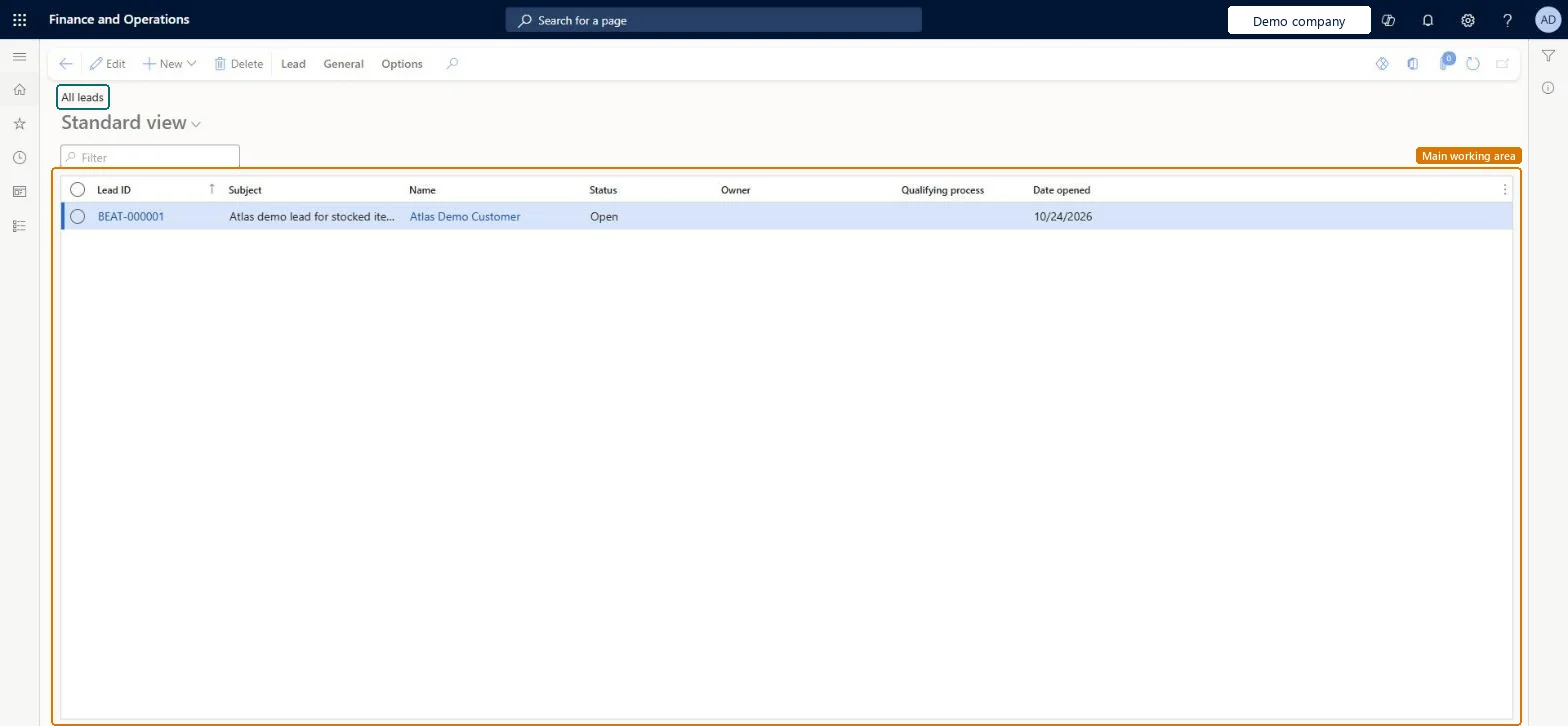
A list page of lead records, where your sales team gathers and stores information about each lead.
What you do here
Use this page to create, copy, qualify or disqualify any lead in the company, and to turn a qualified lead into an opportunity, a prospect or a customer.
Example
For example, BEAT records lead LEAD-000214 for Northwind Pumps from the spring trade fair, rates it, and after a call qualifies it, which opens opportunity OPP-000119 with estimated revenue 48,500.00 USD.
The page in Dynamics 365. page title tab to open what to set or check
About the examples: Examples and screenshots in this guide use BEAT, a demo company in a Dynamics 365 test environment. Use your own company's codes and values instead of copying them.
Setup steps on this page
Decide where leads live and how qualification works
Use this page to capture and qualify leads in Supply Chain Management.
Steps from Microsoft
Go to Sales and marketing > Relationships > Leads > All leads.
Select New, enter the Subject and the Name of the lead, and enter a Lead ID if the lead number sequence is manual.
Set Owner, Priority, Rating and Source type, then save.
When the lead is ready, select Change status > Qualify, select the reason and select OK.
If Sales and marketing parameters create opportunities from qualified leads, complete the opportunity that opens; otherwise create it from the lead.
Qualifying a lead doesn't open a new opportunity or customer.
Automatic creation from qualified leads is set in Sales and marketing parameters. Without it, create the opportunity or customer from the lead yourself after you qualify it. Microsoft Learn
Deleting a lead also removes records you wanted to keep.
When you delete a lead you can also delete its activities, responsibilities, campaigns and contacts. Disqualify or postpone the lead instead if the history matters. Microsoft Learn
Test checklist
Create a lead with Owner, Priority and Rating.
Select Change status > Qualify and select a reason.
Check that an opportunity opens (or create it from the lead) and that it is listed in All opportunities.
Decide whether leads are kept here or in Dynamics 365 Sales, and set in Sales and marketing parameters whether qualifying a lead creates an opportunity or a customer automatically.Prospect-to-cash dual-write integrates prospects, quotations and orders with Dynamics 365 Sales, not leads, so leads kept in both apps drift apart. The automatic creation setting decides what users see after Qualify.
New records on this page take their Lead ID from the smmLeadId reference; BEAT uses number sequence Sale_127. Checked in Dynamics 365
Feature management and licence
Licence or add-in
On the live system, the roles that use this page include Sales manager, Sales representative, Marketing manager, Marketing coordinator, Customer service representative and Rental manager. The prospect-to-cash integration with Dynamics 365 Sales integrates prospects, not leads.
Per company: each legal entity has its own leads and lead number sequence. Microsoft data model
Can it be undone
Reversible with effort: Status changes can be followed by another status change, and a postponed lead can be reactivated. A deleted lead and the linked records deleted with it can't be restored. Microsoft Learn
If you change it later
Qualifying a lead can create an opportunity or a customer. Deleting a lead can also delete its linked activities, responsibilities, campaigns and contacts; a postponed lead can be reactivated or disqualified later. Microsoft Learn
Technical architect
6Technical
Menu item
smmLeadsListPageChecked in Dynamics 365
Form
smmLeadTableChecked in Dynamics 365
Table
smmLeadTableShown as “Leads” in Record infoKey field: LeadIdChecked in Dynamics 365
PrivilegesMaintain my active leads smmLeadsListPage_MyActiveLeadsMaintainView my active leads smmLeadsListPage_MyActiveLeadsViewMaintain my leads smmLeadsListPage_MyLeadsMaintainView my leads smmLeadsListPage_MyLeadsViewMaintain my new leads smmLeadsListPage_MyNewLeadsMaintainView my new leads smmLeadsListPage_MyNewLeadsViewMaintain leads smmLeadTableMaintainView leads smmLeadTableViewDutiesInquire into customer fleet item details RentalCustomerRentalItemDetailsInquireInquire into leads and opportunities RentalsmmLeadsAndOpportunitiesInquireInquire into leads and opportunities smmLeadsAndOpportunitiesInquireMaintain leads and opportunities smmLeadsAndOpportunititiesMaintain11 security rolesMarketing coordinator CRMMarketingCoordinatorMarketing manager CRMMarketingManagerRental clerk RentalClerkRental coordinator agent RentalCoordinatorAgentRental manager RentalManagerRental purchasing manager RentalPurchasingManagerRental representative RentalRepresentativeRental sales manager RentalSalesManagerCustomer service representative TradeCustomerServiceRepresentativeSales manager TradeSalesManagerSales representative TradeSalesRepresentativeChecked in Dynamics 365
Roles to set it up and use it
To set it up or change itSales manager TradeSalesManagerSales representative TradeSalesRepresentativeMarketing coordinator CRMMarketingCoordinatorTo use itRental manager RentalManagerRental coordinator agent RentalCoordinatorAgentMarketing manager CRMMarketingManagerRental sales manager RentalSalesManagerCustomer service representative TradeCustomerServiceRepresentativeGive people one of these roles. On this system, 11 roles can open this page.Checked in Dynamics 365
Actions on the page
Lead: Maintain, Process, Accounts, AttachmentsGeneral: Set up, Generate, Related information, ActivitiesOptions: Personalize, Page options, ShareChecked in Dynamics 365
smmLeadEntity (Leads): loaded for each company, in Microsoft's default template 330 - Sales and marketing.Load order: Microsoft's default template 330 - Sales and marketing loads Leads at execution unit 1, level 330, sequence 20. Lower levels load first, and entities at the same level load in sequence order.Load first: the default templates at lower levels (System setup to Procurement)Microsoft Learn