PAGE GUIDEWhat the page does and how to use it8 sections. Choose a role to highlight what matters to you.
Everyone
1What it is and why
What it is
A setup page where you set up general business segments to categorize prospects and customers; each segment can have more specific subsegments.
What you do here
Use this page to categorize prospects and customers by business segment, the first level above subsegments.
Example
BEAT uses the segments SMB, ENTERPRISE and PUBLIC. Prospect PRO-000160, a city council, gets segment PUBLIC, and the marketing manager targets the 57 PUBLIC prospects with a tender newsletter.
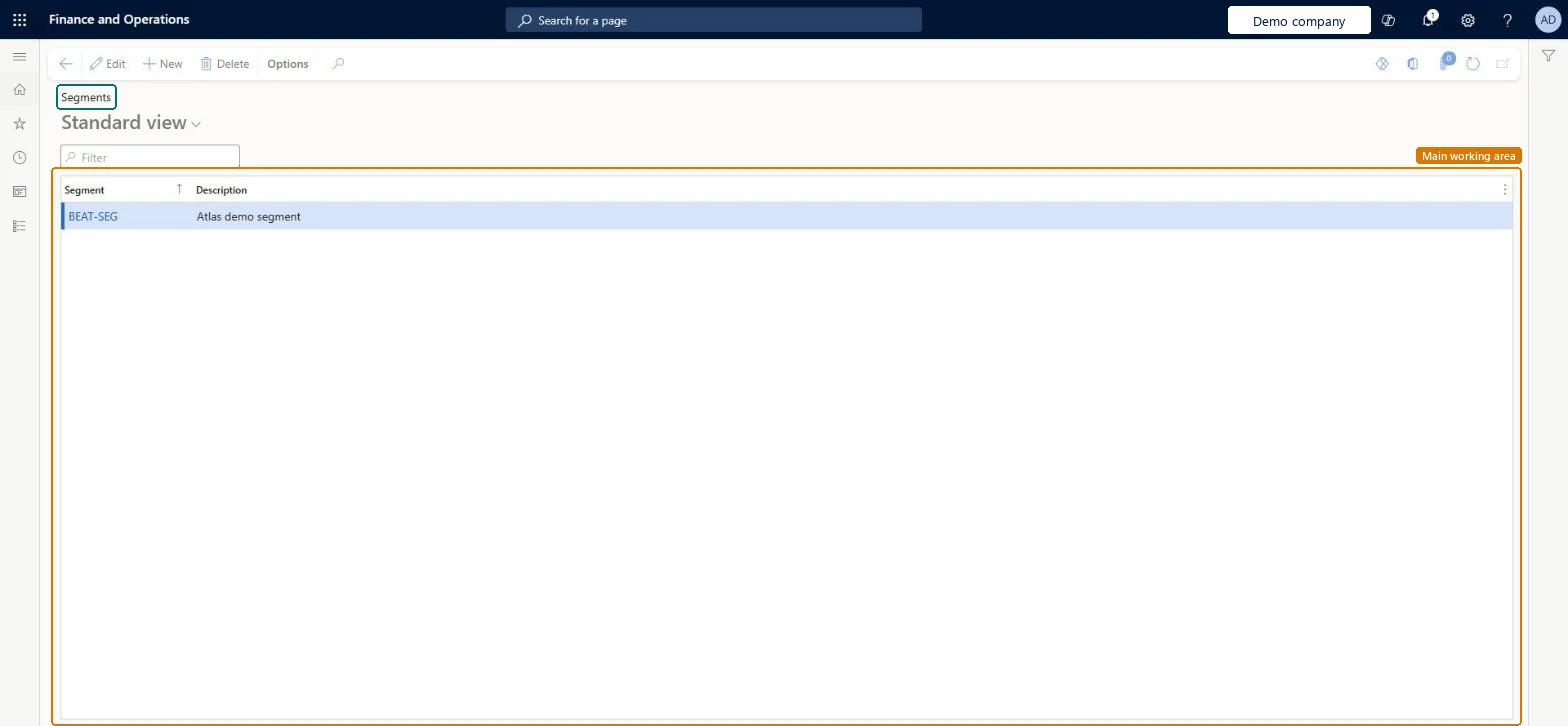
The page in Dynamics 365. page title tab to open what to set or check
About the examples: Examples and screenshots in this guide use BEAT, a demo company in a Dynamics 365 test environment. Use your own company's codes and values instead of copying them.
Step by step, with screenshots
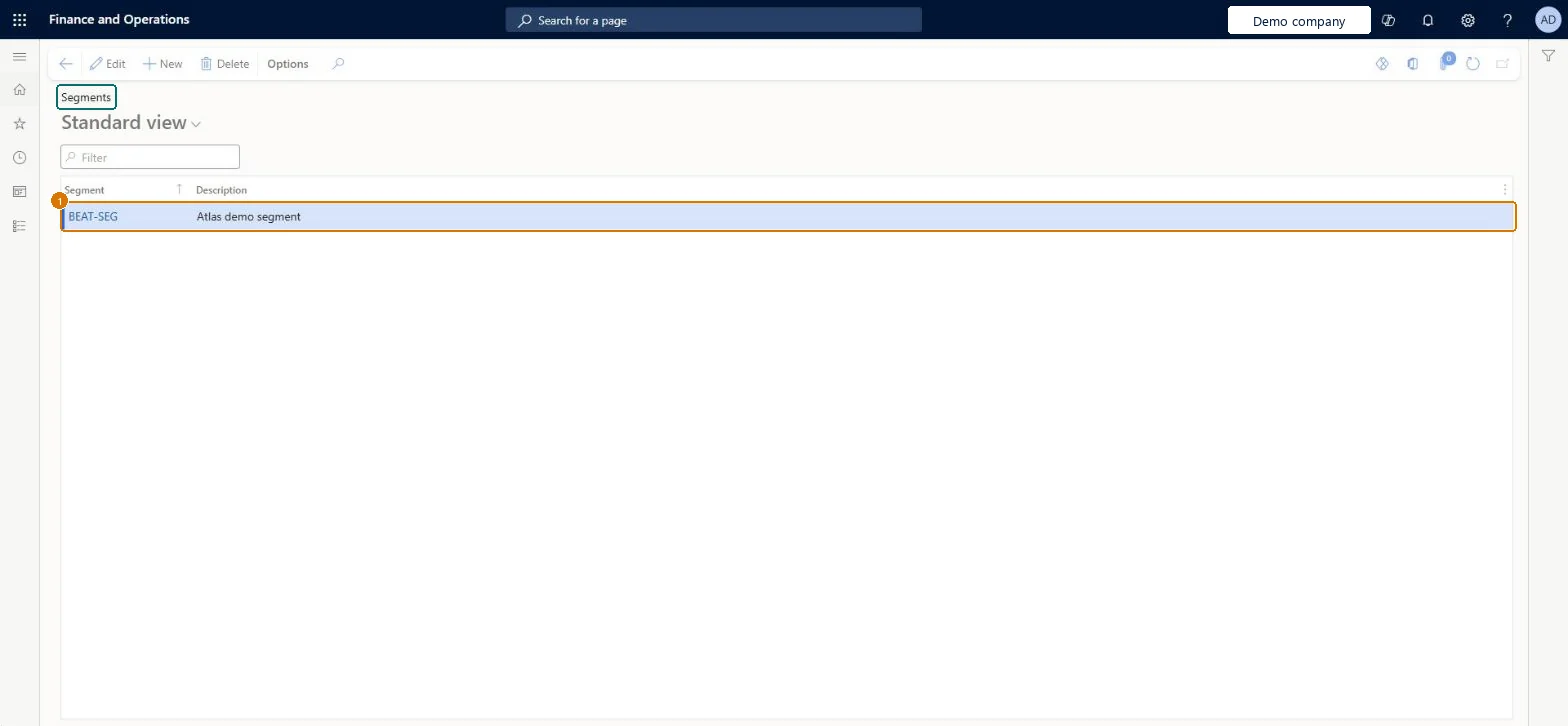
Set up Segments1 screen
Use this page to categorize prospects by business segment.
Screen 1
Create a segment
Go to Sales and marketing > Setup > Prospects > Segments
Select New
Enter the segment code and description
Select Save
Add subsegments for the segment in Subsegments
1Segment
BEAT-SEG
Description
Segment
Show the full screen page title tab to open what to set or check
How to use it
Go to Sales and marketing > Setup > Prospects > Segments.
Select New and enter the Segment code, such as SMB, and a Description.
Agree the list with the sales and finance teams before prospects and customers are loaded, because both use the code.
Open Sales and marketing > Relationships > Prospects > All prospects and set the Segment on a prospect to check that the code is offered.
Source: Checked in Dynamics 365
Fields on the page
Field
What it means
Example
Table column
Segment
The code of the business segment, for example SMB. You select it on a prospect or a customer; subsegments are set up under a segment.Microsoft data model
SMB
SegmentId
Description
A short description of the segment, shown next to the code.Checked in Dynamics 365
Small and medium businesses
Description
Common errors and fixes
Message
What to do
The Subsegment field on a prospect offers nothing for the selected segment.
Subsegments belong to a segment. Open Subsegments, choose the segment and add its subsegments. Microsoft data model
A short list of general segments (for example SMB, ENTERPRISE, PUBLIC), with subsegments for any finer split.The segment is stored on prospects and customers and is the parent of each subsegment, so it is the first level of every segment report.
On the live system, Sales manager, Marketing manager, Accounts receivable manager, Information technology manager and Collections manager can maintain this page.
Reversible: Codes can be added or edited at any time. Before you delete one, filter prospects and customers on it, because records that keep the code lose the classification. Microsoft data model
If you change it later
The code is stored on prospects (smmBusRelTable.Segment) and customers, so a new code is available on both at once. Renaming a description changes only the text shown. Microsoft data model
Technical architect
6Technical
Menu item
smmBusRelSegmentGroupChecked in Dynamics 365
Form
smmBusRelSegmentGroupChecked in Dynamics 365
Table
smmBusRelSegmentGroupShown as “Segment table” in Record infoChecked in Dynamics 365
To set it up or change itSales manager TradeSalesManagerMarketing manager CRMMarketingManagerAccounts receivable manager CustInvoiceAccountsReceivableManagerInformation technology manager SysServerITManagerCollections manager CollectionLetterCollectionsManagerTo use itAccounts receivable clerk CustInvoiceAccountsReceivableClerkAccounting manager LedgerAccountingManagerCollections agent CollectionLetterCollectionsAgentAuditor AuditPolicyManagerChief financial officer CompanyChiefFinancialOfficerGive people one of these roles. On this system, 14 roles can open this page.Checked in Dynamics 365
Actions on the page
Options: Personalize, Page options, ShareChecked in Dynamics 365
smmBusinessSegmentEntity (Business segments): loaded for each company, in Microsoft's default template 120 - Accounts payable.Load order: Microsoft's default template 120 - Accounts payable loads Business segments at execution unit 1, level 30, sequence 10. Lower levels load first, and entities at the same level load in sequence order.Load first: the default templates at lower levels (System setup to General ledger)Microsoft Learn
Checked in a working Dynamics 365 system, version 10.0.49: the menu item, form, table and security, the page, the demo records and the values in the screenshots.