Project manager, Rental coordinator agent, Rental manager and 8 more roles
Business process
Estimate and quote sales
Menu item
SalesQuotationListPage
Main table
SalesQuotationTable
Data entity
SalesQuotationHeaderV2Entity
Setup steps
1 on this page
Show what matters for
PAGE GUIDEWhat the page does and how to use it8 sections. Choose a role to highlight what matters to you.
Everyone
1What it is and why
What it is
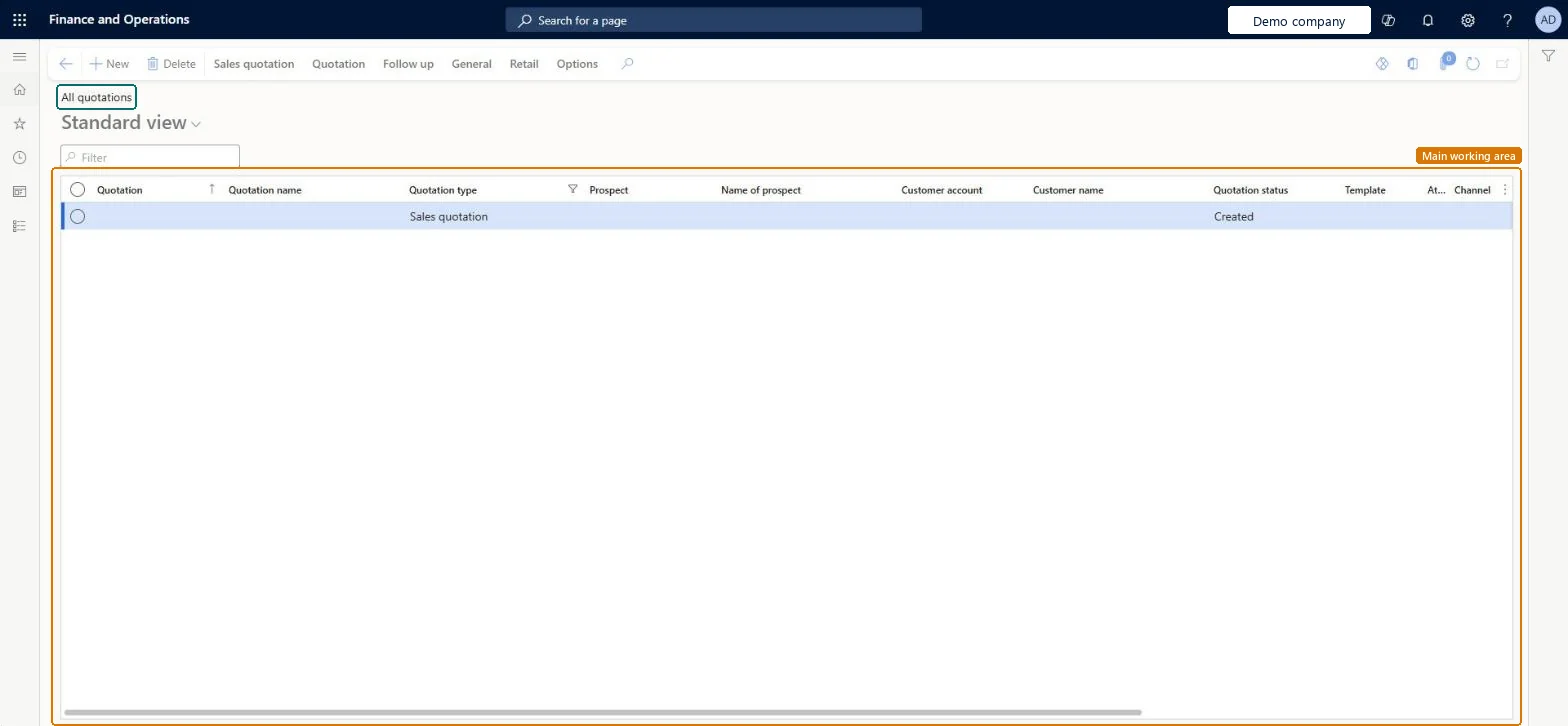
A list page of sales quotations to customers and prospects.
What you do here
Use this page to create and update quotations, send them, and follow them up by confirming them as sales orders or recording them as lost or canceled.
Example
For example, BEAT quotes prospect BEAT-P-000318 for 40 units of PUMP-200 at 312.00 USD, total 12,480.00 USD, sends quotation QT-000901, converts the prospect when it accepts and confirms the quotation into sales order SO-001234.
The page in Dynamics 365. page title tab to open what to set or check
About the examples: Examples and screenshots in this guide use BEAT, a demo company in a Dynamics 365 test environment. Use your own company's codes and values instead of copying them.
Setup steps on this page
Agree who owns quotations and how they reach planning
Use this page to create, send and follow up sales quotations.
Steps from Microsoft
Go to Sales and marketing > Sales quotations > All quotations.
Select New.
In the Account type field, select Customer or Prospect, and then select the account.
Select OK.
On the line, select the Item, Site and Quantity; prices and discounts come from valid trade agreements.
Select Save.
To check the amounts, select Sales quotation > Totals.
To send it, select Quotation > Send quotation, set Print quotation to Yes, and select OK.
The quotation template group, the main category of a quotation template.Microsoft Learn
Template name
The name of the quotation template, used to pick it when creating new quotations.Microsoft Learn
TemplateName
Sales taker
The sales representative who receives the sales order when the quotation is confirmed.Microsoft Learn
Common errors and fixes
Message
What to do
Confirming a quotation for a prospect doesn't give a sales order for a customer.
On the Follow up tab, select Convert to customer first, then Confirm. Microsoft Learn
A quotation can't be sent, lost, canceled, confirmed or deleted in Supply Chain Management.
The quotation is owned by Dynamics 365 Sales (Integrate Sales Quotation lifecycle with Dynamics 365 Sales). Process it in Sales; you can still edit it here while it is Created. Microsoft Learn
Test checklist
Create a quotation for a prospect with one line.
Send quotation with Print quotation = Yes.
Convert to customer, then Confirm with a reason.
On the General tab, open Sales orders and check one order exists with the quotation's lines.
Agree whether quotations are owned in Supply Chain Management or in Dynamics 365 Sales, and create quotations from an opportunity when master planning should include them.A quotation owned by Sales can't be sent, lost, canceled, confirmed or deleted here; and a quotation created directly on this page has no probability, so master planning skips it unless Probability % is 0.
Integrate Sales Quotation lifecycle with Dynamics 365 Sales
Licence or add-in
On the live system, the roles that use this page include Sales manager, Sales representative, Sales clerk, Project manager, Retail store manager and Rental manager. From version 10.0.41 the feature Integrate Sales Quotation lifecycle with Dynamics 365 Sales is on by default; it changes how quotations are integrated with Dynamics 365 Sales through dual-write.
Per company: each legal entity has its own sales quotations, quotation numbers and templates. Microsoft data model
Can it be undone
Reversible with effort: A Created quotation can be edited freely; after Send and Confirm the journals and the sales order remain. Microsoft Learn
If you change it later
Send quotation creates the sales quotation journal and sets the status to Sent; Confirm sets the status to Confirmed, creates the quotation confirmation journal and a linked sales order. Microsoft Learn
Technical architect
6Technical
Menu item
SalesQuotationListPageChecked in Dynamics 365
Form
SalesQuotationListPageChecked in Dynamics 365
Table
SalesQuotationTableShown as “Sales quotation” in Record infoKey field: QuotationIdChecked in Dynamics 365
Data entities
SalesQuotationHeaderV2EntitySales quotation headers V2 Microsoft data model ProjQuotationHeaderEntityProject quotation headers
To set it up or change itRental manager RentalManagerRental coordinator agent RentalCoordinatorAgentRental sales manager RentalSalesManagerSales representative TradeSalesRepresentativeSales clerk TradeSalesClerkTo use itSales manager TradeSalesManagerRetail service RetailServiceRental purchasing manager RentalPurchasingManagerRetail store manager RetailStoreManagerGive people one of these roles. On this system, 11 roles can open this page.Checked in Dynamics 365
Actions on the page
Sales quotation: Maintain, Copy, ViewQuotation: Tax, Calculate, Generate, Accounts, JournalsFollow up: Generate, ModifyGeneral: Trade agreement, Manage, Related information, Set upRetail: AffiliationsOptions: Personalize, Page options, ShareChecked in Dynamics 365