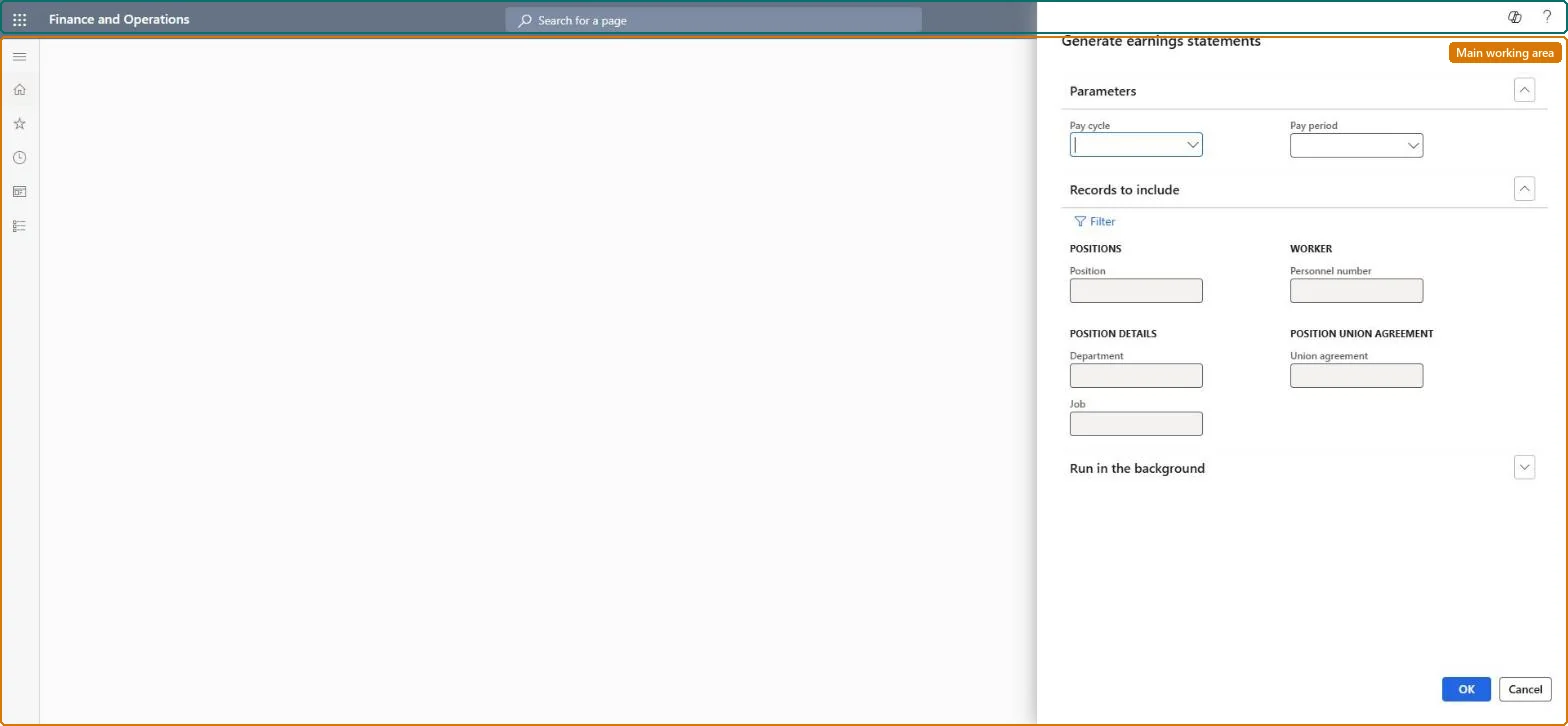
About the examples: Examples and screenshots in this guide use BEAT, a demo company in a Dynamics 365 test environment. Use your own company's codes and values instead of copying them.
When to run it
When to run it
At the start of each pay run, once the pay period is open and worker positions, schedules and recurring earnings for the period are up to date.
How often
Once per pay period for each pay cycle, plus again whenever position or schedule data changes before the earnings are released.
Batch settings
Microsoft recommends batch processing for generating earnings. Run it in the background for each pay cycle so all positions are processed without blocking your session.
What the output shows
Earnings statements with salary, schedule, leave and recurring earning lines for every position in the pay cycle and period. A worker with no statement, or a salary line that looks too high or low, usually points to the position's pay cycle or schedule setup, or to manual lines that were changed by the run.
Go to Payroll > Earnings statement processing > Generate earnings.
In Pay cycle, select the pay cycle of the worker positions that should get earnings. The position settings decide whether each worker gets salary or schedule-based lines.
In Pay period, keep the first open period that is suggested, or pick another open period of that cycle. You don't choose an earning type: recurring, salary, leave and schedule-based earnings are all created in this one run.
Select OK. Recurring and schedule earnings are created first, because they can change the salary amount.
Open All earnings statements to review the statements that were created or updated, and look at the batch job log under Common > Inquiries > Batch jobs > My batch jobs for errors.
Yes, before release: You can change or delete lines that are not released yet. Released lines can still be deleted, but lines already processed on a pay statement can't be. Running the job again also changes lines you entered by hand. Microsoft Learn
If you change it later
Creates or updates earnings statements and lines for the pay cycle and period; a rerun also affects lines that were entered manually on those statements. Microsoft Learn
Technical architect
5Technical
Menu item
PayrollEarningGenerationChecked in Dynamics 365
Form
DialogChecked in Dynamics 365
Roles to set it up and use it
To use itPayroll administrator HcmPayrollAdministratorGive people one of these roles. On this system, 1 role can run this page.Checked in Dynamics 365