About the examples: Examples and screenshots in this guide use BEAT, a demo company in a Dynamics 365 test environment. Use your own company's codes and values instead of copying them.
When to run it
When to run it
After a rate of pay change is entered with an effective date in the past, so workers get the difference for earnings already processed at the old rate.
How often
On demand, after each back-dated rate change.
Batch settings
Run it in the background for the pay cycle when the date range covers several pay periods.
What the output shows
For hourly and piece workers, a separate retroactive line with the retroactive earning code, showing the original rate as the source; for salaried workers, the salary lines are adjusted without a separate line. A message gives the number of statements updated. Odd salary amounts usually mean the date range covered only part of a pay period.
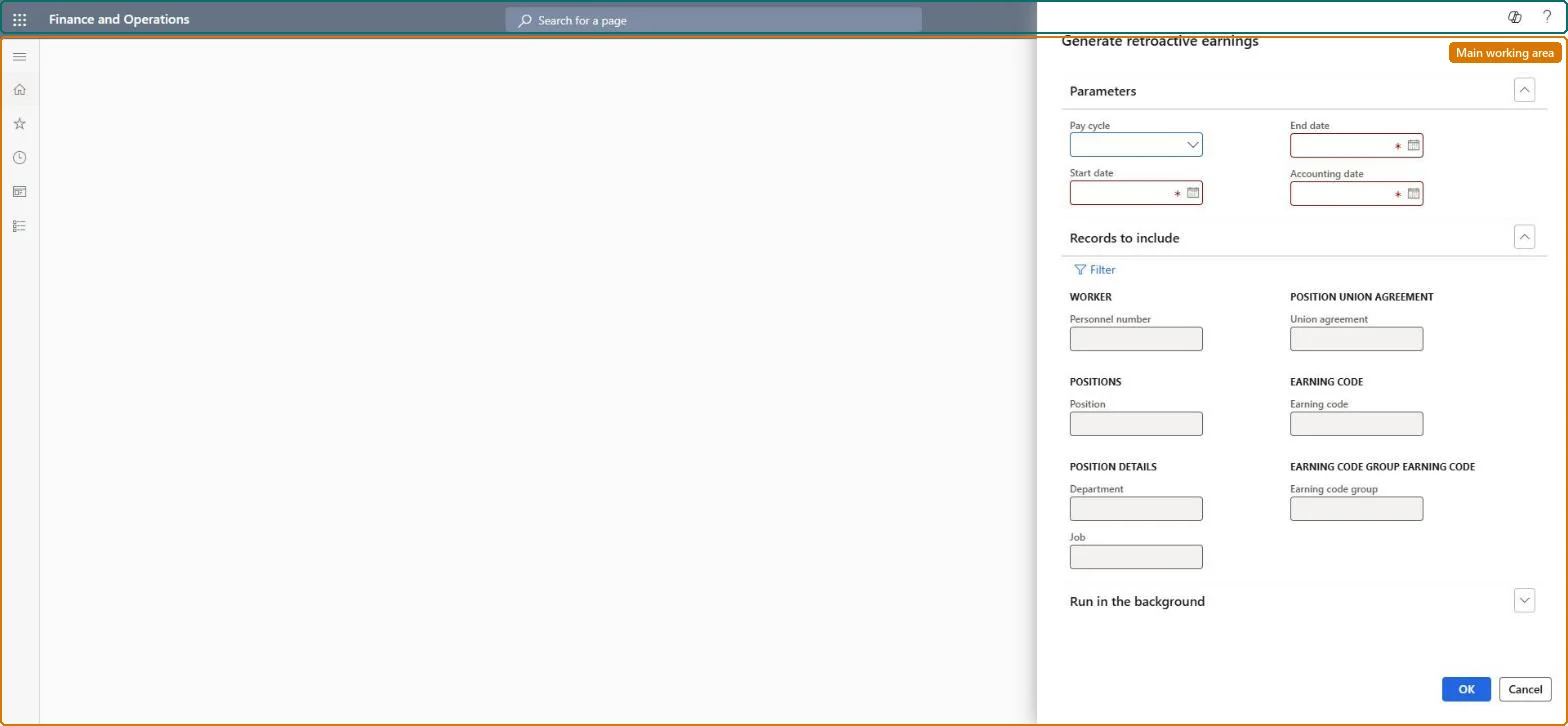
Go to Payroll > Earnings statement processing > Retroactive earnings > Generate retroactive earnings.
In Pay cycle, select the cycle to evaluate. Only earnings processed in pay periods of that cycle are compared with the new rate.
Enter the Start date and End date of the back-pay range. Hourly and piece earnings in the range are evaluated whatever the pay period dates; for salary, start on the first day and end on the last day of a pay period.
In Accounting date, enter the date the retroactive lines should carry.
Select OK, then open Review retroactive earning lines under Retroactive earnings to see all lines that were created, and read the batch job log for errors.
Yes, before release: Retroactive lines can be changed or deleted on the earnings statement until they are processed, but the original retroactive rate they came from can't be changed. Microsoft Learn
If you change it later
For salary, existing lines are adjusted rather than added, and ranges that cover part of a pay period might not calculate correctly. Microsoft Learn
Technical architect
5Technical
Menu item
PayrollRetroactiveEarningGenerationChecked in Dynamics 365
Form
DialogChecked in Dynamics 365
Roles to set it up and use it
To use itPayroll administrator HcmPayrollAdministratorGive people one of these roles. On this system, 1 role can run this page.Checked in Dynamics 365