About the examples: Examples and screenshots in this guide use BEAT, a demo company in a Dynamics 365 test environment. Use your own company's codes and values instead of copying them.
Steps from Microsoft
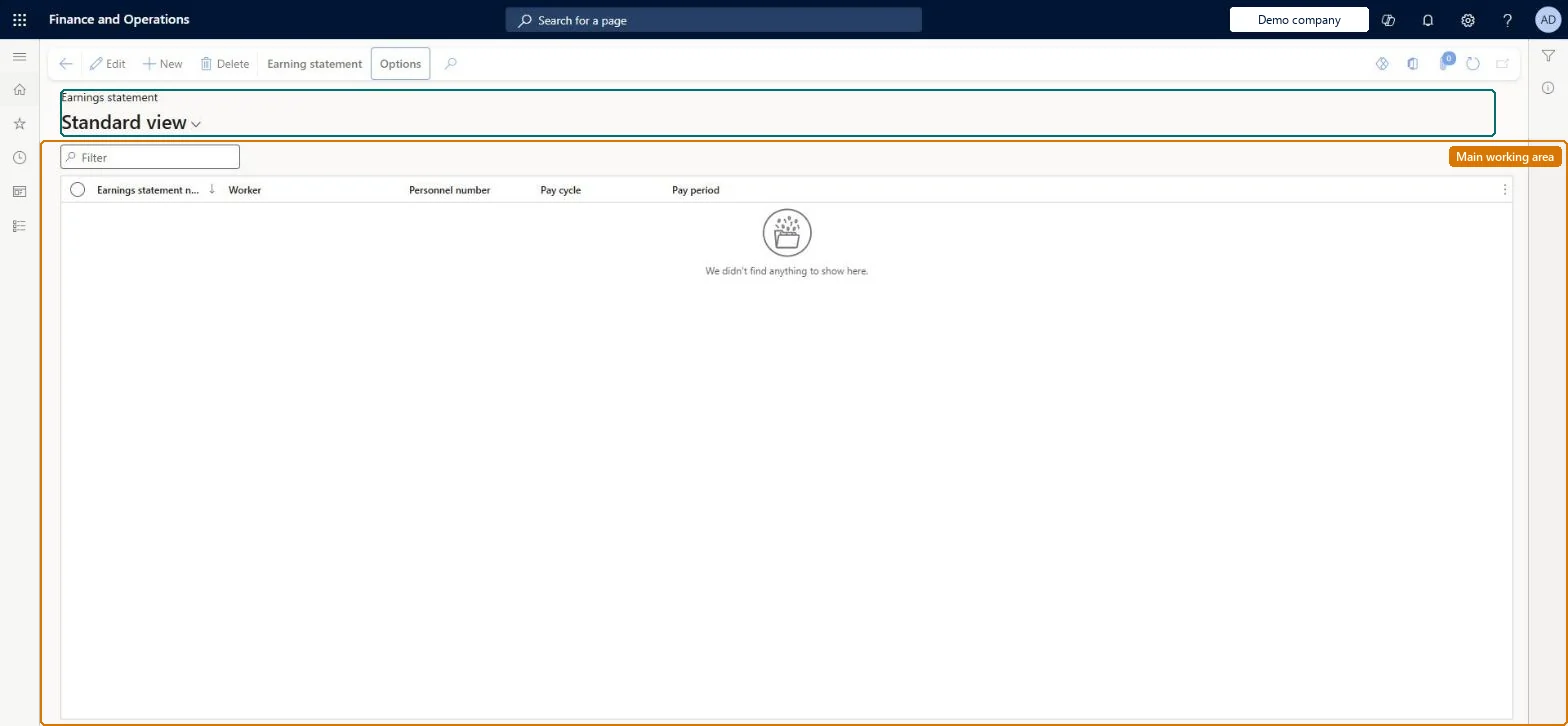
Go to Payroll > Earnings statements > All earnings statements.
Open an earnings statement, and then select Edit.
Select Add line.
Enter the earnings date, position, tax region and earning code, and adjust the quantity.
The date the earning was earned; it must fall in the statement's pay period.Microsoft Learn
Earning code
The earning code that identifies the type of earning on the line.Microsoft Learn
Tax region
The tax region used for tax calculation when pay statements are created.Microsoft Learn
Payment status
Shows whether a line is None, Released, Processed or On hold.Microsoft Learn
Common errors and fixes
Message
What to do
The selection criteria didn't return any results.
Check that earnings were not already generated, the pay cycle matches the Payroll FastTab of the position, the worker held the position in the pay period, you are signed in to the Paid by legal entity, Generate salary or Generate earnings from schedule is set (or recurring codes exist), and the pay period year is right. Microsoft Learn
Test checklist
Run Generate earnings for one pay cycle and pay period in batch and check the batch log has no errors.
Open All earnings statements and check each salaried worker has Salary lines and recurring lines with source Recurring.
Add 8 hours of sick time to a salaried worker and check the Salary lines are recalculated so the total pay is unchanged.
Release the earnings statement and check the line Payment status changes from None to Released.
New records on this page take their Earnings statement number from the PayrollEarningStatementId reference; BEAT uses number sequence Payr_3. Checked in Dynamics 365
Hard to reverse: You can add lines, and change lines that are not released or processed. Released lines can be deleted but processed lines cannot. If you change any line, delete and re-add all Regular rate of pay overtime lines, or the overtime premium will be wrong. Microsoft Learn
If you change it later
You can add and change lines only while they are not released or processed; released lines can be deleted but processed lines cannot. Microsoft Learn
Technical architect
6Technical
Menu item
PayrollEarningsStatementListPageChecked in Dynamics 365
Form
PayrollEarningStatementChecked in Dynamics 365
Table
PayrollEarningStatementShown as “EARNINGS STATEMENTS” in Record infoKey field: DocumentNumberChecked in Dynamics 365
PrivilegesMaintain payroll earnings PayrollEarningsMaintainView payroll earnings PayrollEarningsViewDutiesInquire into earning entry PayrollEarningStatementGenerationInquireMaintain earning entry PayrollEarningStatementGenerationMaintInquire into payroll payments PayrollPayStatementGenerationInquire2 security rolesPayroll administrator HcmPayrollAdministratorPayroll manager HcmPayrollManagerChecked in Dynamics 365
Roles to set it up and use it
To set it up or change itPayroll administrator HcmPayrollAdministratorTo use itPayroll manager HcmPayrollManagerGive people one of these roles. On this system, 2 roles can open this page.Checked in Dynamics 365
Actions on the page
Earning statement(Action Pane without tabs): DeleteChecked in Dynamics 365