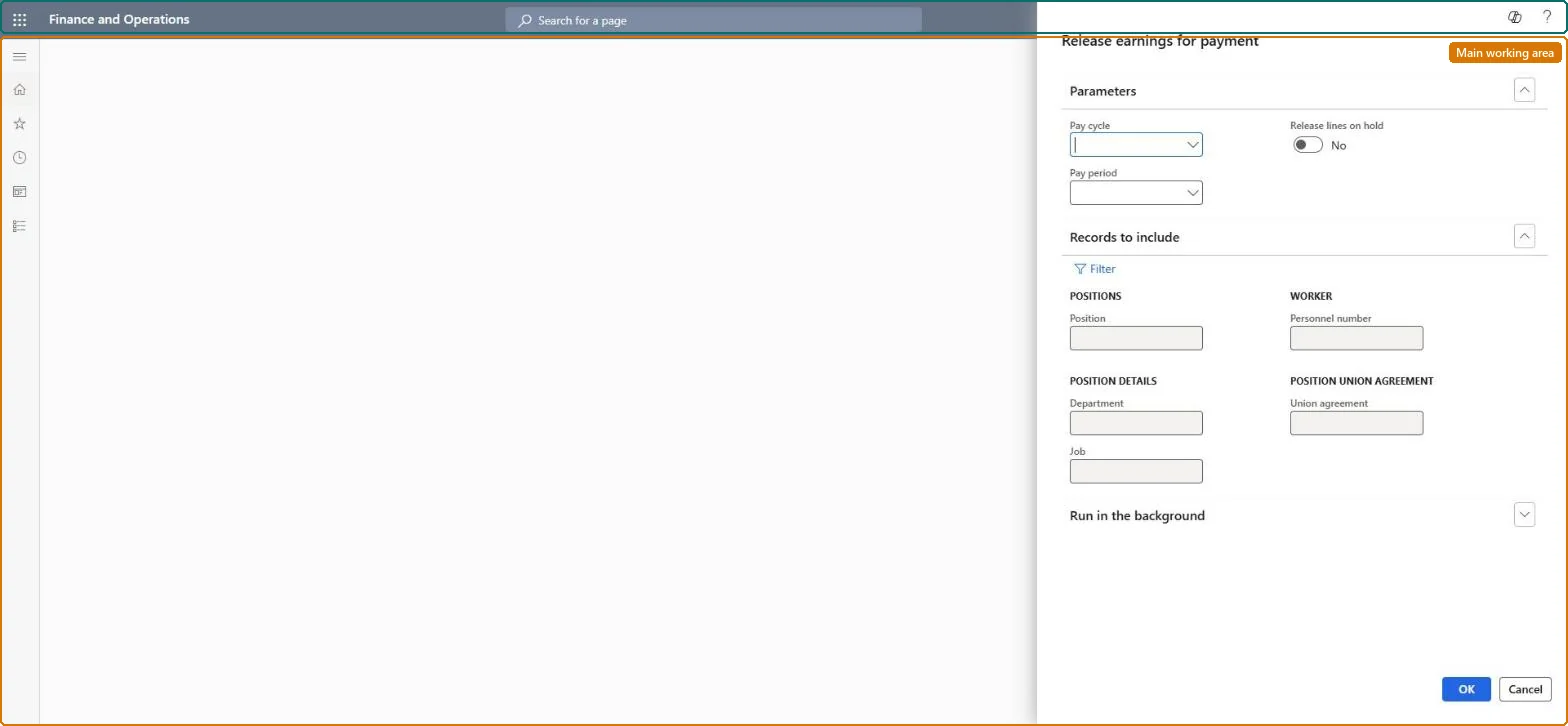
A process that changes earnings statement lines for a pay cycle and pay period from status None to Released so that they can be included on pay statements.
PAGE GUIDEWhat the page does and how to use it7 sections. Choose a role to highlight what matters to you.
Everyone
1What it is and why
What it is
A process that changes earnings statement lines for a pay cycle and pay period from status None to Released so that they can be included on pay statements.
What you do here
Use this page to release reviewed earnings for payment processing, optionally including lines that are on hold.
Example
For example, after reviewing all earnings for the period, you release them, selecting Release lines on hold after fixing a held line.
The page in Dynamics 365. page title tab to open what to set or check
About the examples: Examples and screenshots in this guide use BEAT, a demo company in a Dynamics 365 test environment. Use your own company's codes and values instead of copying them.
When to run it
When to run it
After all earnings for the pay period are generated, entered and reviewed, and before you generate pay statements.
How often
Once per pay period for each pay cycle, and again for lines you correct and release later.
Batch settings
Usually run interactively right before Generate pay statements; use the background only for very large pay cycles.
What the output shows
Earnings statement lines change from payment status None to Released, ready for pay statement generation. A line left at None or On hold, or a leave line that wasn't released, usually means a hold that wasn't included or an accrual balance below the required minimum.
Go to Payroll > Earnings statement processing > Release earnings statement.
In Pay cycle, select the pay cycle of the worker positions to process.
In Pay period, select the period whose earnings you reviewed. Only open periods of that cycle are listed, and the first open period is the default.
Select Release lines on hold only if lines you put on hold earlier are now correct and should be paid in this run.
Select OK, then open All earnings statements and look for lines that still show a payment status of None. Leave lines for sick or vacation time stay unreleased when the accrual balance is below the hours on the line.
Partly: Until a line is included on a pay statement, you can put it back on hold with Hold earnings statement. Once it is on a pay statement, delete or reverse the pay statement first. Microsoft Learn
If you change it later
Released lines are picked up by pay statement generation and can no longer be changed; leave-related lines are not released if the accrual balance is too low. Microsoft Learn
Technical architect
5Technical
Menu item
PayrollEarningsStatementsReleasedChecked in Dynamics 365
Form
DialogChecked in Dynamics 365
Roles to set it up and use it
To use itPayroll administrator HcmPayrollAdministratorGive people one of these roles. On this system, 1 role can run this page.Checked in Dynamics 365