Plan inbound transportation loads in Dynamics 365 Supply Chain Management
Menu item
ITMItemTracking
Main table
ITMTmpItemTracking
Show what matters for
PAGE GUIDEWhat the page does and how to use it6 sections. Choose a role to highlight what matters to you.
Everyone
1What it is and why
What it is
An inquiry page that lists open purchase order lines with their current tracking status, whether or not the line is on a voyage.
What you do here
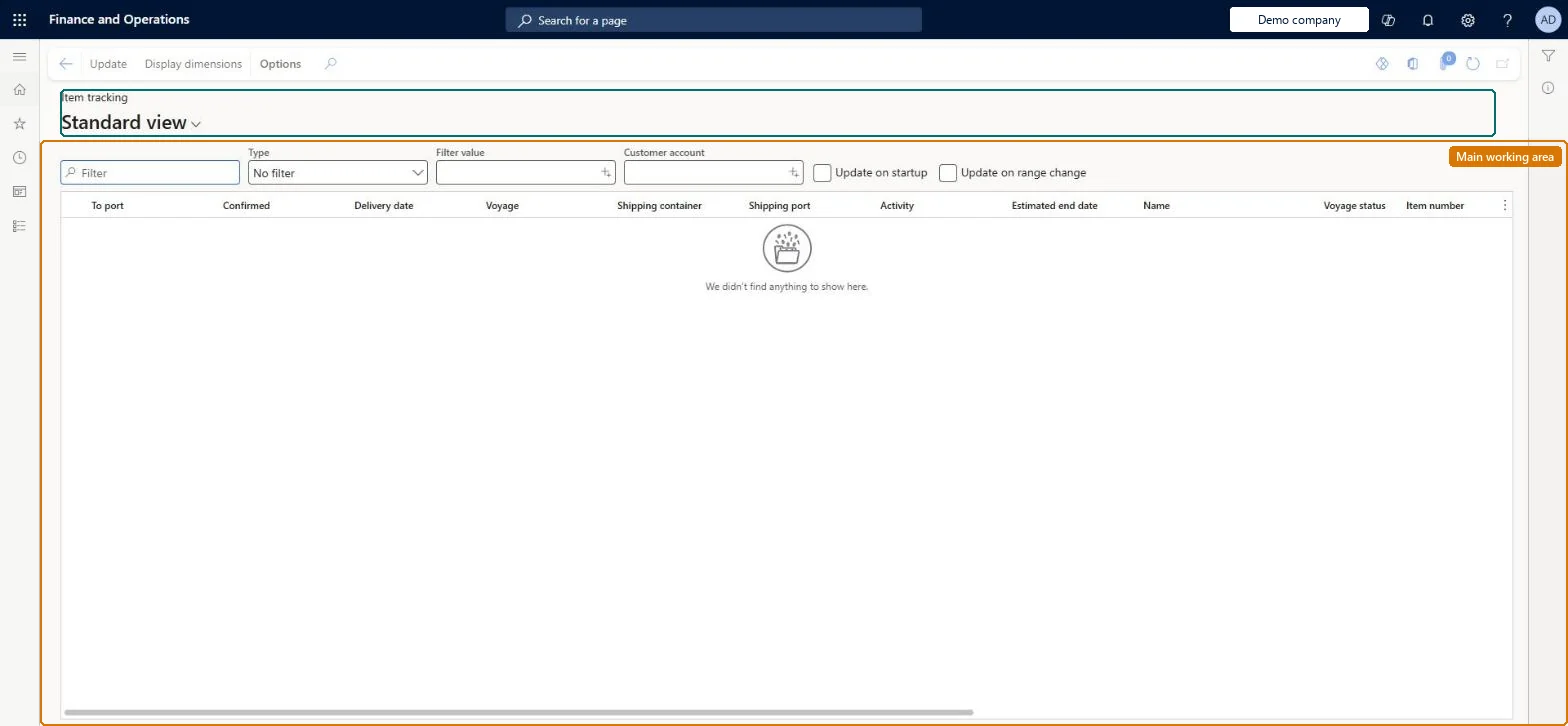
Use this page to filter for a set of purchase order lines and see where each one is in its journey, its expected arrival date, its voyage and container, and whether sales backorders are waiting for the item.
Example
For example, to find every open line for items with DVD in the product name, set Type to Product name, enter *DVD* as the field value, and select Update.
The page in Dynamics 365. page title tab to open what to set or check
About the examples: Examples and screenshots in this guide use BEAT, a demo company in a Dynamics 365 test environment. Use your own company's codes and values instead of copying them.
Steps from Microsoft
Go to Landed cost > Inquiries > Tracking > Item tracking.
Use the filter fields at the top of the page to define the purchase order lines you want (an asterisk works as a wildcard).
Select Update on the Action Pane to generate the list.
Select Display dimensions on the Action Pane to add columns such as batch number, inventory status, or warehouse.
To see backorders for a line, open the Related information tab and select Backorders.