PAGE GUIDEWhat the page does and how to use it8 sections. Choose a role to highlight what matters to you.
Everyone
1What it is and why
What it is
A setup page where you define the types of charges that can be added to operations for a nonconformance.
What you do here
Use this page to track fees owed to customers or by vendors for nonconforming products, or the cost of outside vendors and services.
Example
For example, a manufacturer whose contracts set fees for damages, late shipments and quality can create charges such as Damages, Late shipment and Quality.
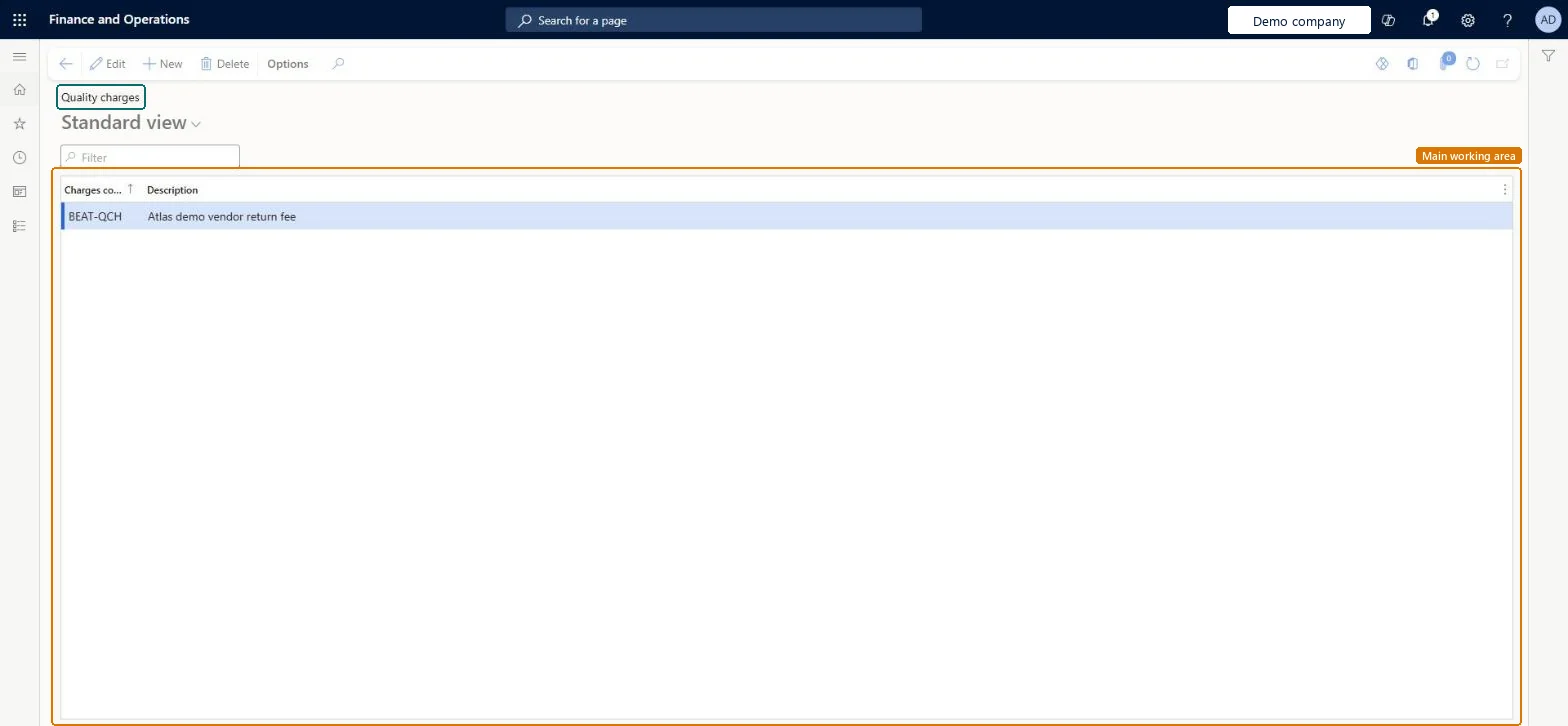
The page in Dynamics 365. page title tab to open what to set or check
About the examples: Examples and screenshots in this guide use BEAT, a demo company in a Dynamics 365 test environment. Use your own company's codes and values instead of copying them.
Step by step, with screenshots
Set up Quality charges1 screen
Use this page to track fees owed to customers or by vendors for nonconforming products, or the cost of outside vendors and services.
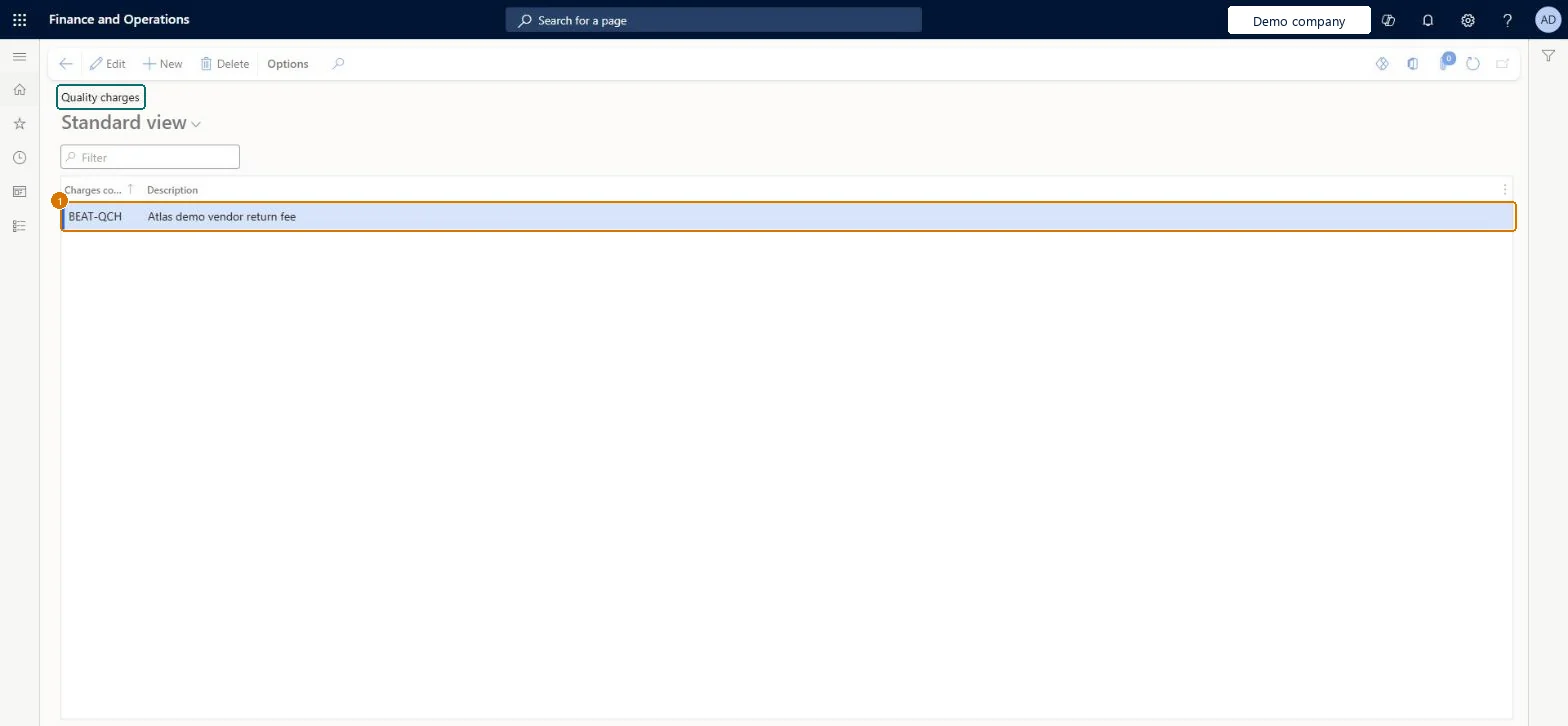
Screen 1
Create a quality charge
Go to Inventory management > Setup > Quality management > Quality charges
Select New
Enter the charges code and a description
Select Save
Add the charge to nonconformances or operations to record fees owed to customers, by vendors, or for outside services
1Charges code
BEAT-QCH
Description
Vendor return fee
Show the full screen page title tab to open what to set or check
Steps from Microsoft
Go to Inventory management > Setup > Quality management > Quality charges.
Select New to add a row.
In the Charges code field, enter a unique ID or name.
In the Description field, enter a detailed description.
One charge code per fee type in your customer and vendor contracts, for example Damages, Late shipment, QualityLearn's example ties quality charge codes to the fee structures in contracts, applied to nonconformance operations.
Expecting these charges to post to the ledger: costs entered on nonconformance operations are informational only.
Reversible: Charge codes can be added, edited or deleted. Charges on nonconformance operations aren't posted to the general ledger. Microsoft Learn
Technical architect
6Technical
Menu item
InventTestMiscChargesChecked in Dynamics 365
Form
InventTestMiscChargesChecked in Dynamics 365
Table
InventTestMiscChargesShown as “Quality charges” in Record infoKey field: MarkupCode, DescriptionChecked in Dynamics 365
Data entities
InventNonConformanceChargeTypeEntityNonconformance charge types Microsoft data model
Who can open it
PrivilegesMaintain quality charges InventTestMiscChargesMaintainView quality charges InventTestMiscChargesViewDutiesEnable quality control process InventQualityControlProcessEnableInquire into quality control reference data InventQualityControlReferenceDataInquir2 security rolesQuality control clerk InventQualityControlClerkQuality control manager InventQualityControlManagerChecked in Dynamics 365
Roles to set it up and use it
To set it up or change itQuality control manager InventQualityControlManagerTo use itQuality control clerk InventQualityControlClerkGive people one of these roles. On this system, 2 roles can open this page.Checked in Dynamics 365
Actions on the page
Options: Personalize, Page options, ShareChecked in Dynamics 365
InventNonConformanceChargeTypeEntity (Nonconformance charge types): loaded for each company, in Microsoft's default template 395 - Quality management.Load order: Microsoft's default template 395 - Quality management loads Nonconformance charge types at execution unit 1, level 30, sequence 10. Lower levels load first, and entities at the same level load in sequence order.Load first: the default templates at lower levels (System setup to General ledger)Microsoft Learn
Checked in a working Dynamics 365 system, version 10.0.49: the menu item, form, table and security, the page, the demo records and the values in the screenshots.