About the examples: Examples and screenshots in this guide use BEAT, a demo company in a Dynamics 365 test environment. Use your own company's codes and values instead of copying them.
Step by step, with screenshots
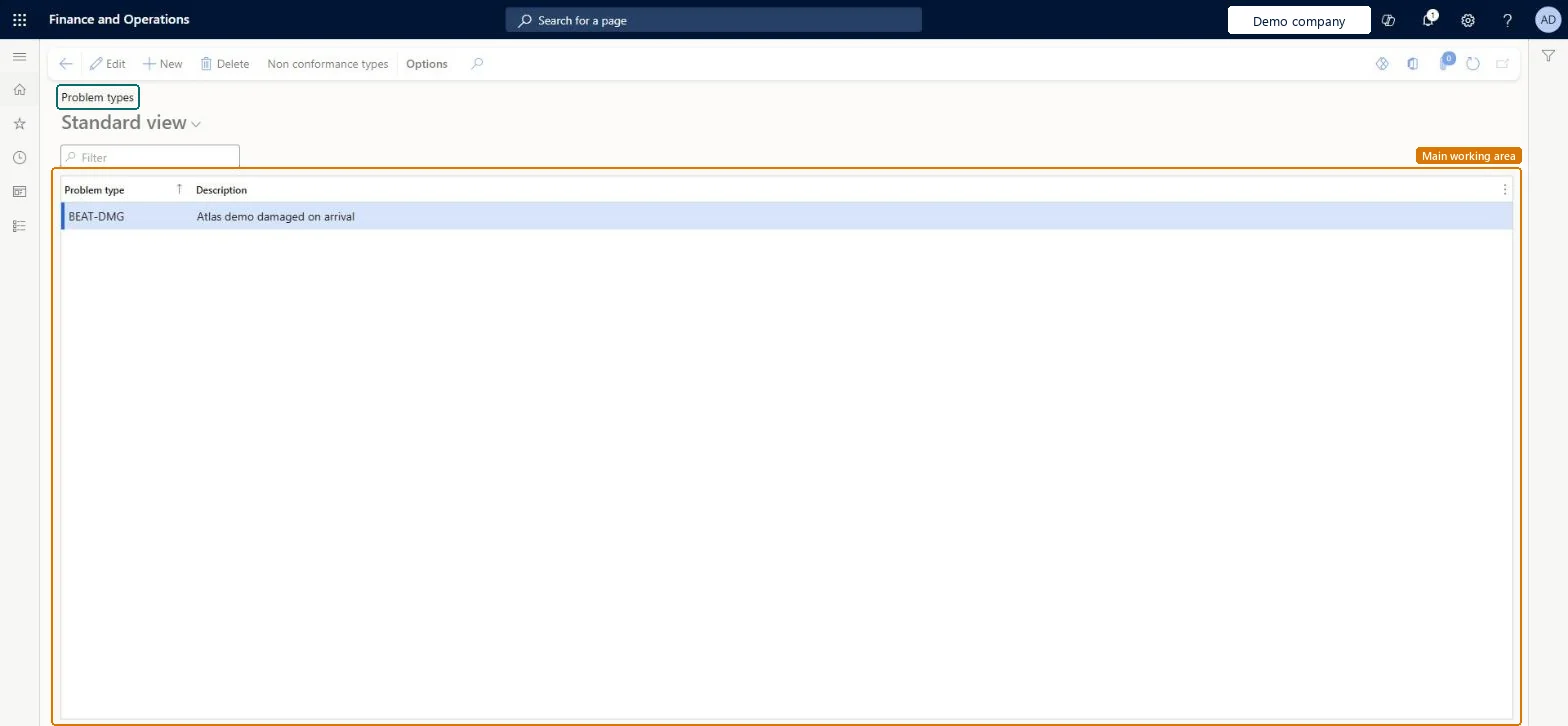
Set up Problem types1 screen
Use this page to set which nonconformance types each problem type can be used with.
Screen 1
Create a problem type
Go to Inventory management > Setup > Quality management > Problem types
Select New
Enter the problem type code and a description
Select Save
Select Non conformance types and choose which nonconformance types (for example Vendor or Internal) the problem type can be used with
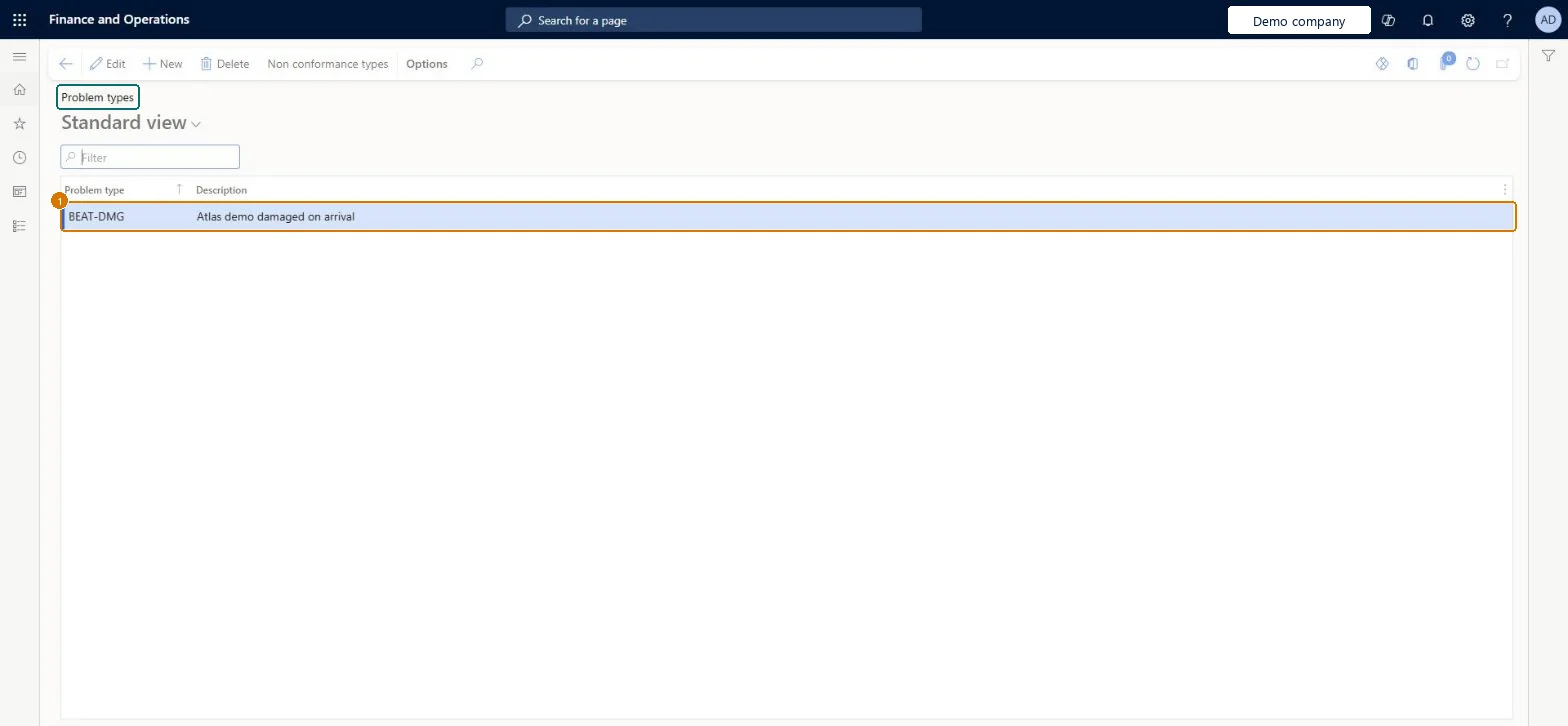
1Problem type
BEAT-DMG
Description
Damaged on arrival
Show the full screen page title tab to open what to set or check
Steps from Microsoft
Go to Inventory management > Setup > Quality management > Problem types.
Select New to add a row.
Enter the Problem type and a Description.
With the row selected, select Non conformance types on the Action Pane.
Select New and choose a Non conformance type to allow for the problem type.
Repeat for each nonconformance type to allow, and then close the pages.
A nonconformance type that the problem type is allowed for, such as Internal, Customer, Vendor, Service request, Production or Co-product production.Microsoft Learn
Test checklist
Create a problem type and allow it for Vendor only.
Create a Vendor nonconformance and check the problem type can be selected.
Create a Customer nonconformance and check it isn't offered.
Each problem type linked to the nonconformance types it really applies to, for example a customer complaint only to Customer and Service requestFor each problem type you must specify the nonconformance types it can be used with.
Creating the problem type without adding rows under Non conformance types, so it can't be used on nonconformances.
PrivilegesMaintain problem types InventProblemTypeMaintainView problem types InventProblemTypeViewDutiesEnable quality control process InventQualityControlProcessEnableInquire into quality control reference data InventQualityControlReferenceDataInquir2 security rolesQuality control clerk InventQualityControlClerkQuality control manager InventQualityControlManagerChecked in Dynamics 365
Roles to set it up and use it
To set it up or change itQuality control manager InventQualityControlManagerTo use itQuality control clerk InventQualityControlClerkGive people one of these roles. On this system, 2 roles can open this page.Checked in Dynamics 365
Actions on the page
Options: Personalize, Page options, ShareChecked in Dynamics 365
InventQualityProblemTypeEntity (Quality problem types): loaded for each company, in Microsoft's default template 395 - Quality management.Load order: Microsoft's default template 395 - Quality management loads Quality problem types at execution unit 1, level 30, sequence 10. Lower levels load first, and entities at the same level load in sequence order.Load first: the default templates at lower levels (System setup to General ledger)Microsoft Learn
Checked in a working Dynamics 365 system, version 10.0.49: the menu item, form, table and security, the page, the demo records and the values in the screenshots.