Create quality associations in Dynamics 365 Supply Chain Management
Menu item
InventTestAssociationTable
Setup steps
1 on this page
Show what matters for
PAGE GUIDEWhat the page does and how to use it8 sections. Choose a role to highlight what matters to you.
Everyone
1What it is and why
What it is
A setup page where you define the rules that automatically create quality orders in sales, purchase, inbound shipment and production processes.
What you do here
Use this page to set, for each business process, the event that creates a quality order and the tests, acceptable quality level and sampling plan it uses.
Example
For example, a quality association can create a quality order whenever a purchase order product receipt is updated.
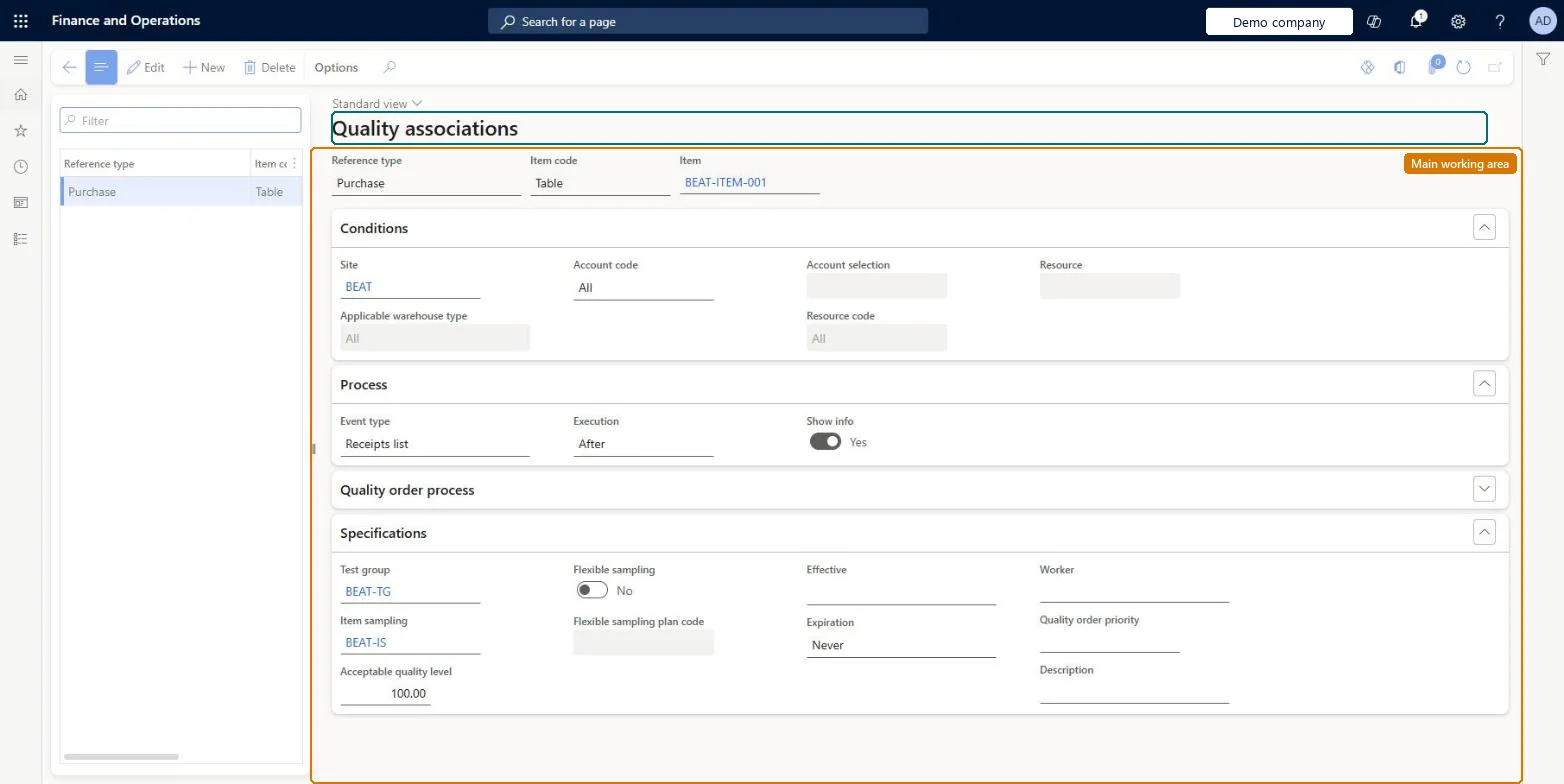
The page in Dynamics 365. page title tab to open what to set or check
About the examples: Examples and screenshots in this guide use BEAT, a demo company in a Dynamics 365 test environment. Use your own company's codes and values instead of copying them.
Step by step, with screenshots
Set up Quality associations1 screen
Use this page to set, for each business process, the event that creates a quality order and the tests, acceptable quality level and sampling plan it uses.
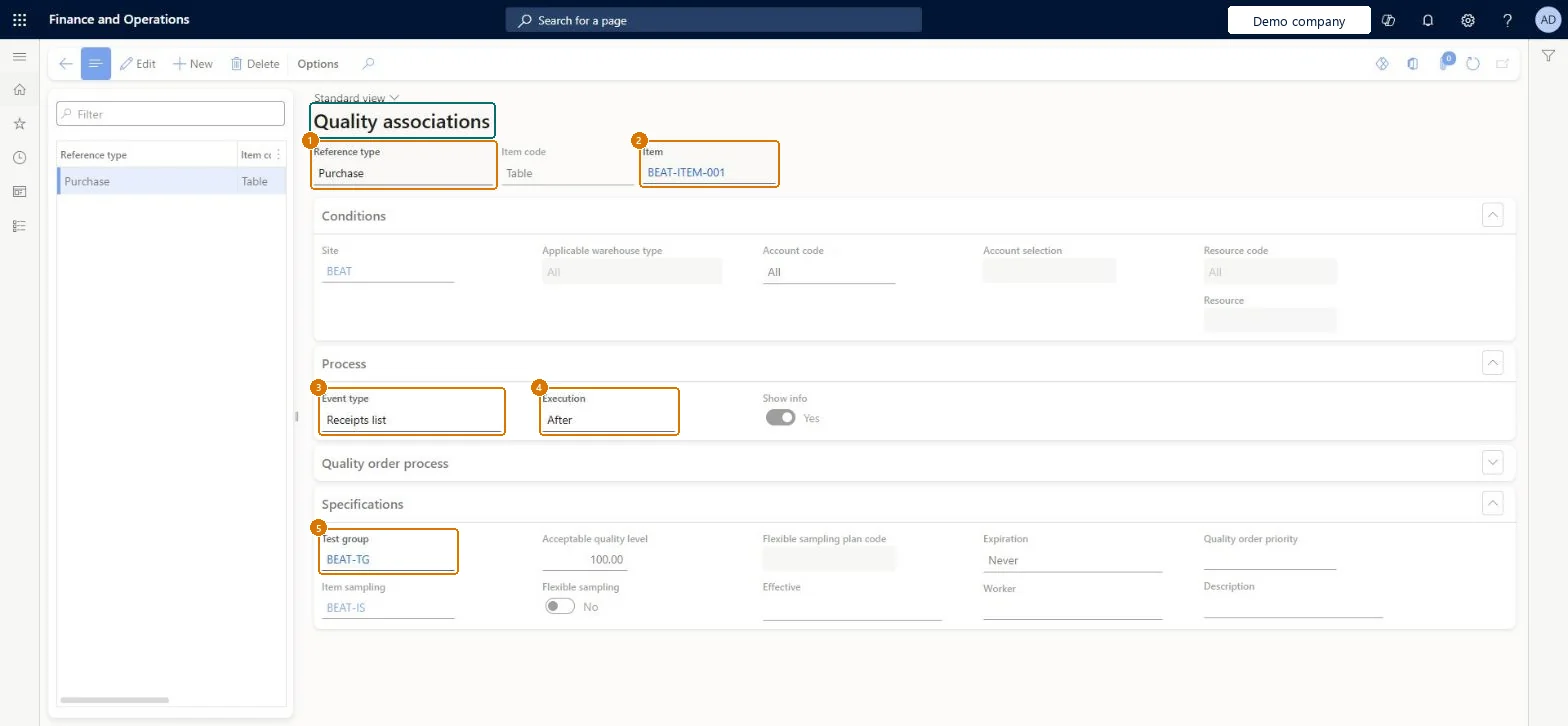
Screen 1
Create a quality association
Go to Inventory management > Setup > Quality control > Quality associations
Make sure the test group and item sampling exist (here demo test group BEAT-TG, created on Test groups, and item sampling BEAT-IS)
Select New
Choose the reference type, for example Purchase, then the item code and item
Under Conditions, select the site and, if needed, the vendor or warehouse
Under Process, choose the event type and whether the quality order is created before or after it
Under Specifications, select the test group; the item sampling and acceptable quality level are filled in from it
Select Save
1Reference type
Purchase
2Item
BEAT-ITEM-001
3Event type
Receipts list
4Execution
After
5Test group
BEAT-TG
Item code
Table
Site
BEAT
Item sampling
BEAT-IS
Show the full screen page title tab to open what to set or check
Steps from Microsoft
Go to Inventory management > Setup > Quality control > Quality associations.
On the Action Pane, select New.
In the header, select the Reference type, the Item code and the Item.
On the Conditions FastTab, select the Site, Account code and any resource conditions.
On the Process FastTab, select the Event type and whether the quality order is created Before or After the event.
On the Quality order process FastTab, set Event blocking and Quarantine upon validation failure.
On the Specifications FastTab, select the Test group, Item sampling and Acceptable quality level.
One association per business-process variation (reference type, event, execution), scoped by quality group (Item code = Group) rather than per itemLearn requires an association for each process variation that should generate quality orders, and quality groups let you set the rule once for items with the same testing needs.
Reversible: Change or expire the association at any time; it applies to later events. Open quality orders keep blocking inventory from issue until closed. Microsoft Learn
If you change it later
With Event blocking set to End, the source document can't be processed until its quality order is validated and closed. Microsoft Learn
Technical architect
6Technical
Menu item
InventTestAssociationTableChecked in Dynamics 365
Form
InventTestAssociationTableChecked in Dynamics 365
Roles to set it up and use it
To set it up or change itQuality control manager InventQualityControlManagerTo use itProduction supervisor ProdProductionSupervisorProcess engineer RouteProcessEngineerWarehouse planner WHSWarehousePlannerProcess engineering manager RouteProcessEngineeringManagerGive people one of these roles. On this system, 5 roles can open this page.Checked in Dynamics 365
Checked in a working Dynamics 365 system, version 10.0.49: the menu item, form, table and security, the page, the demo records and the values in the screenshots.