Create quality test groups in Dynamics 365 Supply Chain Management
Menu item
InventTestQualityGroup
Main table
InventTestQualityGroup
Data entity
InventQualityGroupEntity
Setup steps
1 on this page
Show what matters for
SETUP GUIDEHow to set it up8 sections. Choose a role to highlight what matters to you.
Everyone
1What it is and why
What it is
A setup page where you create quality groups that collect items with the same testing requirements.
What you do here
Use this page to group items so that the rules for creating quality orders are set once for the group instead of for each item.
Example
For example, a manufacturer puts all raw materials with the same incoming inspection requirements into one quality group and later adds new materials to it.
The page in Dynamics 365. page title tab to open what to set or check
About the examples: Examples and screenshots in this guide use BEAT, a demo company in a Dynamics 365 test environment. Use your own company's codes and values instead of copying them.
Step by step, with screenshots
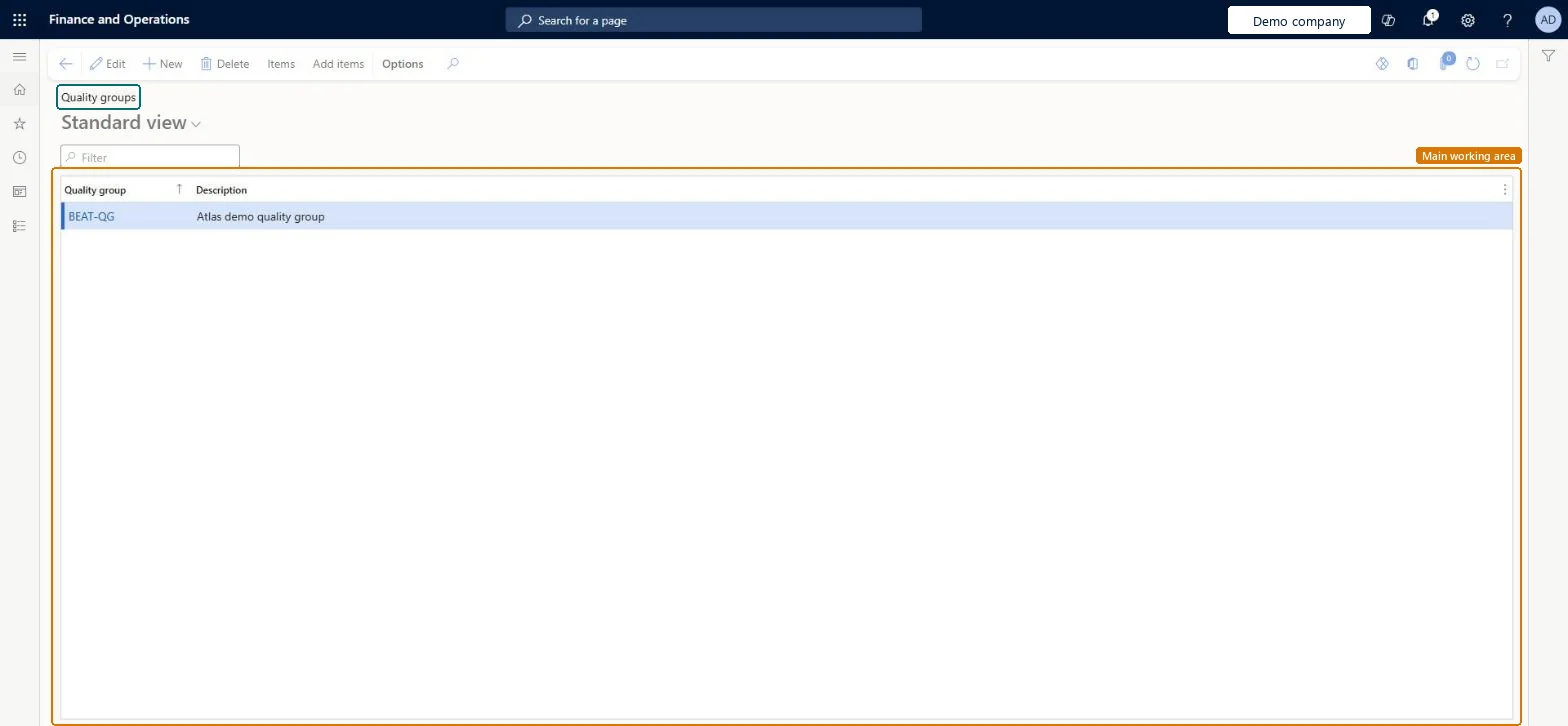
Set up Quality groups1 screen
Use this page to group items so that the rules for creating quality orders are set once for the group instead of for each item.
Screen 1
Create a quality group
Go to Inventory management > Setup > Quality control > Quality groups
Select New
Enter the quality group code and a description
Select Save
Select Add items, or use Item quality groups, to assign items to the group
Use the group as the item code in quality associations so the rules apply to every item in it
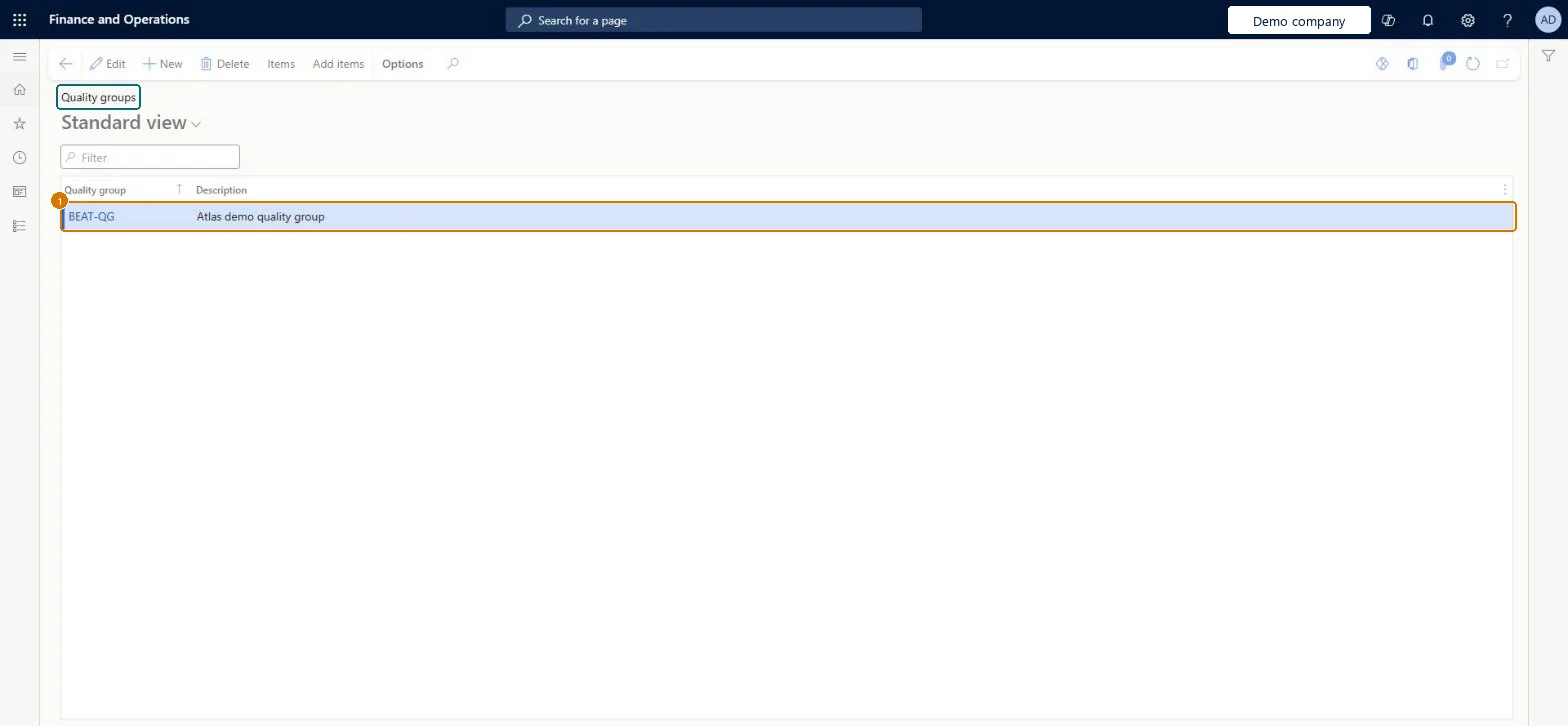
1Quality group
BEAT-QG
Description
Quality group
Show the full screen page title tab to open what to set or check
Steps from Microsoft
Go to Inventory management > Setup > Quality control > Quality groups.
On the Action Pane, select New.
Enter the Quality group ID and a Description.
To add items one at a time, select Items on the Action Pane and add each Item number.
To add many items, select Add items, enter filter criteria in the Inquiry dialog box, and select OK.
One quality group per shared testing requirement (for example incoming raw materials, production testing, pre-shipment testing)Rules are then defined once per group on Quality associations; new items with the same needs are just added to the group.
Creating associations per item instead of per group, which multiplies setup when new items arrive.
PrivilegesMaintain quality groups InventTestQualityGroupMaintainView quality groups InventTestQualityGroupViewDutiesInquire into quality control policies InventQualityControlPoliciesInquireEnable quality control process InventQualityControlProcessEnable2 security rolesQuality control manager InventQualityControlManagerWarehouse planner WHSWarehousePlannerChecked in Dynamics 365
Roles to set it up and use it
To set it up or change itQuality control manager InventQualityControlManagerTo use itWarehouse planner WHSWarehousePlannerGive people one of these roles. On this system, 2 roles can open this page.Checked in Dynamics 365
Actions on the page
Options: Personalize, Page options, ShareChecked in Dynamics 365
InventQualityGroupEntity (Quality groups): loaded for each company, in Microsoft's default template 395 - Quality management.Load order: Microsoft's default template 395 - Quality management loads Quality groups at execution unit 1, level 30, sequence 10. Lower levels load first, and entities at the same level load in sequence order.Load first: the default templates at lower levels (System setup to General ledger)Microsoft Learn
Checked in a working Dynamics 365 system, version 10.0.49: the menu item, form, table and security, the page, the demo records and the values in the screenshots.
To cite this step: IM-QC-060, Set up Quality groups. Beyond ERP Atlas Hub, 2026-11-11. https://www.beyonderp.cloud/atlas/step/IM-QC-060