PAGE GUIDEWhat the page does and how to use it8 sections. Choose a role to highlight what matters to you.
Everyone
1What it is and why
What it is
A setup page where you create the journal names used by the Item arrival and Production input journals.
What you do here
Use this page to provide default values that are copied to new item arrival and production input journals, including how locations are found for received items.
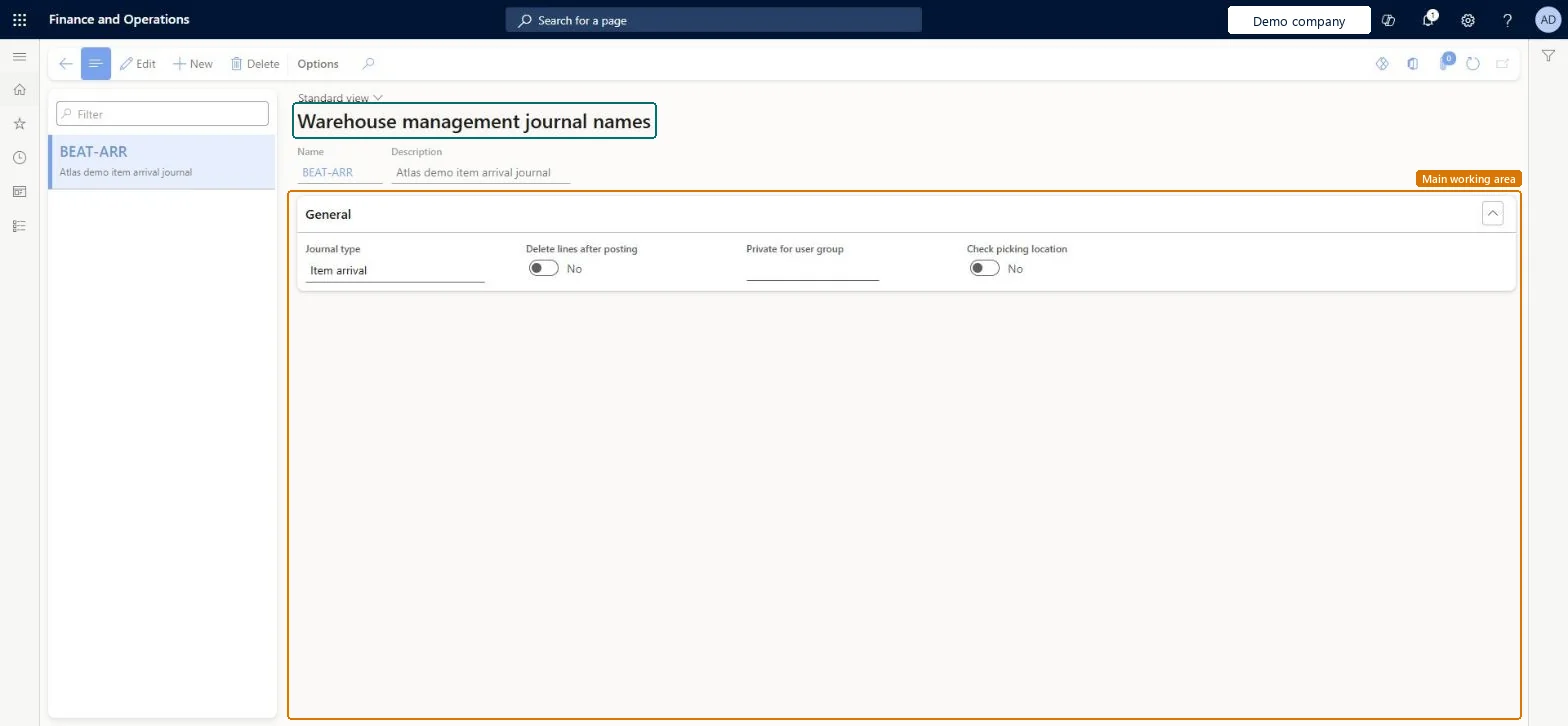
The page in Dynamics 365. page title tab to open what to set or check
About the examples: Examples and screenshots in this guide use BEAT, a demo company in a Dynamics 365 test environment. Use your own company's codes and values instead of copying them.
Step by step, with screenshots
Set up Warehouse management1 screen
Use this page to provide default values that are copied to new item arrival and production input journals, including how locations are found for received items.
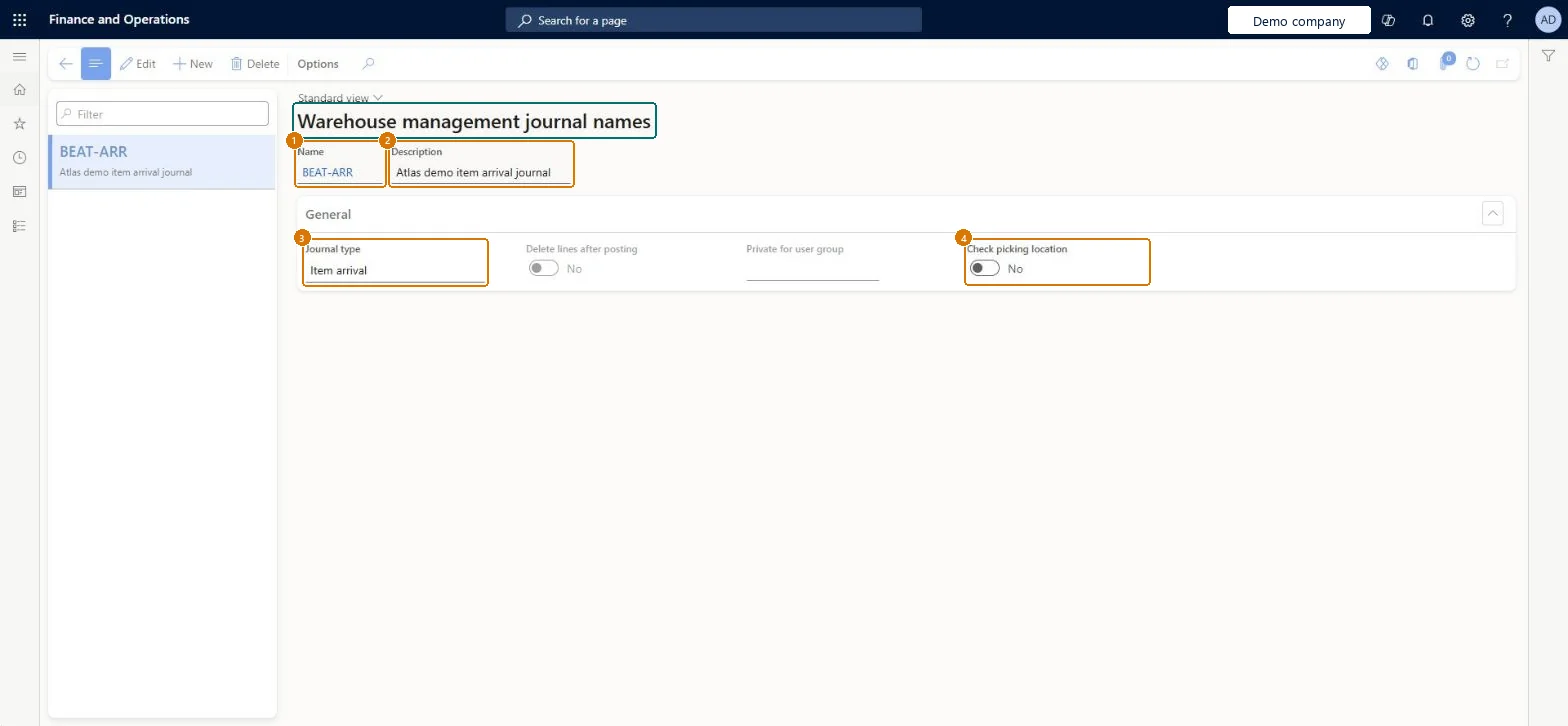
Screen 1
Create a warehouse management journal name
Go to Inventory management > Setup > Journal names > Warehouse management
Select New
Enter the journal name and a description
Select the journal type: Item arrival or Production input
Choose whether lines are deleted after posting and whether the picking location is checked
Select Save
1Name
BEAT-ARR
2Description
Item arrival journal
3Journal type
Item arrival
4Check picking location
No
Show the full screen page title tab to open what to set or check
How to use it
Go to Inventory management > Setup > Journal names > Warehouse management.
Select New to add a journal name.
Enter the Name and the Description.
On the General tab, select the Journal type and a Private for user group if needed.
Set Delete lines after posting and Check picking location to Yes or No.
Select Save.
Source: Checked in Dynamics 365
Fields on the page
Field
What it means
Example
Table column
Check picking location
Makes the system look for a picking location with room for received items and suggest it as the destination.Microsoft Learn
No
checkPickingLocation
Check bulk locations
Makes the system check bulk locations to find a place for received items.Microsoft Learn
Pallet transports
Gives received items the registered status only after the transport job is completed.Microsoft Learn
Name
The name that identifies the warehouse journal.Checked in Dynamics 365
Arrival
journalNameId
Description
A description of the warehouse journal name.Checked in Dynamics 365
Item arrival journal
description
Journal type
Item arrival
journalType
Test checklist
Create an Item arrival journal name with Check picking location = No.
Go to Inventory management > Journal entries > Item arrival > Item arrival and create a journal with the name for a confirmed purchase order.
Add a line, post the journal and check the purchase line's receipt status is Registered.
Separate item arrival names for warehouses using warehouse management processes, with Check picking location = No and Quarantine management = NoLearn's item arrival procedures require a journal name with Check picking location and Quarantine management set to No; when Check picking location is on, the system looks for a picking location and generates location destinations for received items.
Using a name with Check picking location = Yes for receipts that shouldn't be directed to picking locations, so the system proposes destinations you didn't want.
Reversible: Journal name settings can be changed. They are default values for new item arrival and production input journals, so existing journals keep their values. Microsoft Learn
Technical architect
6Technical
Menu item
WMSJournalNameChecked in Dynamics 365
Form
WMSJournalNameChecked in Dynamics 365
Table
WMSJournalNameShown as “Journal names” in Record infoKey field: journalNameId, journalType, descriptionChecked in Dynamics 365
PrivilegesMaintain journal names, warehouse management WMSJournalNameMaintainView journal names, warehouse management WMSJournalNameViewDutiesInquire into receipt policies InventReceivingPoliciesInquireEnable receipt process InventReceivingProcessEnable1 security roleWarehouse manager WMSWarehouseManagerChecked in Dynamics 365
Roles to set it up and use it
To set it up or change itWarehouse manager WMSWarehouseManagerGive people one of these roles. On this system, 1 role can open this page.Checked in Dynamics 365
Actions on the page
Options: Personalize, Page options, ShareChecked in Dynamics 365
WMSItemArrivalJournalNameEntity (Item arrival journal names): loaded for each company, in Microsoft's default template 300 - Inventory.WMSProductionInputJournalNameEntity (Production input journal names): loaded for each company, in Microsoft's default template 300 - Inventory.Load order: Microsoft's default template 300 - Inventory loads Item arrival journal names at execution unit 1, level 40, sequence 10. Lower levels load first, and entities at the same level load in sequence order.Load first: User groups, the default templates at lower levels (System setup to dependency bands 30 to 90)Microsoft Learn
Checked in a working Dynamics 365 system, version 10.0.49: the menu item, form, table and security, the page, the demo records and the values in the screenshots.