BeyondERP.Newsletter
Menu

Setup page · Inventory management

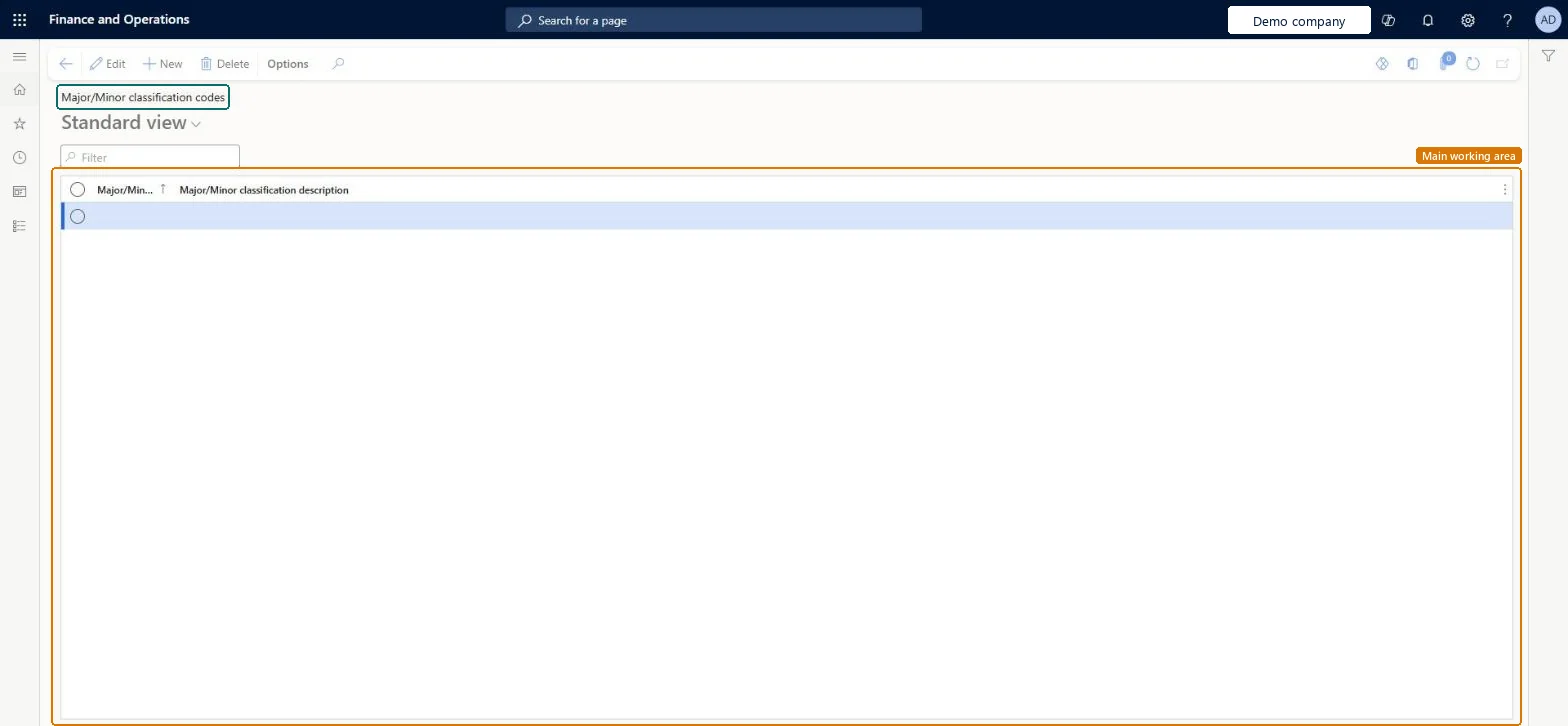
Major/Minor classification codes

A setup page where you define the major/minor classification codes that users can select for each CAPA case.

Used by
CAPA administrator, CAPA updater
Business process
Use corrective and preventative (CAPA) management module to enter and record details about CAPA cases in Dynamics 365 Supply Chain Management
Menu item
QMSCAPAClassificationCode
Main table
QMSCAPAClassificationCode
Data entity
QMSCAPAClassificationEntity
Setup steps
1 on this page
Show what matters for
PAGE GUIDEWhat the page does and how to use it8 sections. Choose a role to highlight what matters to you.
Everyone

1What it is and why

What it isA setup page where you define the major/minor classification codes that users can select for each CAPA case.
What you do hereUse this page to classify each CAPA case with a major or minor classification code.
Major/Minor classification codes page in Dynamics 365
The page in Dynamics 365. page title tab to open what to set or check
Functional consultant · Solution architect

2Where it fits

End user · Functional consultant

3How to do it

About the examples: Examples and screenshots in this guide use BEAT, a demo company in a Dynamics 365 test environment. Use your own company's codes and values instead of copying them.

Step by step, with screenshots

Set up Major/Minor classification codes1 screen

Use this page to classify each CAPA case with a major or minor classification code.

  1. Screen 1

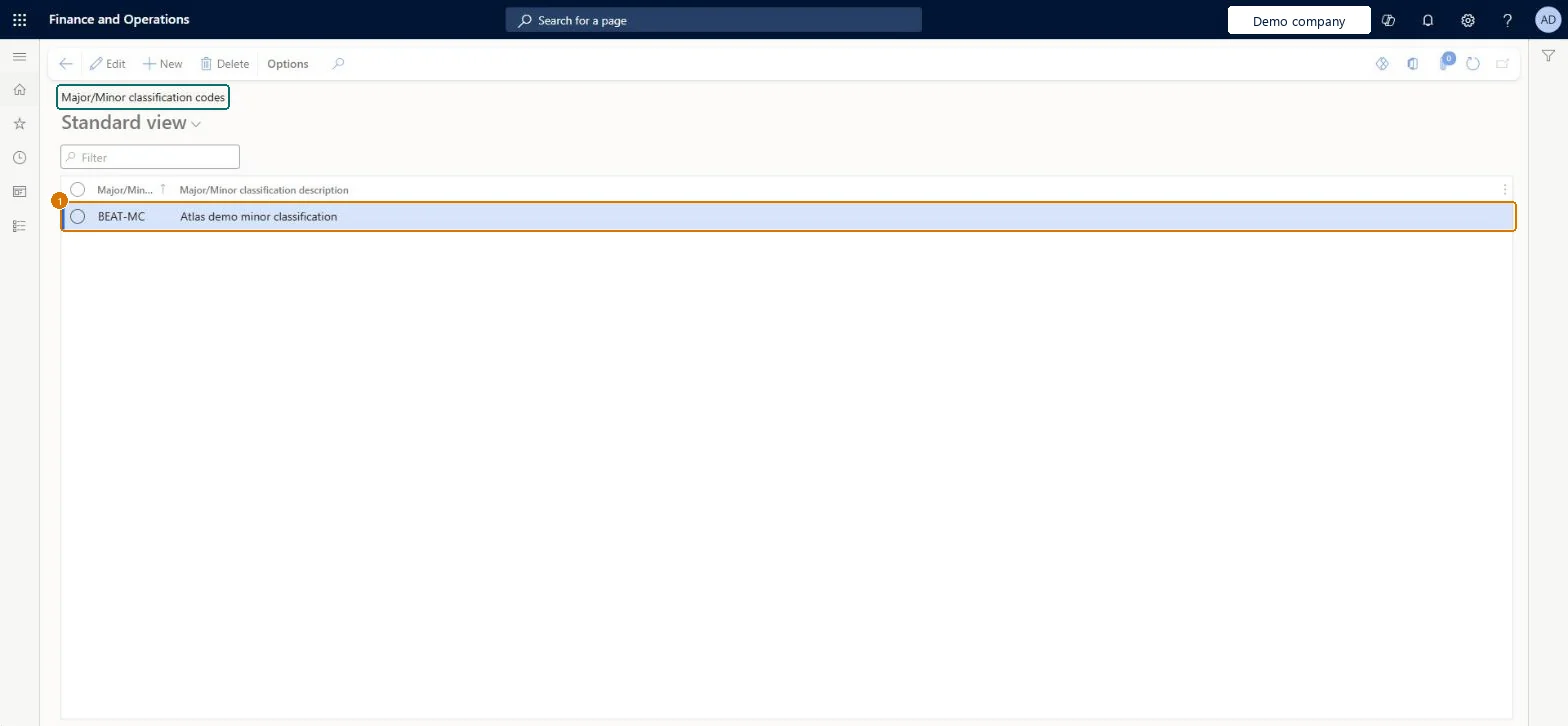
    Create a major or minor classification code

    Go to Inventory management > Setup > CAPA management > Major/Minor classification codes

    1. Select New
    2. Enter the classification code and description
    3. Select Save
    1Major/Minor classification codeBEAT-MC
    Major/Minor classification descriptionMinor classification
    Create a major or minor classification code (zoomed on the outlined fields)
    Show the full screenCreate a major or minor classification code
    page title tab to open what to set or check

Steps from Microsoft

  1. Go to Inventory management > Setup > CAPA management > Major/Minor classification codes.
  2. Select New to add a CAPA classification code.
  3. Enter a name and a description.
  4. Save the record.

Source: Microsoft Learn

Fields on the page

FieldWhat it meansExampleTable column
Major/Minor classification codeThe code that identifies the major or minor classification.Microsoft Learn MAJORClassificationCodeId
Major/Minor classification descriptionMinor classificationClassificationDescription

Test checklist

  1. Create a major and a minor classification code.
  2. Create a CAPA case and select a code.
  3. Check the case shows the classification.

Source: Microsoft Learn

Functional consultant

4Setup decisions

Feature management and licence

Feature to turn onAdvanced quality management (Mandatory, on by default)

Microsoft Learn

Solution architect

5Design impact

Can it be undoneReversible: Classification codes can be created or deleted at any time. Microsoft Learn
Technical architect

6Technical

Menu itemQMSCAPAClassificationCode Checked in Dynamics 365
FormQMSCAPAClassificationCode Checked in Dynamics 365
TableQMSCAPAClassificationCodeShown as “Major/Minor classification codes” in Record infoKey field: ClassificationCodeIdChecked in Dynamics 365
Data entitiesQMSCAPAClassificationEntityCAPA classifications Checked in Dynamics 365
Who can open itPrivilegesMaintain CAPA classifications QMSCAPAClassificationsMaintainView CAPA classifications QMSCAPAClassificationsViewDutiesInquire into processes associated with CAPA cases QMSCAPAProcessDefinitionInquireMaintain processes associated with CAPA cases QMSCAPAProcessDefinitionMaintain
2 security rolesCAPA administrator QMSCAPAAdministratorCAPA updater QMSCAPAUpdater
Checked in Dynamics 365
Roles to set it up and use itTo set it up or change itCAPA updater QMSCAPAUpdaterCAPA administrator QMSCAPAAdministratorGive people one of these roles. On this system, 2 roles can open this page.Checked in Dynamics 365
Actions on the pageOptions: Personalize, Page options, ShareChecked in Dynamics 365
Developer

7Developer

Open it by URLhttps://<your-environment>/?mi=QMSCAPAClassificationCode
Integrate withQMSCAPAClassificationEntity data entity Checked in Dynamics 365
Everyone

8Sources