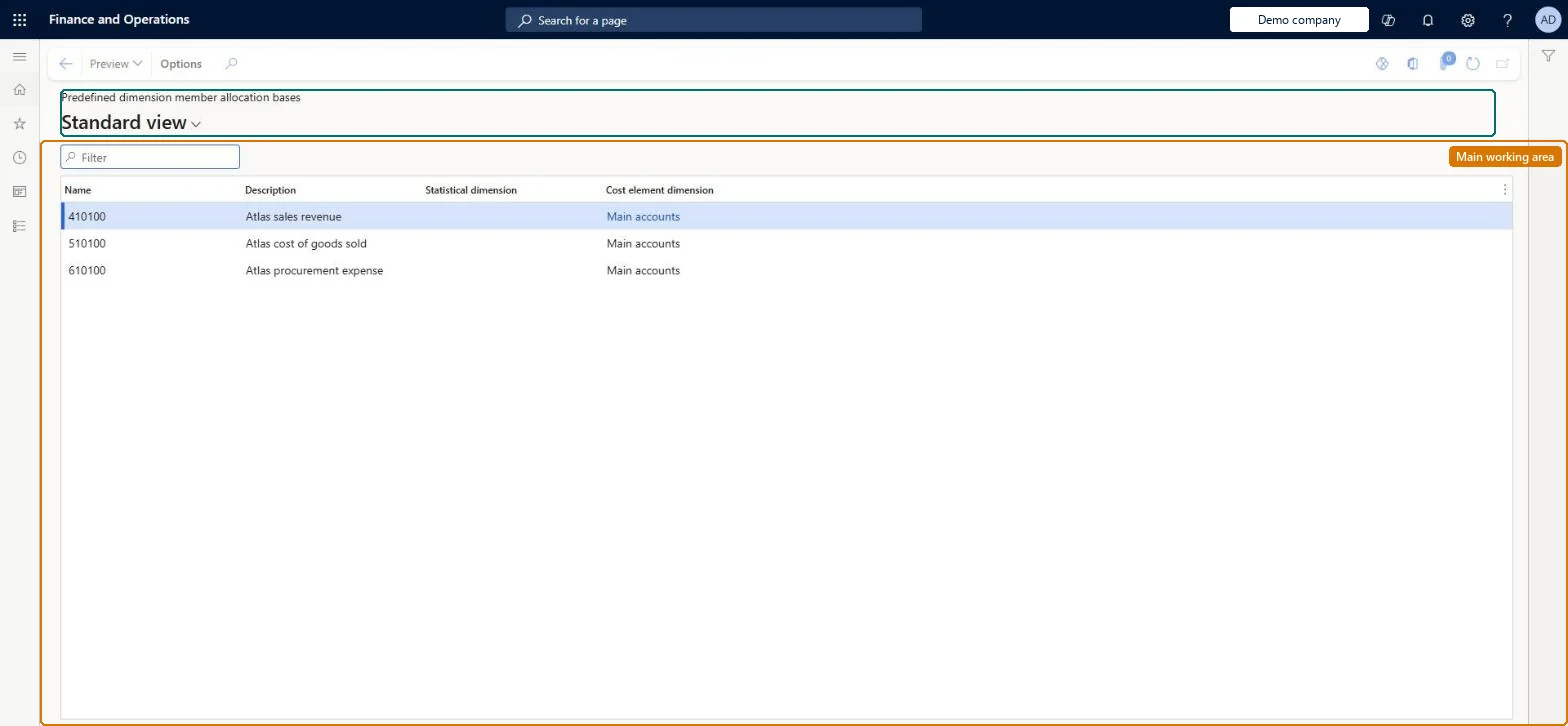
A list page showing the allocation bases that the system creates automatically, one for each statistical dimension member and each cost element dimension member.
PAGE GUIDEWhat the page does and how to use it8 sections. Choose a role to highlight what matters to you.
Everyone
1What it is and why
What it is
A list page showing the allocation bases that the system creates automatically, one for each statistical dimension member and each cost element dimension member.
What you do here
Use this page to see which allocation bases are available for policy rules without any manual setup; a statistical member supplies its recorded magnitudes, and a cost element member supplies the balances imported from the data source such as the general ledger or budget.
Example
For example, cost element 10001 (Salaries) appears here as an allocation base, so employee insurance on cost element 10002 can be distributed in the ratio of each department's salaries.
The page in Dynamics 365. page title tab to open what to set or check
About the examples: Examples and screenshots in this guide use BEAT, a demo company in a Dynamics 365 test environment. Use your own company's codes and values instead of copying them.
Setup steps on this page
Set up Predefined dimension member allocation bases
Use this page to see which allocation bases are available for policy rules without any manual setup; a statistical member supplies its recorded magnitudes, and a cost element member supplies the balances imported from the data source such as the general ledger or budget.
Steps from Microsoft
Go to Cost accounting > Allocation bases > Predefined dimension member allocation bases.
Filter on the statistical or cost element dimension.
Select the base, for example the Electricity statistical member or the Salaries cost element.
Select Preview to see the magnitude per cost object for a period.
Use the base name on a cost distribution or cost allocation rule.
The ID of the allocation base, which is the ID of the underlying dimension member (for example 10001 or FTE).Microsoft Learn
Name
Description
The description of the underlying dimension member.Microsoft Learn
Description
Cost element dimension
For a base made from a cost element member, the cost element dimension it belongs to.Microsoft Learn
Name
Statistical element dimension
For bases created from a statistical member, the statistical dimension the member belongs to.Microsoft Learn
Common errors and fixes
Message
What to do
Preview shows no values for a base
The base gets values only after source data for its member is processed. Process the statistical measures or general ledger data for the period. Microsoft Learn
Test checklist
Create a statistical dimension member, for example FTE, and save it.
Open Predefined dimension member allocation bases and check that FTE is listed with its statistical element dimension.
Import main accounts as cost elements and check that each cost element appears with its cost element dimension.
Use cost element 10001 as the allocation base in a cost distribution rule, run the overhead calculation, and check that the allocation factors match the general ledger balances per cost center.
No manual setup: create statistical dimension members or cost element dimension members, and their allocation bases appear here automaticallyThe system creates a predefined allocation base when you create a statistical dimension member or a cost element dimension member. Each base can be used directly in policies or as input to hierarchy and formula bases.
Cost accounting has four roles: Cost accounting manager (Activity licence), Cost accountant and Cost accountant clerk (Operations licence), and Cost object controller (Team members licence). Cost accountants and cost accounting managers use the bases in policies. No Feature management feature needs to be turned on for this page.
Shared: Cost accounting setup isn't kept per legal entity. It is the same from every company, and one cost accounting ledger can collect data from several legal entities. Checked in Dynamics 365
Can it be undone
Reversible: This page only lists the bases the system creates from dimension members. To change what's listed, maintain the statistical or cost element dimension members. Microsoft Learn
If you change it later
The bases follow the statistical and cost element dimension members: a new member adds a base, and its values change each time source data is processed. Every policy rule that uses a base picks up the new values at the next overhead calculation. Microsoft Learn
Technical architect
6Technical
Menu item
CAMPredefinedMemberAllocationBaseChecked in Dynamics 365
Form
CAMPredefinedMemberAllocationBaseChecked in Dynamics 365
Table
CAMDataPredefinedDimensionMemberAllocationBaseShown as “PREDEFINED DIMENSION MEMBER ALLOCATION BASES” in Record infoChecked in Dynamics 365
Who can open it
2 security roles. Select a role to see its duties and privileges.
RoleCost accountantCAMCostAccountant
DutyInquire into allocation basesCAMAllocationBasesInquire
PrivilegeView predefined dimension member allocation basesCAMPredefinedDimensionMemberAllocationBaseView
DutyInquire into allocation basesCAMAllocationBasesInquire
PrivilegeView predefined dimension member allocation basesCAMPredefinedDimensionMemberAllocationBaseView
Checked in Dynamics 365
Roles to set it up and use it
To set it up or change itMaintain allocation bases CAMAllocationBasesMaintainTo use itInquire into allocation bases CAMAllocationBasesInquireGive people a role that holds these duties. On this system, 2 roles give access to this page.Checked in Dynamics 365
Actions on the page
(Action Pane without tabs): PreviewChecked in Dynamics 365
Load order: A predefined allocation base has no data entity in Data management, so it can't be loaded from a file or a configuration template. Bases are created by the system from the dimension members, so load the members instead.Microsoft Learn