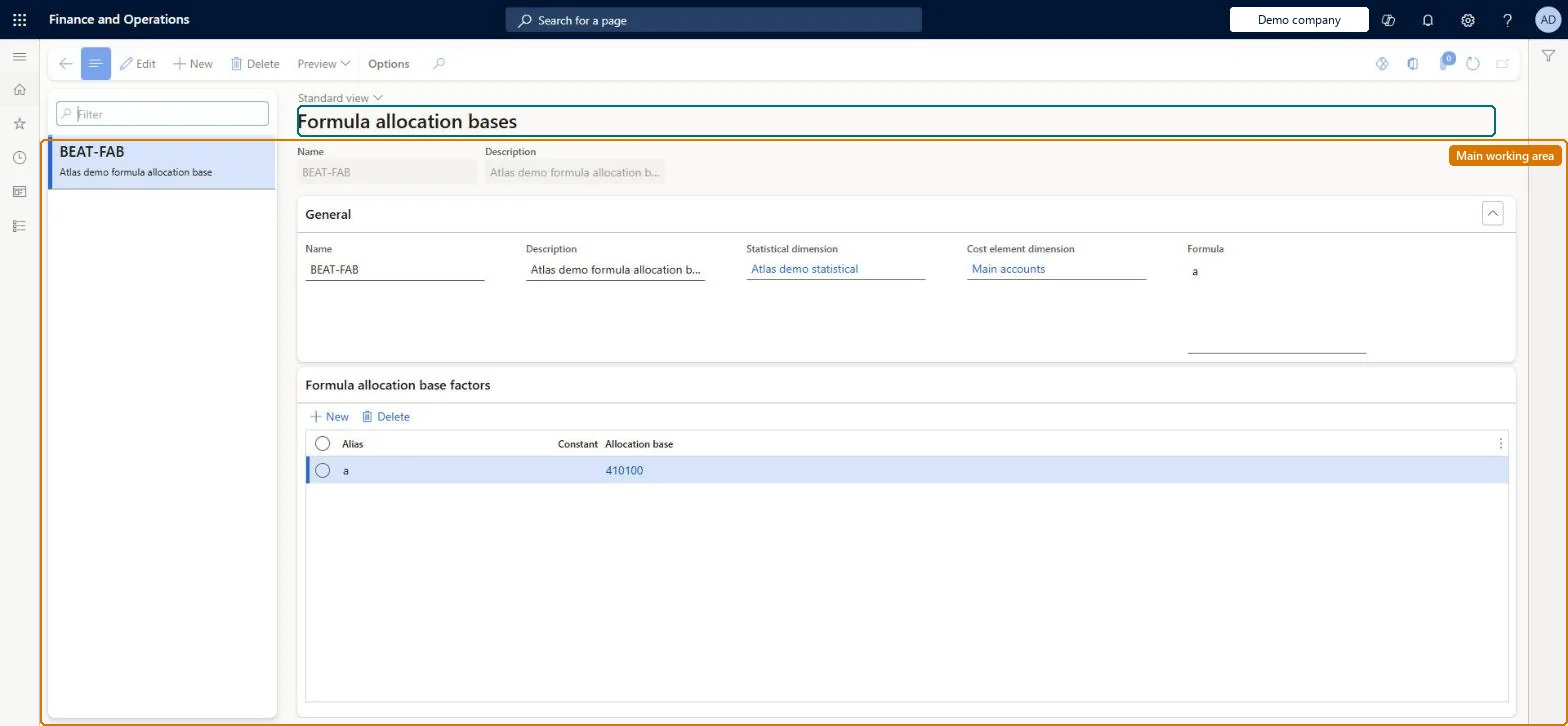
A setup page where you build an allocation base from a formula that combines existing allocation bases and constants through aliases, using arithmetic and comparison operators.
PAGE GUIDEWhat the page does and how to use it8 sections. Choose a role to highlight what matters to you.
Everyone
1What it is and why
What it is
A setup page where you build an allocation base from a formula that combines existing allocation bases and constants through aliases, using arithmetic and comparison operators.
What you do here
Use this page to define an advanced allocation basis when a single statistical or cost element measure is not enough. You pick the statistical and cost element dimensions whose bases may be used, give each base or constant an alias, write the formula, and preview the resulting magnitudes per cost object.
Example
For example, a formula allocation base Electricity fixed with the formula a > b (where a is the Electricity base and b is 0.01) gives each cost object that consumed electricity a magnitude of 1, so a fixed grid fee is spread evenly.
The page in Dynamics 365. page title tab to open what to set or check
About the examples: Examples and screenshots in this guide use BEAT, a demo company in a Dynamics 365 test environment. Use your own company's codes and values instead of copying them.
Setup steps on this page
Set up Formula allocation bases
Use this page to define an advanced allocation basis when a single statistical or cost element measure is not enough. You pick the statistical and cost element dimensions whose bases may be used, give each base or constant an alias, write the formula, and preview the resulting magnitudes per cost object.
Steps from Microsoft
Go to Cost accounting > Allocation bases > Formula allocation bases.
Select New and enter a Name.
Select the Statistical dimension and, if needed, the Cost element dimension whose allocation bases the formula may use.
In the formula allocation base factors, add an Alias for each Allocation base or Constant the formula needs (zero is not allowed as a constant).
In the Formula field, write the formula using the aliases and the supported operators.
Select Preview to check the calculated magnitude per cost object.
The name of the formula allocation base, for example Electricity fixed.Microsoft Learn
Name
Cost element dimension
The cost element dimension whose predefined bases may be referenced in the formula.Microsoft Learn
CostElementDimension
Statistical dimension
The statistical dimension whose predefined bases may be referenced in the formula.Microsoft Learn
Dimension
Formula
The expression built from aliases and operators (parentheses, <, >, +, -, *); IF statements are not supported but comparisons evaluate to 1 or 0.Microsoft Learn
Formula
Alias
A short name used in the formula for one allocation base or constant.Microsoft Learn
Alias
Constant
A fixed numeric value assigned to an alias; 0 is not supported.Microsoft Learn
Constant
Allocation base
An existing allocation base (predefined, hierarchy or another formula base) assigned to an alias.Microsoft Learn
Name
Common errors and fixes
Message
What to do
A formula with an IF statement isn't accepted
Formula allocation bases don't support IF statements. Use a comparison such as a > b, which gives 1 when true and 0 when false. Microsoft Learn
A changed policy doesn't change the figures in the Cost control workspace
Policies take effect when you run the overhead calculation again. Run it for the period and point the report at the new calculation version. Microsoft Learn
Test checklist
Create a formula base named Electricity fixed and select the Statistical dimension.
Add factors: alias a = allocation base Electricity, and alias b = constant 0.01.
Enter the formula a > b and select Preview.
Check that every cost object with consumption shows magnitude 1.00 and that any cost object with none shows 0.
Try 0 as a constant and check that the system doesn't accept it.
Build formula bases on top of an existing predefined base instead of loading a second measure. For example, Electricity > 0.01 gives an even split of the fixed fee among the cost objects that used electricity.Learn shows that a formula base can reuse the Electricity base, so you only load data for one statistical member. The comparison returns 1 when true and 0 when false.
Cost accounting has four roles: Cost accounting manager (Activity licence), Cost accountant and Cost accountant clerk (Operations licence), and Cost object controller (Team members licence). Cost accountants and cost accounting managers maintain allocation bases. No Feature management feature needs to be turned on for this page.
Shared: Cost accounting setup isn't kept per legal entity. It is the same from every company, and one cost accounting ledger can collect data from several legal entities. Checked in Dynamics 365
Can it be undone
Reversible: Edit the aliases, constants or formula at any time. Results already calculated stay in their overhead calculation version, and a new run uses the new formula. Microsoft Learn
If you change it later
A formula base can be reused inside other formula bases and in policy rules, so changing it changes every allocation built on it; rerun the overhead calculation after a change. Microsoft Learn
Technical architect
6Technical
Menu item
CAMFormulaAllocationBaseChecked in Dynamics 365
Form
CAMFormulaAllocationBaseChecked in Dynamics 365
Table
CAMDataFormulaAllocationBaseShown as “FORMULA ALLOCATION BASES” in Record infoChecked in Dynamics 365
Who can open it
2 security roles. Select a role to see its duties and privileges.
RoleCost accountantCAMCostAccountant
DutyInquire into allocation basesCAMAllocationBasesInquire
PrivilegeView formula allocation basesCAMFormulaAllocationBaseView
DutyInquire into allocation basesCAMAllocationBasesInquire
PrivilegeView formula allocation basesCAMFormulaAllocationBaseView
Checked in Dynamics 365
Roles to set it up and use it
To set it up or change itMaintain allocation bases CAMAllocationBasesMaintainTo use itInquire into allocation bases CAMAllocationBasesInquireGive people a role that holds these duties. On this system, 2 roles give access to this page.Checked in Dynamics 365
Actions on the page
(Action Pane without tabs): PreviewChecked in Dynamics 365
Load order: A formula allocation base has no data entity in Data management, so it can't be loaded from a file or a configuration template. Re-create it by hand in each environment after the bases it uses exist.Microsoft Learn