About the examples: Examples and screenshots in this guide use BEAT, a demo company in a Dynamics 365 test environment. Use your own company's codes and values instead of copying them.
Setup steps on this page
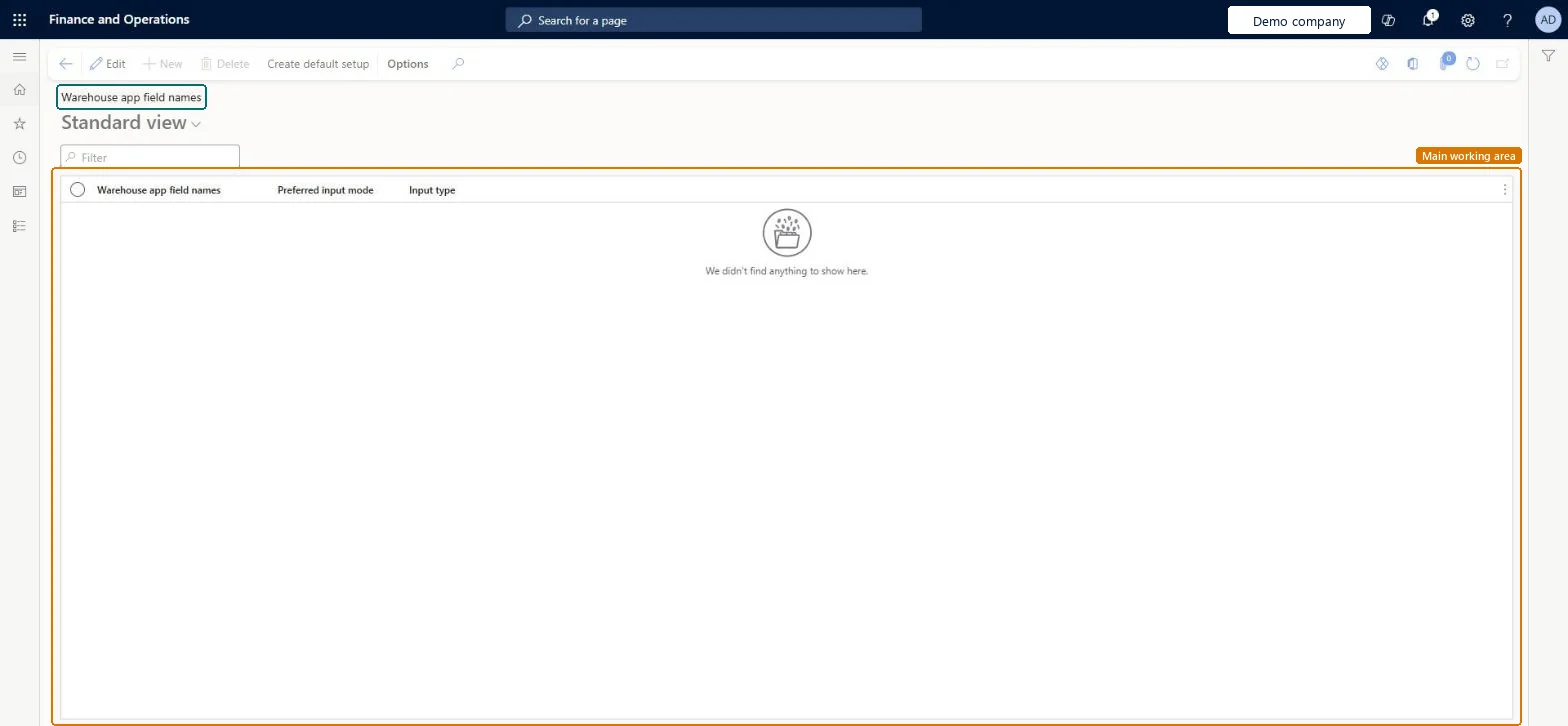
Set up Warehouse app field names
Use this page to choose how each field name is entered on the mobile device, by scanning or by manual entry, and which input type it uses.
Steps from Microsoft
Go to Warehouse management > Setup > Mobile device > Warehouse app field names.
In a new company, select Create default setup on the Action Pane to generate the field names that the mobile device workflows use.
Select Edit, then assign a Preferred input mode to each field name.
Run Create default setup, then set Preferred input mode to Scanning for bar-coded fields and Input type to Numeric for number-only fieldsCreate default setup generates every field name the mobile flows use. Scanning suits fields that carry bar codes, and Numeric shows a numeric keypad instead of the device keyboard.
Expecting to rename fields here. You can't rename mobile app fields; this page only sets how each field is entered.
Reversible: Input mode and input type can be changed at any time. Fields set to Scanning still accept manual entry if a bar code is damaged. Microsoft Learn
Technical architect
6Technical
Menu item
WHSMobileAppFieldChecked in Dynamics 365
Form
WHSMobileAppFieldChecked in Dynamics 365
Table
WHSMobileAppFieldShown as “WAREHOUSE APP FIELD NAMES” in Record infoKey field: FieldClassNameChecked in Dynamics 365
PrivilegesWHSMobileAppFieldMaintainWHSMobileAppFieldViewDutiesEnable warehouse operation process WMSWarehouseOperationProcessEnable1 security roleWarehouse manager WMSWarehouseManagerChecked in Dynamics 365
Roles to set it up and use it
To set it up or change itWarehouse manager WMSWarehouseManagerGive people one of these roles. On this system, 1 role can open this page.Checked in Dynamics 365
Actions on the page
(Action Pane without tabs): Create default setupChecked in Dynamics 365
WHSWarehouseAppFieldEntity (Warehouse app fields): loaded for each company, in Microsoft's default template 400 - Warehouse management.Load order: Microsoft's default template 400 - Warehouse management loads Warehouse app fields at execution unit 1, level 30, sequence 10. Lower levels load first, and entities at the same level load in sequence order.Load first: the default templates at lower levels (System setup to General ledger)Microsoft Learn