About the examples: Examples and screenshots in this guide use BEAT, a demo company in a Dynamics 365 test environment. Use your own company's codes and values instead of copying them.
Setup steps on this page
Set up Work user access policies
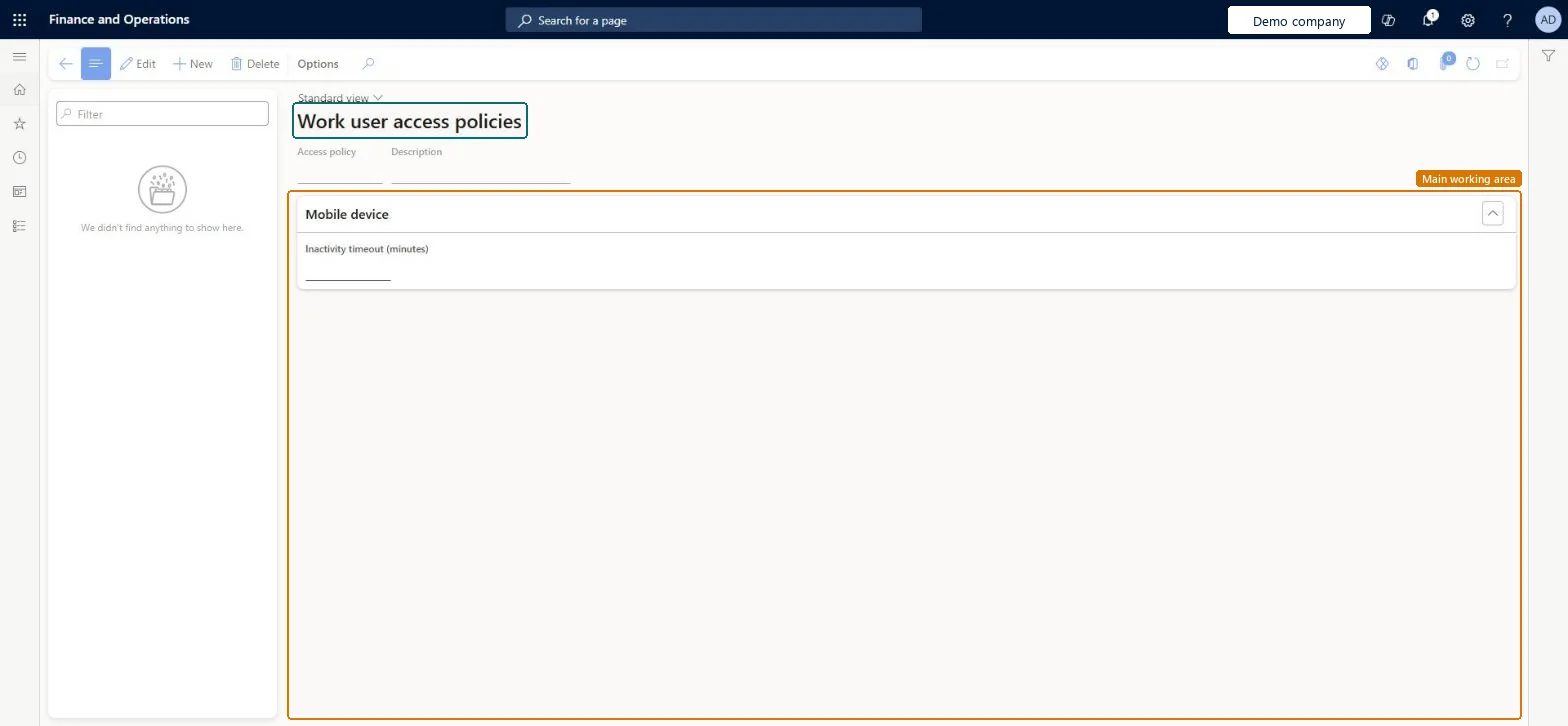
Use this page to create access policies that set the inactivity timeout, in minutes, for mobile devices.
How to use it
Go to Warehouse management > Setup > Work user access policies.
Select New to create a policy.
Enter the Access policy name and a Description.
In the Mobile device section, enter the Inactivity timeout (minutes).
Source: Checked in Dynamics 365
Technical architect
4Technical
Menu item
WhsWorkUserAccessPolicyChecked in Dynamics 365
Form
WhsWorkUserAccessPolicyChecked in Dynamics 365
Table
WhsWorkUserAccessPolicyShown as “WORK USER ACCESS POLICIES” in Record infoChecked in Dynamics 365
Data entities
WhsWorkUserAccessPolicyEntityWhsWorkUserAccessPolicyEntity Checked in Dynamics 365
Who can open it
PrivilegesMaintain work user access policies WhsWorkUserAccessPolicyMaintainView work user access policies WhsWorkUserAccessPolicyViewDutiesInquire into work user security policies WhsWorkUserAccessPolicyInquireMaintain work user access policies WhsWorkUserAccessPolicyMaintain2 security rolesWarehouse planner WHSWarehousePlannerWarehouse manager WMSWarehouseManagerChecked in Dynamics 365
Roles to set it up and use it
To set it up or change itWarehouse manager WMSWarehouseManagerTo use itWarehouse planner WHSWarehousePlannerGive people one of these roles. On this system, 2 roles can open this page.Checked in Dynamics 365
Checked in a working Dynamics 365 system, version 10.0.49: the menu item, form, table and security, the page.
To cite this step: WM-SETUP-070, Set up Work user access policies. Beyond ERP Atlas Hub, 2026-11-11. https://www.beyonderp.cloud/atlas/step/WM-SETUP-070