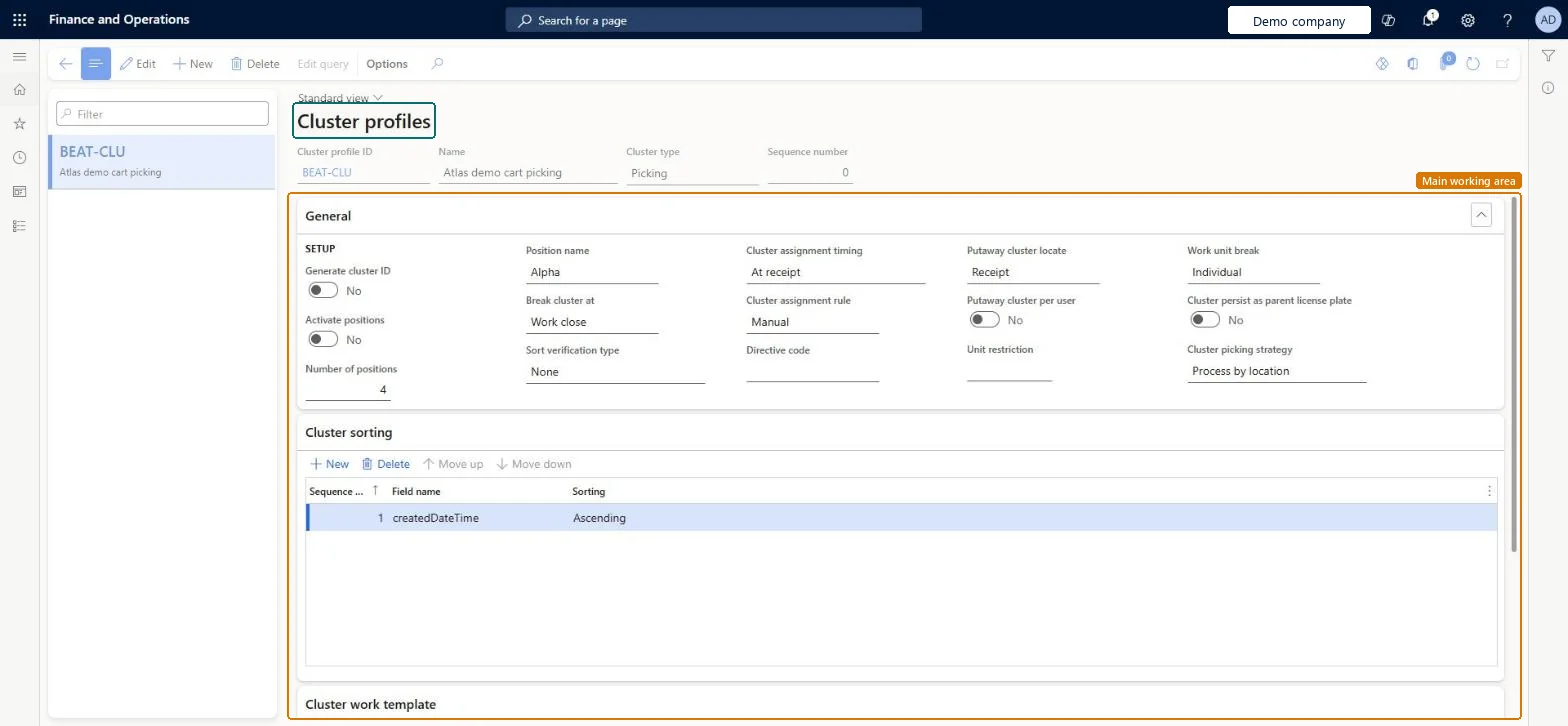
Setup step on the Cluster profiles page · Warehouse management
Set up Cluster profiles
Use this page to set whether cluster IDs are generated automatically, how many positions a cluster has, when clusters are broken and how the picking work is sequenced and verified.
Field Service Integration User, Production supervisor, Process engineer and 3 more roles
Business process
Manage warehouse operations
Menu item
WHSClusterProfile
Main table
WHSClusterProfile
Data entity
WHSWarehouseClusterProfileV2Entity
Setup steps
1 on this page
Show what matters for
SETUP GUIDEHow to set it up8 sections. Choose a role to highlight what matters to you.
Everyone
1What it is and why
What it is
A setup page where you define cluster profiles, which control how the system builds the clusters that workers use for cluster picking.
What you do here
Use this page to set whether cluster IDs are generated automatically, how many positions a cluster has, when clusters are broken and how the picking work is sequenced and verified.
The page in Dynamics 365. page title tab to open what to set or check
About the examples: Examples and screenshots in this guide use BEAT, a demo company in a Dynamics 365 test environment. Use your own company's codes and values instead of copying them.
Setup steps on this page
Set up Cluster profiles
Use this page to set whether cluster IDs are generated automatically, how many positions a cluster has, when clusters are broken and how the picking work is sequenced and verified.
Steps from Microsoft
Go to Warehouse management > Setup > Mobile device > Cluster profiles.
Select a profile to edit, or select New to create a new one.
In the header, set a Cluster profile ID, Name, Cluster type and Sequence number.
On the General FastTab, set up the profile options.
On the Cluster sorting FastTab, use the toolbar to add the sorting criteria, setting the Sequence number, Field name and Sorting for each row.
The warehouse operation that the cluster profile applies to.Microsoft Learn
ClusterType
Sequence number
The order in which cluster profiles are applied when you have more than one.Microsoft Learn
SequenceNumber
Cluster picking strategy
Controls whether workers pick for all cluster positions at a location in one step or handle each position individually.Microsoft Learn
ClusterPickingStrategy
Field name
On the Cluster sorting FastTab, the field that determines how the work is sorted.Microsoft Learn
FieldName
Common errors and fixes
Message
What to do
Not enough work can be found for cluster.
System-directed cluster picking couldn't find enough work for the configured number of positions. Release more work or lower the Number of positions on the profile. Microsoft Learn
Test checklist
Create a profile with Generate cluster ID = Yes, Number of positions 2, Break cluster at Put and Sort verification type Position scan.
Link it to a mobile device menu item for cluster picking.
Release two sales orders and pick them as a cluster on the mobile app.
Check the consolidated pick, the sort to each position and the Cluster complete message.
Cluster picking strategy Process by location (the default), Generate cluster ID = Yes, and Number of positions equal to the totes a worker carriesProcess by location picks the total for all positions at a location in one step with fully customisable sort criteria; the number of positions is the maximum number of boxes or totes in the cluster.
Switching to a Process by position strategy on a profile with your own sort criteria. On save the system deletes them and creates four default sort fields; editing those can create a poor picking route.
Hard to reverse: Saving a Process by position strategy deletes the existing sort criteria; switching back leaves the auto-created criteria in place, so your original sorting must be re-entered.
Technical architect
6Technical
Menu item
WHSClusterProfileChecked in Dynamics 365
Form
WHSClusterProfileChecked in Dynamics 365
Table
WHSClusterProfileShown as “CLUSTER PROFILES” in Record infoKey field: ClusterProfileIdChecked in Dynamics 365
Data entities
WHSWarehouseClusterProfileV2EntityWarehouse cluster profiles V2 Microsoft data model
Who can open it
PrivilegesMaintain cluster profiles WHSClusterProfileMaintainView cluster profiles WHSClusterProfileViewDutiesInquire into warehouse operation master WMSWarehouseOperationMasterInquireMaintain warehouse operation master WMSWarehouseOperationMasterMaintain6 security rolesField Service Integration User FieldServiceIntegrationUserProduction supervisor ProdProductionSupervisorProcess engineer RouteProcessEngineerProcess engineering manager RouteProcessEngineeringManagerWarehouse planner WHSWarehousePlannerWarehouse manager WMSWarehouseManagerChecked in Dynamics 365
Roles to set it up and use it
To set it up or change itWarehouse manager WMSWarehouseManagerProcess engineer RouteProcessEngineerTo use itWarehouse planner WHSWarehousePlannerProduction supervisor ProdProductionSupervisorProcess engineering manager RouteProcessEngineeringManagerField Service Integration User FieldServiceIntegrationUserGive people one of these roles. On this system, 6 roles can open this page.Checked in Dynamics 365
Actions on the page
(Action Pane without tabs): Edit queryChecked in Dynamics 365
WHSWarehouseClusterProfileV2Entity (Warehouse cluster profiles V2): loaded for each company, in Microsoft's default template 400 - Warehouse management.Load order: Microsoft's default template 400 - Warehouse management loads Warehouse cluster profiles V2 at execution unit 1, level 30, sequence 10. Lower levels load first, and entities at the same level load in sequence order.Load first: the default templates at lower levels (System setup to General ledger)Microsoft Learn