About the examples: Examples and screenshots in this guide use BEAT, a demo company in a Dynamics 365 test environment. Use your own company's codes and values instead of copying them.
Setup steps on this page
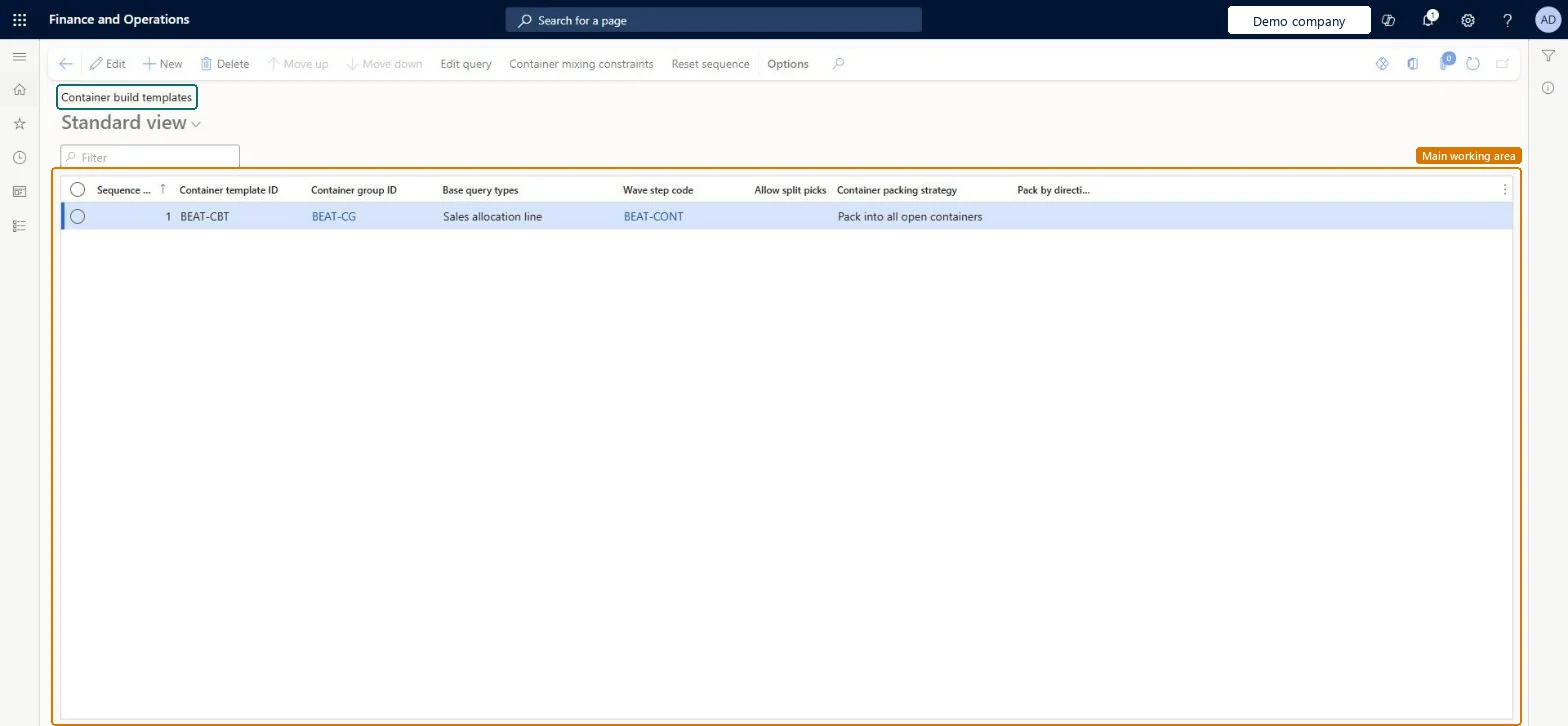
Set up Container build templates
Use this page to set the rules that wave containerization uses to choose containers and pack allocation lines into them.
Steps from Microsoft
Go to Warehouse management > Setup > Containers > Container build templates.
On the Action Pane, select New.
In the Container template ID field, enter a name for the template.
In the Container group ID field, select the container group to create containers from.
In the Base query types field, select what the template packs, such as sales allocation lines.
In the Wave step code field, select the wave process method that links the template to a wave template.
In the Container packing strategy field, select the packing strategy.
Lets workers pack items from one work order into separate containers.Microsoft Learn
AllowSplitPicks
Container packing strategy
How the system fills containers. For example, Pack into all open containers checks every container created in the cycle.Microsoft Learn
ContainerPackingStrategy
Pack by directive unit
Lets location directives decide which unit is used for packing.Microsoft Learn
PackByUnitOfMeasure
Test checklist
Check the shipping wave template includes the Containerization method with the same wave step code as the container build template.
Release a sales order with several lines to the warehouse and process the wave.
Open Warehouse management > Packing and containerization > Containers and check that containers were created from the container types in the template's container group.
If container mixing constraints are set (for example customer account), check each container holds lines for only one value.
With Create containerization history log set to Yes in Warehouse management parameters, review Containerization history for warnings.
Most specific template first in the sequence, broadest template last; one template per wave step code and base query typeTemplates are evaluated in sequence and each allocation line uses the first template whose query it matches. Learn says to put the template with the most specific criteria at the top.
Reversible: Templates can be resequenced and edited, and the change applies to the next containerized wave. Changing Base query types asks for confirmation and resets the filter query, so ranges and sorting are lost. Container template ID can be set only when the template is created.
If you change it later
Changing Base query types asks for confirmation and resets the filter query, so any ranges or sorting you defined are lost. Microsoft Learn
Technical architect
6Technical
Menu item
WHSContainerizationTableChecked in Dynamics 365
Form
WHSContainerizationTableChecked in Dynamics 365
Table
WHSContainerizationTableShown as “CONTAINER BUILD TEMPLATES” in Record infoKey field: ContainerizationNameChecked in Dynamics 365
PrivilegesMaintain containerization WHSContainerizationTableMaintainView containerization table WHSContainerizationTableViewDutiesInquire into warehouse operation master WMSWarehouseOperationMasterInquireMaintain warehouse operation master WMSWarehouseOperationMasterMaintain6 security rolesField Service Integration User FieldServiceIntegrationUserProduction supervisor ProdProductionSupervisorProcess engineer RouteProcessEngineerProcess engineering manager RouteProcessEngineeringManagerWarehouse planner WHSWarehousePlannerWarehouse manager WMSWarehouseManagerChecked in Dynamics 365
Roles to set it up and use it
To set it up or change itWarehouse manager WMSWarehouseManagerProcess engineer RouteProcessEngineerTo use itWarehouse planner WHSWarehousePlannerProduction supervisor ProdProductionSupervisorProcess engineering manager RouteProcessEngineeringManagerField Service Integration User FieldServiceIntegrationUserGive people one of these roles. On this system, 6 roles can open this page.Checked in Dynamics 365
Actions on the page
(Action Pane without tabs): Move up, Move down, Edit query, Container mixing constraints, Reset sequenceChecked in Dynamics 365
WHSContainerBuildTemplateV2Entity (Container build templates V2): loaded for each company, in Microsoft's default template 400 - Warehouse management.Load order: Microsoft's default template 400 - Warehouse management loads Container build templates V2 at execution unit 1, level 40, sequence 10. Lower levels load first, and entities at the same level load in sequence order.Load first: Container groups, the default templates at lower levels (System setup to dependency bands 30 to 90)Microsoft Learn