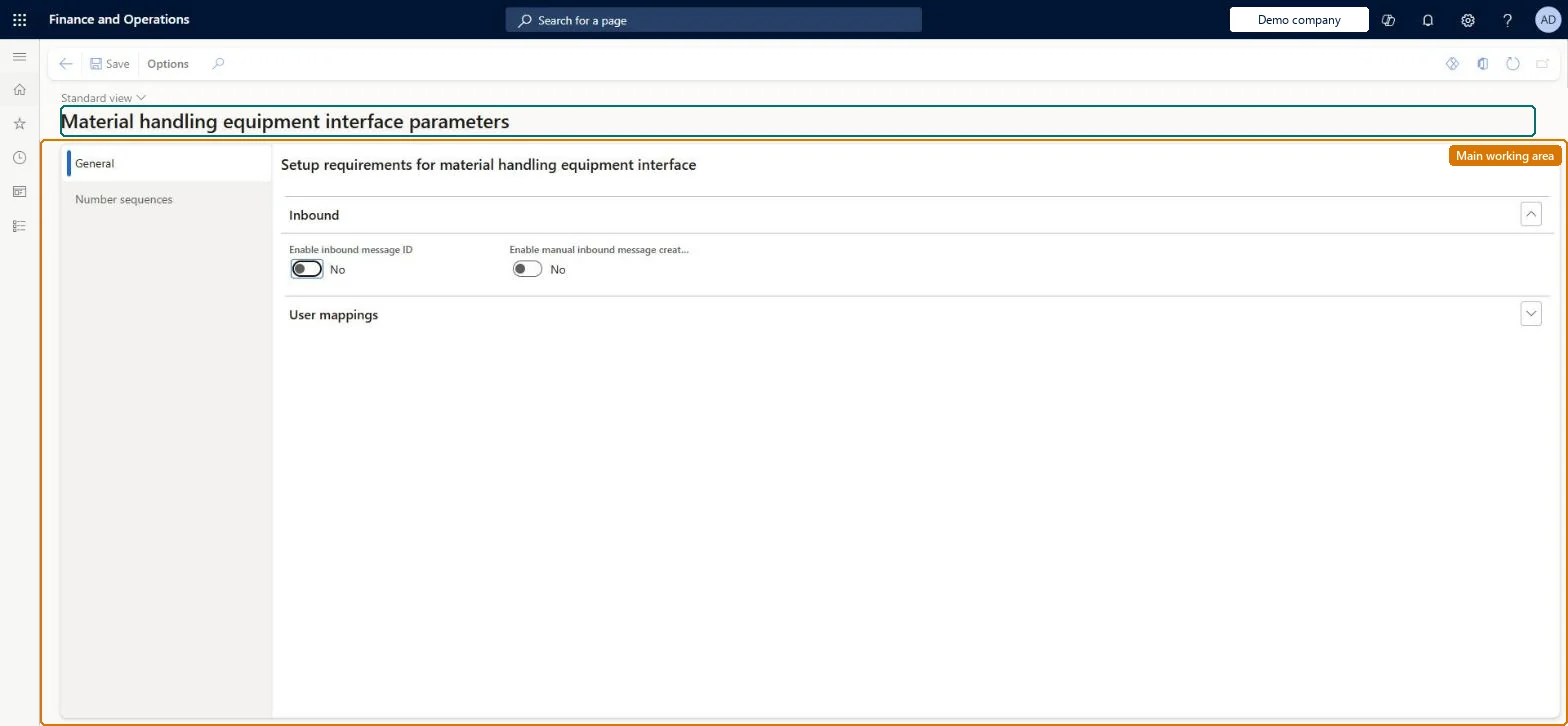
Setup step on the Material handling equipment interface parameters page · Material handling equipment interface
Set up Material handling equipment interface parameters
Use this page to map system users to warehouse workers, control duplicate inbound message IDs and manual inbound messages, and select number sequences for queue items and work line pairs.
Set up Material handling equipment interface parameters
Material handling equipment interfaceSetup
WMHEParameters
Used by
Material handling manager
Business process
Manage warehouse operations
Menu item
WMHEParameters
Main table
WMHEParameters
Data entity
None for this page's own settings
Setup steps
1 on this page
Show what matters for
SETUP GUIDEHow to set it up8 sections. Choose a role to highlight what matters to you.
Everyone
1What it is and why
What it is
A setup page that holds the general settings and number sequences for the material handling equipment interface.
What you do here
Use this page to map system users to warehouse workers, control duplicate inbound message IDs and manual inbound messages, and select number sequences for queue items and work line pairs.
Example
For example, you map the system user that the material handling system calls the service with to a warehouse worker, so picks and puts from inbound events are assigned to that worker.
The page in Dynamics 365. page title tab to open what to set or check
About the examples: Examples and screenshots in this guide use BEAT, a demo company in a Dynamics 365 test environment. Use your own company's codes and values instead of copying them.
Setup steps on this page
Set up Material handling equipment interface parameters
Use this page to map system users to warehouse workers, control duplicate inbound message IDs and manual inbound messages, and select number sequences for queue items and work line pairs.
Steps from Microsoft
Turn on the configuration key: put the system in maintenance mode, select Trade > Warehouse and Transportation management > Material handling equipment interface in License configuration, and turn maintenance mode off.
Register the material handling system in Microsoft Entra ID applications with its own service user.
Go to Material handling equipment interface > Setup > Material handling equipment interface parameters.
On the General tab, in User mappings, map that service user to the warehouse worker whose default warehouse is the automated warehouse.
Set Enable inbound message ID to Yes, and Enable manual inbound message creation to Yes only in a test environment.
On the Number sequences tab, select the number sequences for inbound queue items, outbound queue items and work line pairs.
Maps each system user that calls the inbound queue service to a warehouse worker. Picks and puts processed through the inbound queue are assigned to that worker and run in the worker's default warehouse.Microsoft Learn
MHE-SVC to worker 24-CONV
Enable inbound message ID
When Yes, an inbound message with a duplicate message ID is rejected.Microsoft Learn
Yes
EnableMessageId
Enable manual inbound message creation
When Yes, you can create inbound records directly on the Inbound queue page to simulate messages.Microsoft Learn
No (Yes only in a test environment)
EnableManualInboundMessageCreation
Number sequences
The system-wide number sequences that generate unique IDs for inbound queue items, outbound queue items and work line pairs.Microsoft Learn
Mate_3, Mate_7, Mate_11
Common errors and fixes
Message
What to do
The Material handling equipment interface menu isn't there
The configuration key is off. Turn it on in License configuration while the system is in maintenance mode, then turn maintenance mode off. Microsoft Learn
Inbound events fail or run in the wrong warehouse
The calling user isn't mapped in User mappings, or the mapped worker's default warehouse isn't the automated warehouse. Correct the mapping or the worker. Microsoft Learn
The same event is processed twice
Enable inbound message ID is No, so duplicate message IDs are accepted. Set it to Yes and make the material handling system send a unique message ID per event. Microsoft Learn
Test checklist
Turn on the configuration key in maintenance mode.
Set User mappings, Enable inbound message ID = Yes and the three number sequences.
Create a subscription and release a sales order to create picking work; check a WorkCreation event appears in the Outbound queue.
Submit a WorkConfirm inbound event with the work line pair ID and check the work lines close.
Submit the same message ID again and check it is rejected.
Enable inbound message ID = Yes; Enable manual inbound message creation = Yes only in test environments; map each calling system user to a warehouse worker in User mappingsWith Enable inbound message ID = Yes, a duplicate inbound message ID is rejected, so the same event from the material handling system can't be processed twice. Manual inbound message creation is for simulating messages.
Per company: the parameters entity is not shared across companies in Data management. Learn calls the three number sequences system-wide. Microsoft Learn
Can it be undone
Reversible: Parameters can be changed at any time and apply to inbound events received from then on.
If you change it later
Setting Enable inbound message ID to No allows duplicate inbound message IDs, so the same event can be accepted more than once. Microsoft Learn
Technical architect
6Technical
Menu item
WMHEParametersChecked in Dynamics 365
Form
WMHEParametersChecked in Dynamics 365
Table
WMHEParametersShown as “MATERIAL HANDLING EQUIPMENT INTERFACE PARAMETERS” in Record infoChecked in Dynamics 365
Data entities
WMHEParametersEntityMaterial handling equipment interface parameters (The parameters; confirm in a test environment whether User mappings is included.) Checked in Dynamics 365
Who can open it
PrivilegesMaintain material handling parameters WMHEMaterialHandlingParametersMaintainView material handling parameters WMHEMaterialHandlingParametersViewDutiesInquire into material handling setup WMHEInquireIntoMaterialHandlingSetupMaintain material handling setup WMHEMaintainMaterialHandlingSetup1 security roleMaterial handling manager WMHEMaterialHandlingManagerChecked in Dynamics 365
Roles to set it up and use it
To set it up or change itMaterial handling manager WMHEMaterialHandlingManagerGive people one of these roles. On this system, 1 role can open this page.Checked in Dynamics 365
Developer
7Developer
Open it by URL
https://<your-environment>/?mi=WMHEParameters
Data migration
WMHEParametersEntity The parameters: inbound message ID check and manual inbound message creation.Load order: Load the parameters after the configuration key is on and the warehouse workers exist; then load the subscriptions. Set User mappings and the number sequences on the page in each environment, because the users differ per environment.Load first: Number sequences, Warehouse workers, Microsoft Entra ID applicationsMicrosoft Learn
Checked in a working Dynamics 365 system, version 10.0.49: the menu item, form, table and security, the page.
To cite this step: MHE-SETUP-010, Set up Material handling equipment interface parameters. Beyond ERP Atlas Hub, 2026-11-11. https://www.beyonderp.cloud/atlas/step/MHE-SETUP-010