BeyondERP.Newsletter
Menu

Setup page · Warehouse management

Container groups

A setup page where you define container groups, which collect container types in the order they are packed.

Used by
Field Service Integration User, Production supervisor, Process engineer and 3 more roles
Business process
Manage warehouse operations
Menu item
WHSContainerGroup
Main table
WHSContainerGroup
Data entity
WHSContainerGroupEntity
Setup steps
1 on this page
Show what matters for
PAGE GUIDEWhat the page does and how to use it8 sections. Choose a role to highlight what matters to you.
Everyone

1What it is and why

What it isA setup page where you define container groups, which collect container types in the order they are packed.
What you do hereUse this page to group container types and set the packing sequence and fill percentage for each type.
Container groups page in Dynamics 365
The page in Dynamics 365. page title tab to open what to set or check
Functional consultant · Solution architect

2Where it fits

Business processManage warehouse operations
Menu pathWarehouse management › Setup › Containers › Container groups
Set up firstContainer types Microsoft Learn
Used next byContainer build templates Microsoft Learn
End user · Functional consultant

3How to do it

About the examples: Examples and screenshots in this guide use BEAT, a demo company in a Dynamics 365 test environment. Use your own company's codes and values instead of copying them.

Setup steps on this page

Set up Container groups

Use this page to group container types and set the packing sequence and fill percentage for each type.

Steps from Microsoft

  1. Go to Warehouse management > Setup > Containers > Container groups.
  2. On the Action Pane, select New.
  3. Enter a unique Container group ID and a Description.
  4. On the Details FastTab, select New to add a container type to the group.
  5. In the Container type field, select a container type.
  6. In the Container utilization percentage field, enter the percentage of the container the system may use.
  7. Select Move up or Move down to set the sequence in which the types are packed.
  8. Select Save.

Source: Microsoft Learn

Fields on the page

FieldWhat it meansTable column
Container typeA container type that belongs to the group.Microsoft Learn ContainerTypeCode
Container utilization percentageHow much of each container the system is allowed to fill.Microsoft Learn FillPercentage
Sequence numberThe packing order of the container types. Place the largest container first.Microsoft Learn SeqNum

Test checklist

  1. Create a group with two container types, largest at sequence 1.
  2. Point a container build template at the group and process a containerized wave.
  3. Check on the Containers page that the created containers use only types from the group.
  4. Set Container utilization percentage to 80 on one type, rerun, and check fewer lines are packed into that container type.

Source: Microsoft Learn

Functional consultant

4Setup decisions

Setup stepRecommended value and whyDecision, common mistake and test
Set up Container groupsSequence container types from largest (sequence 1) to smallest; keep Container utilization percentage at 100 unless you need to reserve spaceFor the Pack into all open containers and Pack into current container only strategies, Learn says to arrange the sequence by size with the largest container first. The utilization percentage defaults to 100 and must be greater than 0 and no more than 100.Leaving a container type out of the group. A container build template can create containers only from the container types in the group it points to.
Solution architect

5Design impact

Shared or per companyPer company: each legal entity has its own records. Microsoft data model
Can it be undoneReversible: Container groups can be edited at any time. Changes affect waves containerized afterwards, not containers already created. Microsoft Learn
Technical architect

6Technical

Menu itemWHSContainerGroup Checked in Dynamics 365
FormWHSContainerGroup Checked in Dynamics 365
TableWHSContainerGroupShown as “CONTAINER GROUPS” in Record infoKey field: ContainerGroupIdChecked in Dynamics 365
Data entitiesWHSContainerGroupEntityContainer groups Microsoft data model
Who can open itPrivilegesMaintain container groups WHSContainerGroupMaintainView customer groups WHSContainerGroupViewDutiesInquire into warehouse operation master WMSWarehouseOperationMasterInquireMaintain warehouse operation master WMSWarehouseOperationMasterMaintain
6 security rolesField Service Integration User FieldServiceIntegrationUserProduction supervisor ProdProductionSupervisorProcess engineer RouteProcessEngineerProcess engineering manager RouteProcessEngineeringManagerWarehouse planner WHSWarehousePlannerWarehouse manager WMSWarehouseManager
Checked in Dynamics 365
Roles to set it up and use itTo set it up or change itWarehouse manager WMSWarehouseManagerProcess engineer RouteProcessEngineerTo use itWarehouse planner WHSWarehousePlannerProduction supervisor ProdProductionSupervisorProcess engineering manager RouteProcessEngineeringManagerField Service Integration User FieldServiceIntegrationUserGive people one of these roles. On this system, 6 roles can open this page.Checked in Dynamics 365
Developer

7Developer

Open it by URLhttps://<your-environment>/?mi=WHSContainerGroup
Integrate withWHSContainerGroupEntity data entity Microsoft data model
Data migrationWHSContainerGroupEntity (Container groups): loaded for each company, in Microsoft's default template 400 - Warehouse management.Load order: Microsoft's default template 400 - Warehouse management loads Container groups at execution unit 1, level 30, sequence 10. Lower levels load first, and entities at the same level load in sequence order.Load first: the default templates at lower levels (System setup to General ledger)Microsoft Learn
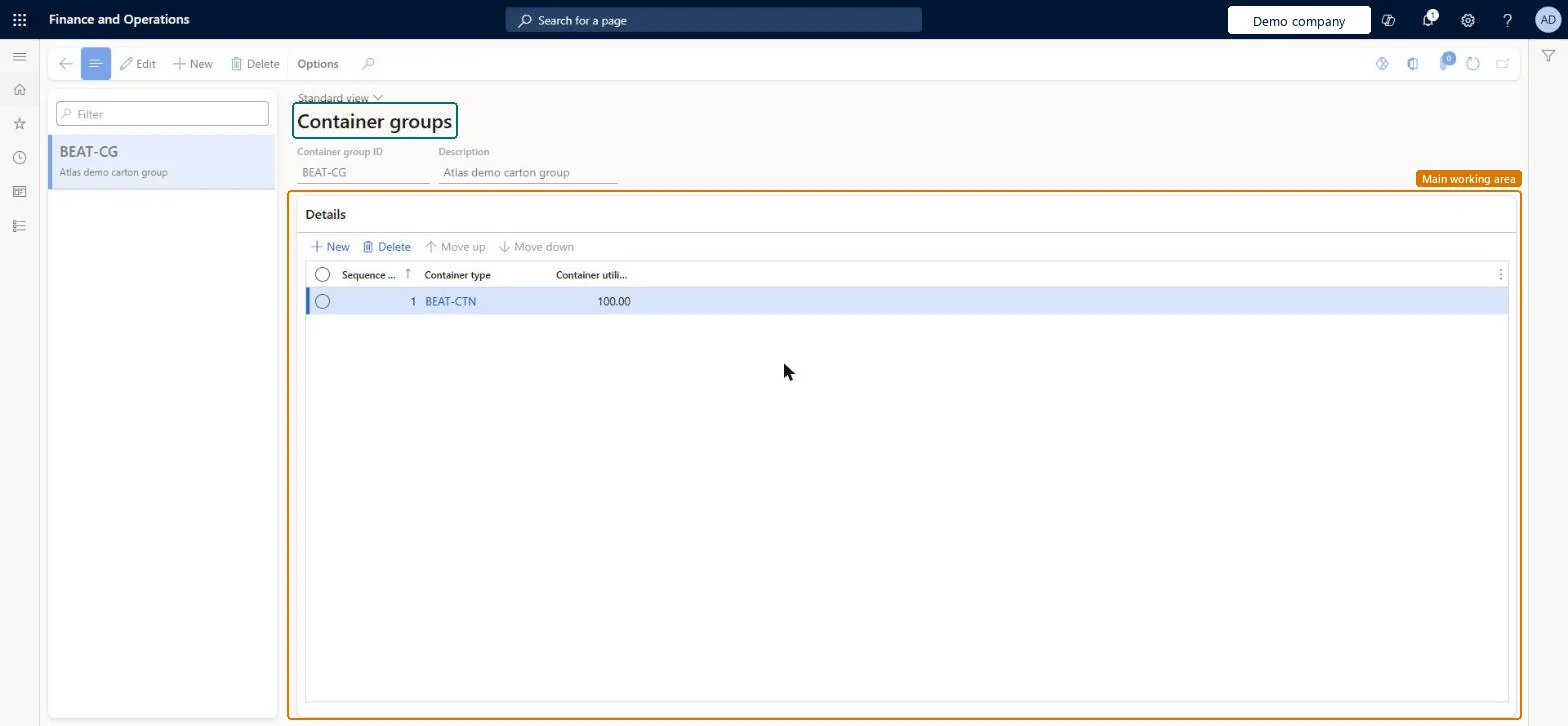
Table definitionWHSContainerGroup columns and relations Microsoft data model
Everyone

8Sources