SETUP GUIDEHow to set it up8 sections. Choose a role to highlight what matters to you.
Everyone
1What it is and why
What it is
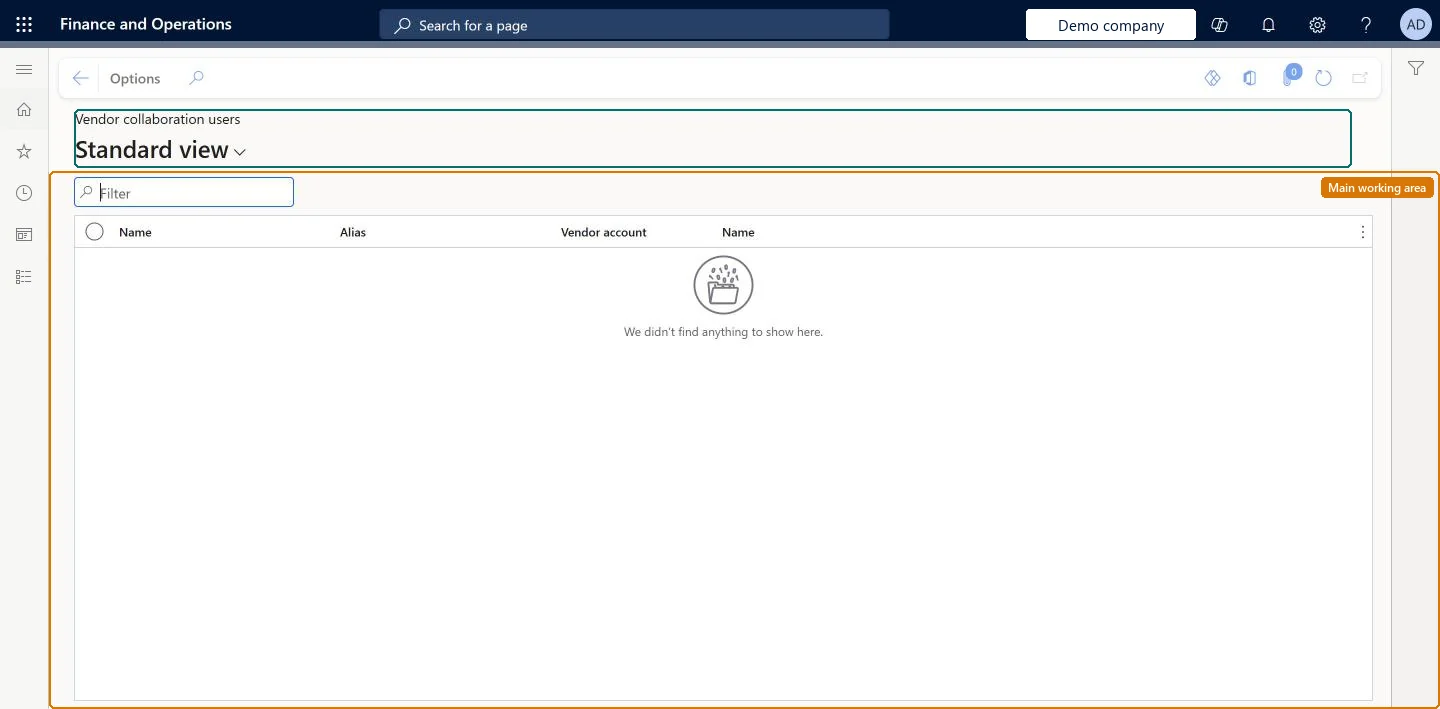
A list page of the vendor collaboration user accounts linked to the vendor, with each user's name, alias and vendor account.
What you do here
Use this page to check who already has a vendor collaboration user before you ask for a new user, a role change or an inactivation on All contacts.
Example
For example, before a new buyer at the vendor asks for access, the vendor admin of BEAT-000001 checks the list and finds the person already listed with their alias for vendor account BEAT-000001, so a role change on All contacts is enough instead of a new user.
The page in Dynamics 365. page title tab to open what to set or check
About the examples: Examples and screenshots in this guide use BEAT, a demo company in a Dynamics 365 test environment. Use your own company's codes and values instead of copying them.
Setup steps on this page
Check existing vendor collaboration users
See which users already exist for the vendor before asking for new access.
Steps from Microsoft
Go to Vendor collaboration > Contacts > Vendor collaboration users.
Filter on the person's name or alias.
Check which vendor accounts the user is listed for.
To change access, go to All contacts and submit Maintain vendor user roles or Inactivate vendor user for that contact.
The user's sign-in alias, usually the email address used when the user was provisioned.Checked in Dynamics 365
Vendor account
The customer's vendor account the user works for.Checked in Dynamics 365
BEAT-000001
Name (vendor)
The name of that vendor account.Checked in Dynamics 365
Common errors and fixes
Message
What to do
A provisioned person is not listed
The user is created only when the user request workflow completes; check the request status on Vendor collaboration user requests. Microsoft Learn
The user must have access to at least one vendor.
Check that the user's request is approved, that the user is linked to a person who is a contact on the vendor record, and that collaboration is active on the vendor. Microsoft Learn
Test checklist
Provision a vendor user for a contact on All contacts.
After the user request workflow completes, open Vendor collaboration users.
Check that the user is listed with the right alias and vendor account.
Submit Inactivate vendor user and check the request on Vendor collaboration user requests.
Filter on the person's alias before raising any user requestA person who already has a user needs a role change or reactivation, not a second provisioning request.
Microsoft provides two external roles for vendor collaboration: Vendor admin (external), for contacts and user requests, and Vendor (external), for purchase orders, invoices, consignment inventory, RFQs and vendor information. External users created through a user request also get the SystemExternalUser role. On the live system, Vendor admin (external) can open this page.
To use itVendor admin (external) VendVendorContactExternalAdminGive people one of these roles. On this system, 1 role can open this page.Checked in Dynamics 365
Load order: Vendor collaboration users has no data entity in Data management. Users are created by the user request workflow when a Provision vendor user request is approved, so they are not migrated: provision them again in the new environment.Checked in Dynamics 365