PAGE GUIDEWhat the page does and how to use it8 sections. Choose a role to highlight what matters to you.
Everyone
1What it is and why
What it is
A page where a vendor lists its vendor collaboration contacts, adds new contacts, and starts user requests for them.
What you do here
Use this page to add vendor collaboration contacts and to request that a contact is provisioned as a user, inactivated, or given different security roles.
Example
For example, the vendor admin of BEAT-000001 adds a new sales contact, pairs the vendor's legal entity with BEAT, and selects Provision vendor user with the contact's work email address. A Gmail address would be refused, so the contact's company address is used.
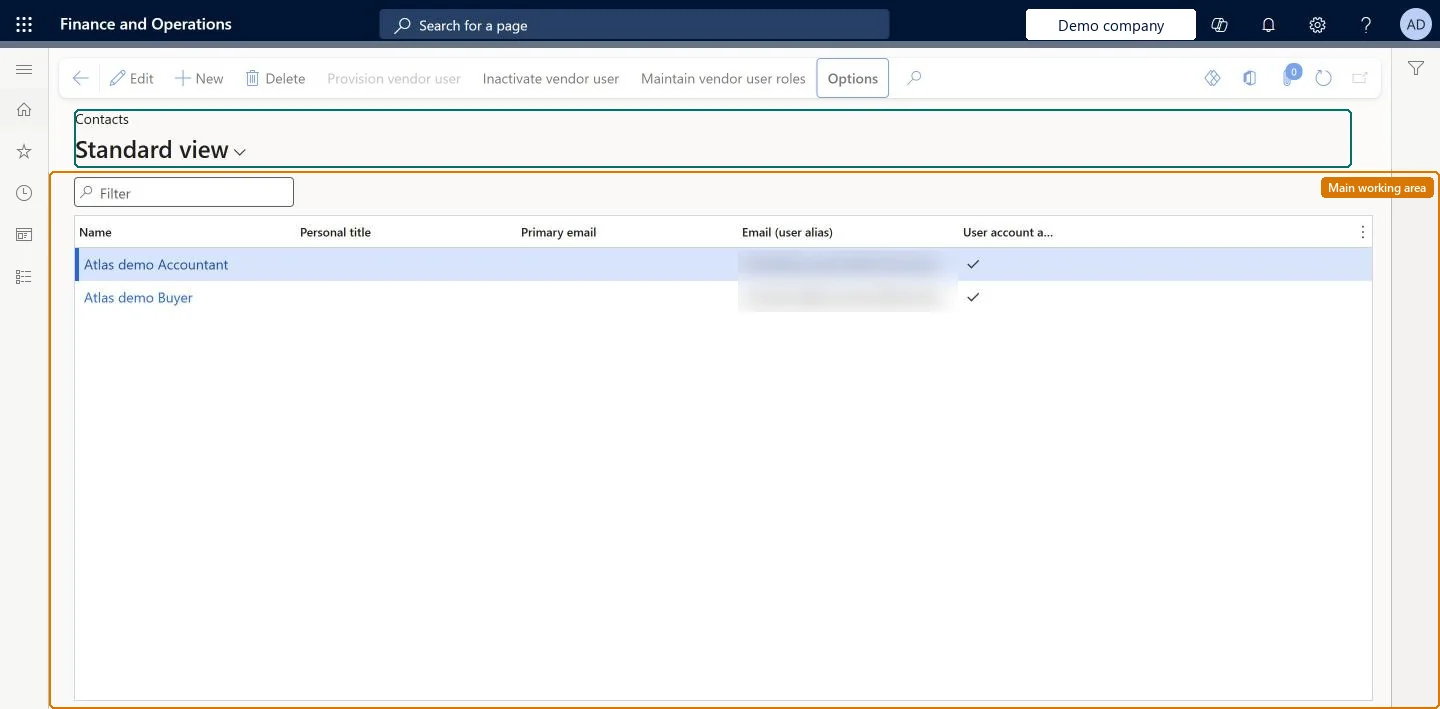
The page in Dynamics 365. page title tab to open what to set or check
About the examples: Examples and screenshots in this guide use BEAT, a demo company in a Dynamics 365 test environment. Use your own company's codes and values instead of copying them.
Setup steps on this page
Add vendor contacts and request vendor users
Create contact persons for the vendor and request their vendor collaboration user accounts.
Steps from Microsoft
Go to Vendor collaboration > Contacts > All contacts.
Select New.
Enter the contact person details.
Select a Legal entity in my company / Legal entity in customer company pair.
The vendor-side legal entity the contact represents.Microsoft Learn
The vendor's own company that the contact represents.
ContactForParty
Legal entity in customer company
The customer legal entity the contact works with.Microsoft Learn
BEAT
Provision vendor user
Action that starts a request to create a user for the contact. The email address is the sign-in: an address on a domain registered with Microsoft Entra must already be an Entra account, other domains get an invitation, and consumer addresses such as @gmail.com or @hotmail.com can't be used.Microsoft Learn
sales.contact@vendor.example
Vendor collaboration access allowed
Set per legal entity to give the new user access to vendor collaboration.Microsoft Learn
Yes for the BEAT legal entity only.
VendorPortalAccessAllowed
Inactivate vendor user
Action that requests removal of a user's access, with a business justification.Microsoft Learn
A contact who left the vendor.
Maintain vendor user roles
Action that requests a change to a user's security roles.Microsoft Learn
Add Vendor admin (external) to a second administrator.
Common errors and fixes
Message
What to do
The user must have access to at least one vendor.
Check that the vendor request is in Request approved status, that the user has the roles set up for the Vendor type in External roles, that the user is linked to a person who is a contact on the vendor record, and that Vendor collaboration is Active on the vendor. Then ask the vendor to sign in with their work account. Microsoft Learn
Test checklist
On All contacts, select New, enter the contact details, pick a Legal entity in my company / Legal entity in customer company pair and select Create.
Select Provision vendor user for the contact, enter a work email address (not a consumer address such as @gmail.com), set Vendor collaboration access allowed to Yes, assign roles and select Submit.
Check that the request appears in the Vendor collaboration user requests list and that the user request workflow runs to completion.
Sign in as the new user and check that the vendor's purchase orders are visible in the vendor collaboration interface.
Submit Maintain vendor user roles to remove one role and check that the user loses that access after the workflow completes.
Create the contact first with the right legal entity pair, then provision the user with the person's work email addressA user can only be requested for an existing contact, and the email address becomes the sign-in through Microsoft Entra B2B.
Microsoft provides two external roles for vendor collaboration: Vendor admin (external), for contacts and user requests, and Vendor (external), for purchase orders, invoices, consignment inventory, RFQs and vendor information. External users created through a user request also get the SystemExternalUser role. On the live system, Vendor admin (external) maintains this page.
A contact is paired per legal entity: Vendor collaboration access allowed is set for each customer legal entity the person works with, and a vendor admin can only make requests for vendor accounts they are a contact for. Microsoft Learn
Can it be undone
Reversible: Contacts and user access can be changed later. A submitted Provision vendor user request sets Vendor collaboration access allowed to Yes for the vendor account and starts the user request workflow that creates the user and assigns roles. To take access away, set Vendor collaboration access allowed to No per legal entity or submit an Inactivate vendor user request. Roles change through Maintain vendor user roles. You can only delete contacts that you created. Microsoft Learn
If you change it later
Submitting a provisioning request turns on vendor collaboration access for the vendor account and starts a workflow that creates the user and assigns roles. Microsoft Learn
Technical architect
6Technical
Menu item
VendVendorContactPersonChecked in Dynamics 365
Form
VendVendorContactPersonChecked in Dynamics 365
Table
DirPersonShown as “PEOPLE” in Record infoChecked in Dynamics 365
Data entities
smmContactPersonV2EntityContacts V2 (the contact person records (ContactPerson table, linked to the vendor party through ContactForParty); user accounts are created by the user request workflow, not loaded) Microsoft data model
Who can open it
PrivilegesMaintain contact person details for vendor external admin VendVendorContactPersonMaintainVendVendorContactPersonViewDutiesMaintain vendor contacts and vendor user request VendVendorUserRequestMaintainView contacts and vendor user requests VendVendorUserRequestView1 security roleVendor admin (external) VendVendorContactExternalAdminChecked in Dynamics 365
Roles to set it up and use it
To set it up or change itVendor admin (external) VendVendorContactExternalAdminGive people one of these roles. On this system, 1 role can open this page.Checked in Dynamics 365
Actions on the page
(Action Pane without tabs): New, Delete, Provision vendor user, Inactivate vendor user, Maintain vendor user rolesChecked in Dynamics 365
smmContactPersonV2Entity (Contacts V2): contact persons, loaded for each company.Load order: Load vendors first, then their contact persons. Vendor collaboration users are not migrated: provision them with Provision vendor user so the workflow creates the user and the Microsoft Entra account.Load first: vendors, external rolesChecked in Dynamics 365