About the examples: Examples and screenshots in this guide use BEAT, a demo company in a Dynamics 365 test environment. Use your own company's codes and values instead of copying them.
Setup steps on this page
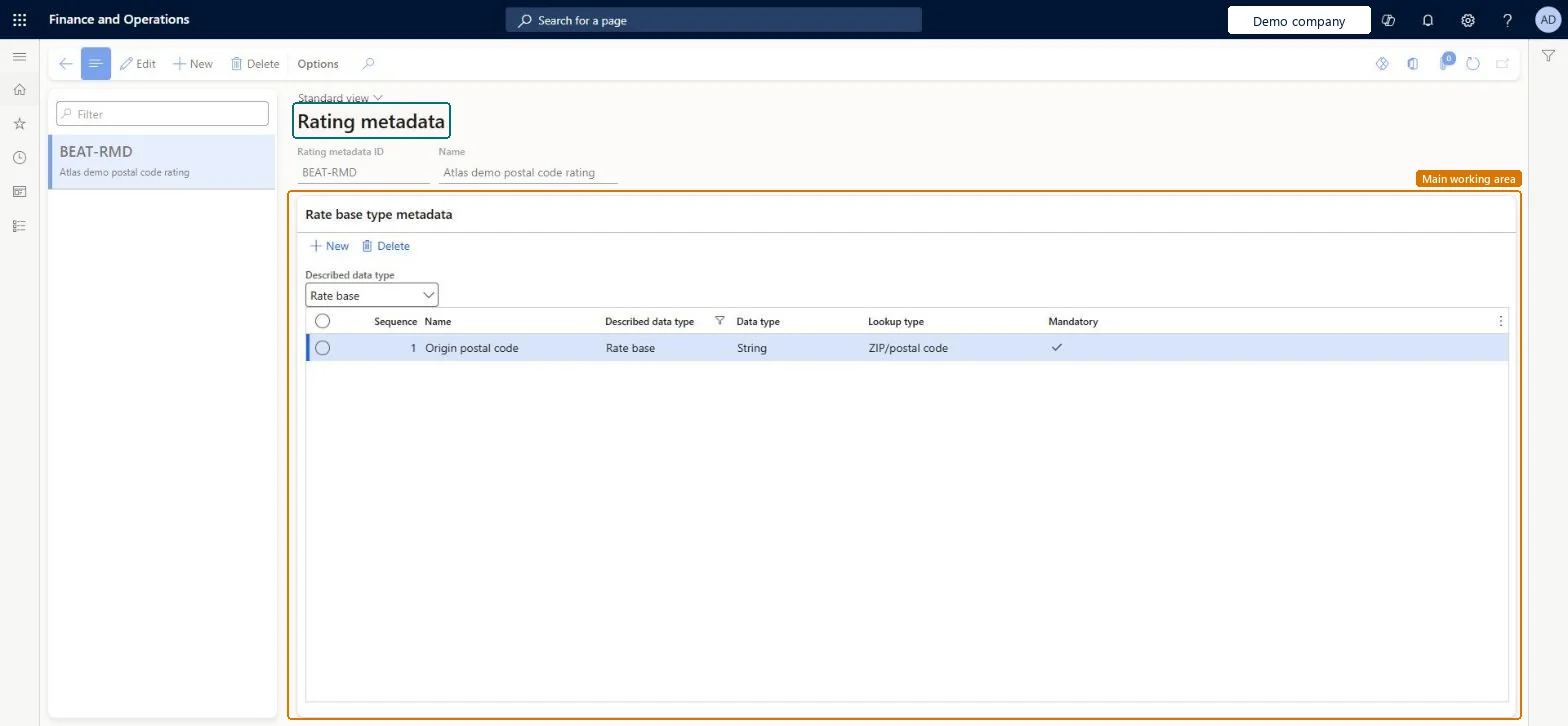
Set up Rating metadata
Use this page to define the data a rate engine expects when it calculates rates, so that rates can be searched by values such as postal codes.
How to use it
Go to Transportation management > Setup > Rating > Rating metadata.
Select New.
Enter a Rating metadata ID and a Name.
On the Rate base type metadata FastTab, select the Described data type, such as Rate base.
Select New and enter the Sequence, Name, Data type, Lookup type and Mandatory setting for each field.
Source: Checked in Dynamics 365
Test checklist
Create rating metadata with mandatory assignment fields for origin postal code and destination start and end postal code.
Create a rate master that uses this Rating metadata ID and check that the Rate base assignments FastTab shows the postal code columns.
Add a rate base assignment for one postal code range and link the rate master to a carrier's rating profile.
Rate a load with a destination inside the range and check that a rate is returned; repeat with a postal code outside the range and check that no rate is found.
Set up rating metadata first, with assignment fields that use the Postal Code lookup type for origin and destination (for example origin postal code and destination start and end postal code)Metadata controls the data used to search for rates; to search rates by postal code you must set up metadata with the postal code lookup type. The standard engines rely on postal codes, and rating elements must be configured in order, starting with rating metadata.
What data should rates be searched on?Designing metadata around longitude and latitude. The standard engines don't support it, so you would need a custom engine.
Hard to reverse: A rate master can be associated with only one rating metadata ID, and the rate base assignment columns depend on that metadata. Changing metadata that rate masters already use means rebuilding their rate data. Microsoft Learn
Technical architect
6Technical
Menu item
TMSRateBaseTypeChecked in Dynamics 365
Form
TMSRateBaseTypeChecked in Dynamics 365
Table
TMSRateBaseTypeShown as “RATE BASE TYPES” in Record infoKey field: RateBaseTypeCodeChecked in Dynamics 365
Data entities
TMSTransportationRatingMetadataEntityTransportation rating metadata Microsoft data model
Who can open it
PrivilegesMaintain rate base types TMSRateBaseTypeMaintainView rate base types TMSRateBaseTypeViewDutiesInquire into carrier master and network planning information TMSCarrierMasterInquireMaintain transportation management engine configuration TMSEngineConfigurationMaintain2 security rolesLogistics manager TMSLogisticsManagerTransportation coordinator TMSTransportationCoordinatorChecked in Dynamics 365
Roles to set it up and use it
To set it up or change itLogistics manager TMSLogisticsManagerTo use itTransportation coordinator TMSTransportationCoordinatorGive people one of these roles. On this system, 2 roles can open this page.Checked in Dynamics 365
TMSTransportationRatingMetadataEntity (Transportation rating metadata): loaded for each company, in Microsoft's default template 405 - Transportation management.Load order: Microsoft's default template 405 - Transportation management loads Transportation rating metadata at execution unit 1, level 30, sequence 10. Lower levels load first, and entities at the same level load in sequence order.Load first: the default templates at lower levels (System setup to General ledger)Microsoft Learn