PAGE GUIDEWhat the page does and how to use it7 sections. Choose a role to highlight what matters to you.
Everyone
1What it is and why
What it is
A workbench page where you find rates and routes for a shipment and match loads to routes, either manually or automatically, by using route guides.
What you do here
Use this page to rate shop across shipping carriers and to find a route and rate for a shipment, based on its origin, destination, weight, volume and other shipment data.
Example
For example, you can use it to identify the fastest route or the least expensive rate for a shipment.
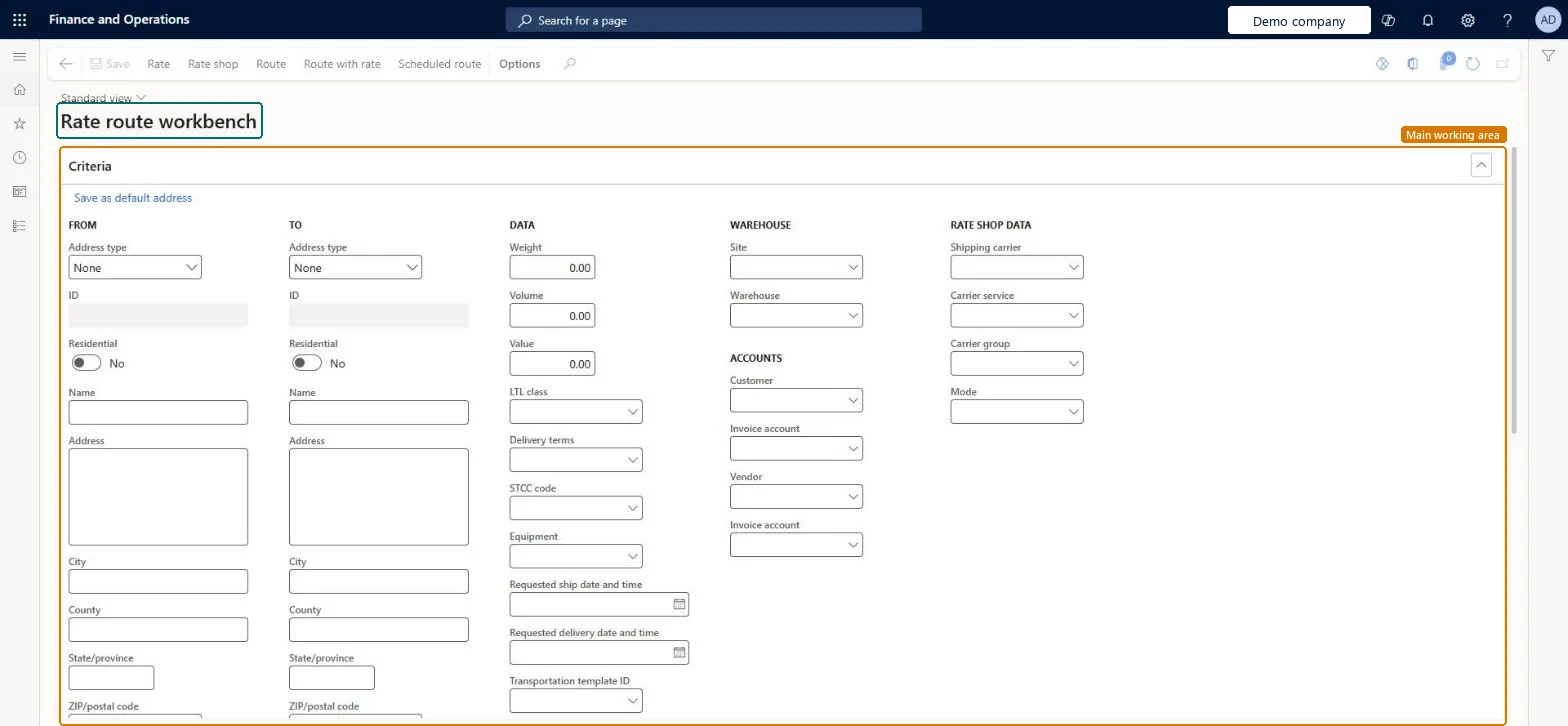
The page in Dynamics 365. page title tab to open what to set or check
About the examples: Examples and screenshots in this guide use BEAT, a demo company in a Dynamics 365 test environment. Use your own company's codes and values instead of copying them.
How to use it
Go to Transportation management > Planning > Rate route workbench.
On the Criteria FastTab, under FROM and TO, select the Address type and ID, or enter the name and address of the origin and the destination.
Under DATA, enter the Weight, Volume and Value, and, as needed, the LTL class, Delivery terms, STCC code, Equipment, Requested ship date and time and Requested delivery date and time.
Under WAREHOUSE and ACCOUNTS, select the Site, Warehouse, Customer or Vendor and the related Invoice account.
Under RATE SHOP DATA, limit the search to a Shipping carrier, Carrier service, Carrier group or Mode if needed.
On the Action Pane, select Rate, Rate shop, Route, Route with rate or Scheduled route.
Source: Checked in Dynamics 365
Test checklist
Open a load with Loading strategy set to Full load shipping only and open the Rate route workbench from the Loads grid.
Select Rate and check that the cheapest carrier is returned.
Select Rate shop and check that every carrier with a valid rating profile is listed with rate and total transit time.
Select a result and Assign it, then check carrier, service and rate on the load.
Confirm the load and check that a freight bill is generated with the assigned rate.
Hard to reverse: Assigning a rate and route only updates the load while it is open. When the load is confirmed, a freight bill is generated with those rates and the costs are apportioned to the source orders as miscellaneous charges, so a wrong rate is then fixed through freight reconciliation, not here. Microsoft Learn
Technical architect
5Technical
Menu item
TMSRateRouteWorkbenchChecked in Dynamics 365
Form
TMSRateRouteWorkbenchChecked in Dynamics 365
Table
TMSRouteSegmentTableShown as “ROUTE SEGMENT” in Record infoChecked in Dynamics 365
Roles to set it up and use it
To set it up or change itTransportation coordinator TMSTransportationCoordinatorTo use itLogistics manager TMSLogisticsManagerGive people one of these roles. On this system, 2 roles can open this page.Checked in Dynamics 365
Actions on the page
(Action Pane without tabs): Rate, Rate shop, Route, Route with rate, Scheduled routeChecked in Dynamics 365