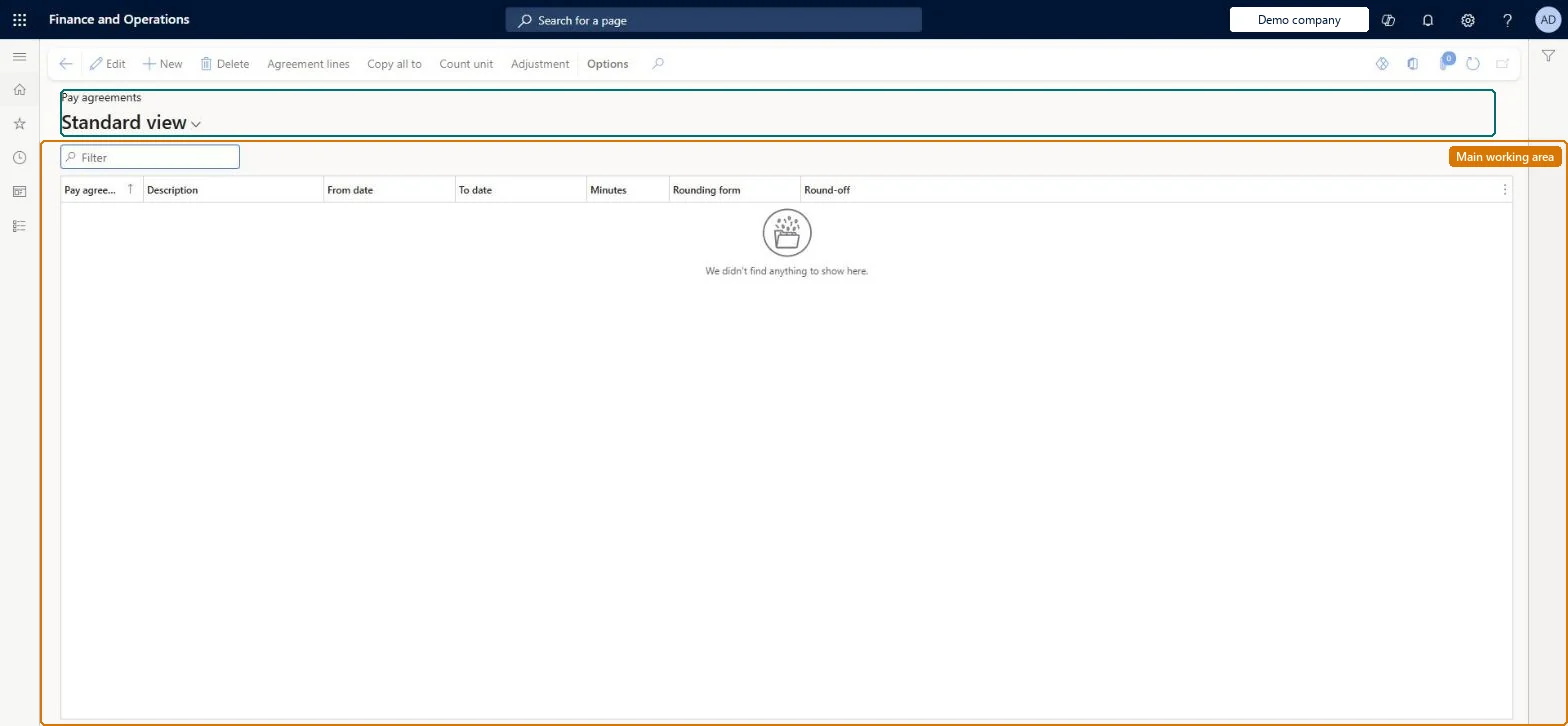
A setup page where you define pay agreements, whose lines link profile types and registration types to pay types for each weekday, so that pay is generated from workers' registrations.
PAGE GUIDEWhat the page does and how to use it8 sections. Choose a role to highlight what matters to you.
Everyone
1What it is and why
What it is
A setup page where you define pay agreements, whose lines link profile types and registration types to pay types for each weekday, so that pay is generated from workers' registrations.
What you do here
Use this page to set the pay rules for a group of workers; each time registration worker is linked to a pay agreement.
Example
For example, you add a line for the Absence registration type so that a doctor's appointment is paid at the rate set in the agreement.
The page in Dynamics 365. page title tab to open what to set or check
About the examples: Examples and screenshots in this guide use BEAT, a demo company in a Dynamics 365 test environment. Use your own company's codes and values instead of copying them.
Setup steps on this page
Set up Pay agreements
Use this page to set the pay rules for a group of workers; each time registration worker is linked to a pay agreement.
Steps from Microsoft
Go to Time and attendance > Setup > Payroll > Pay agreements.
Select New.
Enter a value in the Pay agreement field and a description, then save.
Select Agreement lines.
Select New.
Select the Profile type and the Pay type for the line.
One pay agreement per group of workers on the same pay rules, with a To date in the future and lines for each weekday (use Copy day) per profile type and registration typeEach time registration worker is linked to a pay agreement whose lines map profile and registration types to pay types; the agreement must be valid for the dates paid.
Time and attendance roles come from the security read in the Technical section. On this system the page is opened with roles such as Payroll administrator, Payroll manager. The Microsoft Learn article for this page names no Feature management feature to turn on.
Per company: each legal entity has its own pay agreements. Checked in Dynamics 365
Can it be undone
Reversible: Changes apply to later transfers. For a single day, use Override pay agreement on Approve; for past days, reverse and transfer again before the pay transfer. Microsoft Learn
If you change it later
The agreement must be valid for the dates being paid; if its To date is in the past, extend it before its lines can be used. Microsoft Learn
Technical architect
6Technical
Menu item
JmgPayAgreementTableChecked in Dynamics 365
Form
JmgPayAgreementTableChecked in Dynamics 365
Table
JmgPayAgreementTableShown as “PAY AGREEMENT” in Record infoKey field: PayAgreementChecked in Dynamics 365
PrivilegesMaintain pay agreements JmgPayAgreementTableMaintainView pay agreements JmgPayAgreementTableViewDutiesInquire into pay agreement master JmgPayAgreementMasterInquireMaintain pay agreement master JmgPayAgreementMasterMaintainInquire into time and attendance payroll policies JmgTimeAttandancePayrollPoliciesInquireMaintain time and attendance payroll adjustments JmgTimeAttendancePayrollAjustMaintainEnable time and attendance payroll process JmgTimeAttendancePayrollProcessEnableInquire into time and attendance payroll data JmgTimeAttendancePayrollProgressInquire2 security rolesPayroll administrator HcmPayrollAdministratorPayroll manager HcmPayrollManagerChecked in Dynamics 365
Roles to set it up and use it
To set it up or change itPayroll administrator HcmPayrollAdministratorTo use itPayroll manager HcmPayrollManagerGive people one of these roles. On this system, 2 roles can open this page.Checked in Dynamics 365
Actions on the page
(Action Pane without tabs): Agreement lines, Copy all to, Count unit, AdjustmentChecked in Dynamics 365
JmgPayAgreementEntity (Pay agreements): loaded for each company, in Microsoft's default template 410 - Production control.Load order: Microsoft's default template 410 - Production control loads Pay agreements at execution unit 1, level 30, sequence 20. Lower levels load first, and entities at the same level load in sequence order.Load first: the default templates at lower levels (System setup to General ledger)Microsoft Learn