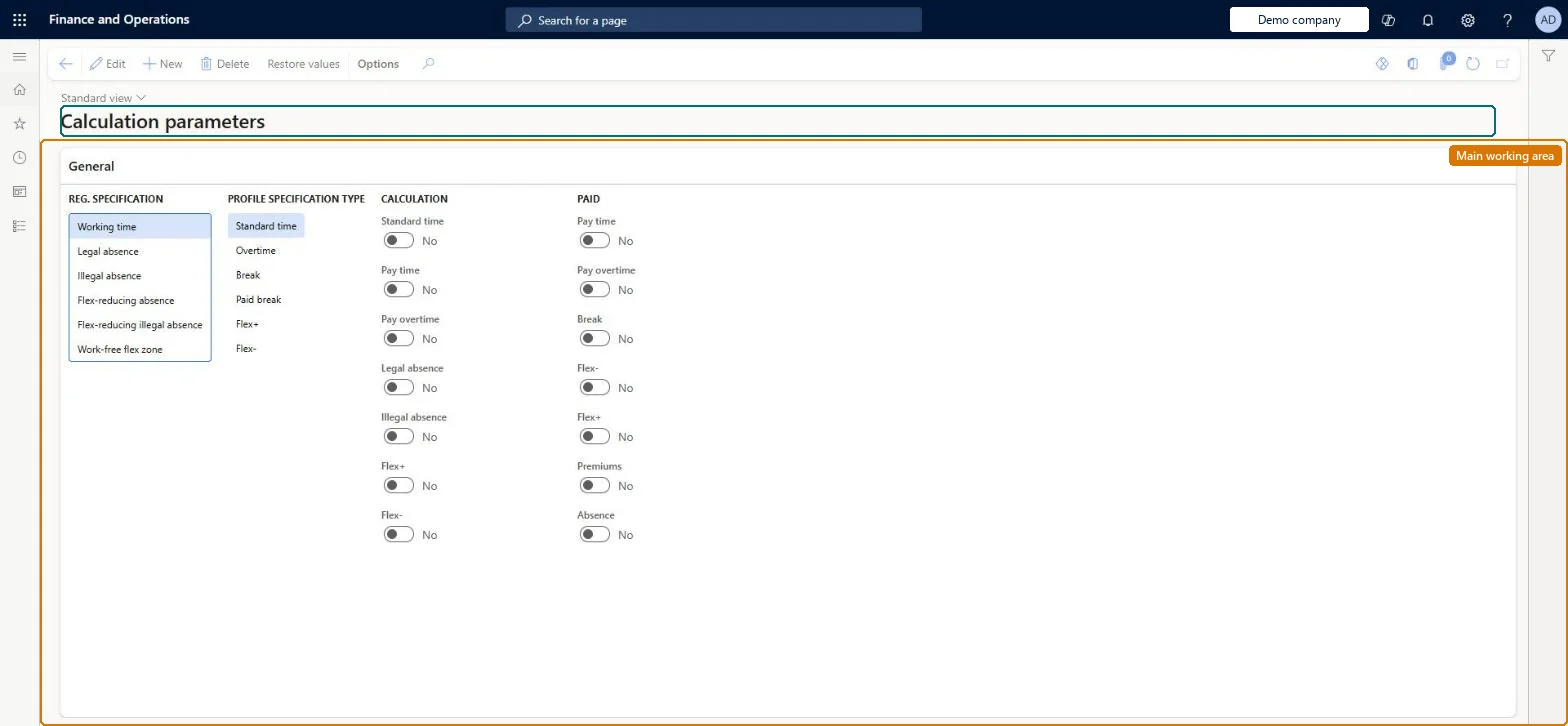
A setup page where you decide how each type of registered time is counted as standard time, pay time or overtime for each type of period in the worker's profile.
Human resource manager, Payroll administrator, Production manager
Business process
Manage time and attendance
Menu item
JmgTimeCalcParmeters
Main table
JmgTimeCalcParmeters
Data entity
JmgTimeAndAttendancePayCalculationPolicyEntity
Setup steps
1 on this page
Show what matters for
PAGE GUIDEWhat the page does and how to use it8 sections. Choose a role to highlight what matters to you.
Everyone
1What it is and why
What it is
A setup page where you decide how each type of registered time is counted as standard time, pay time or overtime for each type of period in the worker's profile.
What you do here
Use this page to control how pay items are split, for example whether overtime is paid as standard time plus an overtime supplement or as a separate full overtime amount.
Example
For example, you set Pay time to No for the Overtime profile specification type so that standard time and overtime pay units each cover only the hours actually spent on them.
The page in Dynamics 365. page title tab to open what to set or check
About the examples: Examples and screenshots in this guide use BEAT, a demo company in a Dynamics 365 test environment. Use your own company's codes and values instead of copying them.
Setup steps on this page
Set up Calculation parameters
Use this page to control how pay items are split, for example whether overtime is paid as standard time plus an overtime supplement or as a separate full overtime amount.
Steps from Microsoft
Go to Time and attendance > Setup > Calculation parameters.
Select the profile specification type to change, for example Overtime.
Set the Pay time option as required.
To return to the recommended settings, select Restore values.
The type of registration a worker makes, such as working time or a kind of absence.Microsoft Learn
Profile specification type
The type of profile period, such as Overtime, whose calculation and pay settings you choose.Microsoft Learn
Pay time (Paid section)
Whether the time also counts as standard pay time; clear it when overtime is paid as one full amount.Microsoft Learn
Common errors and fixes
Message
What to do
Time calculation parameters have not been created
Go to Time and attendance > Setup > Calculation parameters and select Restore values once to create the recommended defaults for the company, then open the page again. Checked in Dynamics 365
Overtime is paid inside standard time
Standard time, flex- and overtime are merged by default; set the Overtime specification type with Pay time = No for standard time and Pay overtime = Yes. Microsoft Learn
Test checklist
With default settings, register a day with 1.5 hours of overtime, calculate and transfer.
Check Transferred registrations shows one standard time pay item covering all hours and an overtime item at the premium rate.
Set Pay time = No for Overtime, change the overtime pay type rate, undo the transfer and transfer again.
Check standard time and overtime pay items now split the hours (for example 8.50 and 1.50).
Keep the recommended standard settings (Restore values); change them only to separate overtime from standard time, by setting Pay time to No for the Overtime profile specification typeMicrosoft advises care when changing calculation parameters and provides Restore values for the recommended settings. Separating overtime is the change Learn documents.
Time and attendance roles come from the security read in the Technical section. On this system the page is opened with roles such as Human resource manager, Payroll administrator, Production manager. The Microsoft Learn article for this page names no Feature management feature to turn on.
Per company: each legal entity has its own calculation parameters. Checked in Dynamics 365
Can it be undone
Reversible: Select Restore values to return to the recommended settings. Pay items already transferred are not recalculated unless the transfer is undone and repeated. Microsoft Learn
If you change it later
Changes here alter how pay items are generated for all workers, so Microsoft advises care and offers Restore values to return to the recommended settings. Microsoft Learn
Technical architect
6Technical
Menu item
JmgTimeCalcParmetersChecked in Dynamics 365
Form
JmgTimeCalcParmetersChecked in Dynamics 365
Table
JmgTimeCalcParmetersShown as “CALCULATION PARAMETERS” in Record infoChecked in Dynamics 365
Data entities
JmgTimeAndAttendancePayCalculationPolicyEntityTime and attendance calculation policies Microsoft data model
Who can open it
PrivilegesMaintain time and payroll calculation parameters JmgTimeCalcParmetersMaintainView time and payroll calculation parameters JmgTimeCalcParmetersViewDutiesEnable time and attendance payroll process JmgTimeAttendancePayrollProcessEnableInquire into time and attendance policies JmgTimeAttendancePoliciesInquireEnable time and attendance process JmgTimeAttendanceProcessEnable3 security rolesHuman resource manager HcmHumanResourceManagerPayroll administrator HcmPayrollAdministratorProduction manager ProdProductionManagerChecked in Dynamics 365
Roles to set it up and use it
To set it up or change itPayroll administrator HcmPayrollAdministratorProduction manager ProdProductionManagerTo use itHuman resource manager HcmHumanResourceManagerGive people one of these roles. On this system, 3 roles can open this page.Checked in Dynamics 365
Actions on the page
(Action Pane without tabs): Restore valuesChecked in Dynamics 365
JmgTimeAndAttendancePayCalculationPolicyEntity (Time and attendance calculation policies): loaded for each company, in Microsoft's default template 410 - Production control.Load order: Microsoft's default template 410 - Production control loads Time and attendance calculation policies at execution unit 1, level 30, sequence 10. Lower levels load first, and entities at the same level load in sequence order.Load first: the default templates at lower levels (System setup to General ledger)Microsoft Learn