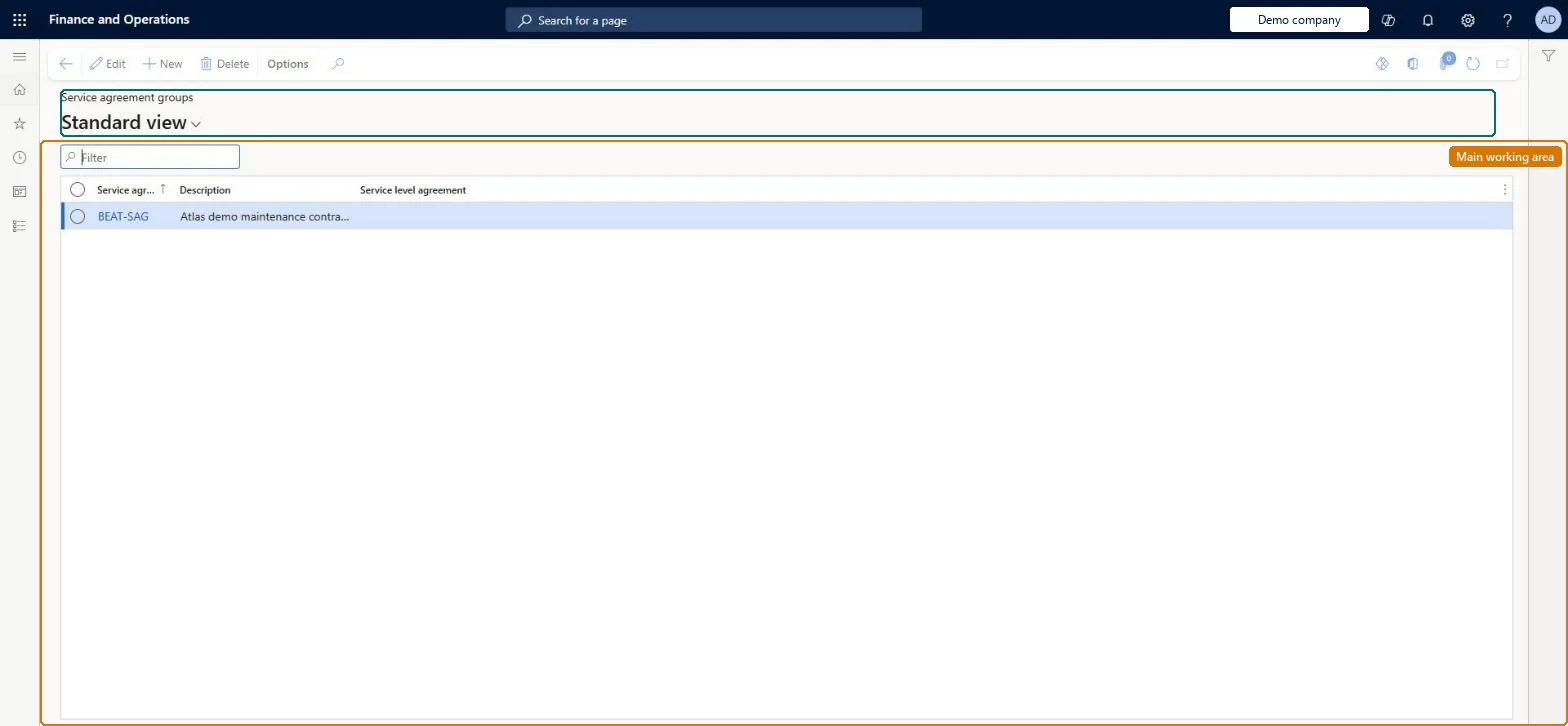
Setup step on the Service agreement groups page · Service management
Set up Service agreement groups
Use this page to group service agreements by criteria such as company size, location, industry or service level, and to give each group a default service level agreement for new agreements.
SETUP GUIDEHow to set it up8 sections. Choose a role to highlight what matters to you.
Everyone
1What it is and why
What it is
A setup page where you create groups, each with an ID, description and optional service level agreement, used to sort and filter service agreements.
What you do here
Use this page to group service agreements by criteria such as company size, location, industry or service level, and to give each group a default service level agreement for new agreements.
Example
For example, with Gold, Silver and Bronze groups, a new service account manager can filter on Gold to find every agreement they are now responsible for.
The page in Dynamics 365. page title tab to open what to set or check
About the examples: Examples and screenshots in this guide use BEAT, a demo company in a Dynamics 365 test environment. Use your own company's codes and values instead of copying them.
Setup steps on this page
Set up Service agreement groups
Use this page to group service agreements by criteria such as company size, location, industry or service level, and to give each group a default service level agreement for new agreements.
Steps from Microsoft
Go to Service management > Setup > Service agreements > Service agreement groups.
On the Action Pane, select New to create a new service agreement group.
In the Service agreement group field, enter an ID for the group.
In the Description field, enter a description.
In the Service level agreement field, select the agreement that applies to the group.
Groups by level of service (for example Gold, Silver, Bronze), each with its service level agreement, and a default group in Service management parametersLearn uses service-level groups as the example for filtering agreements, an SLA can be assigned on the group, and the parameter group is suggested on new agreements.
Assuming the group SLA measures every order. Only manually created service orders on an agreement with an SLA are measured; automatically created orders aren't attached to an SLA.
Solution architect
5Design impact
Can it be undone
Reversible: Groups and their SLA can be changed; the group is a sorting and default value for agreements.
If you change it later
The SLA selected on a group is applied to new service agreements created in that group, so changing it changes the response times measured on future service orders. Microsoft Learn
Technical architect
6Technical
Menu item
SMAAgreementGroupChecked in Dynamics 365
Form
SMAAgreementGroupChecked in Dynamics 365
Table
SMAAgreementGroupShown as “SERVICE AGREEMENT GROUPS” in Record infoChecked in Dynamics 365
PrivilegesMaintain service agreement groups SMAAgreementGroupMaintainView service agreement groups SMAAgreementGroupViewDutiesEnable service agreement process SMAServiceAgreementProcessEnableInquire into service agreement reference data SMAServiceAgreementReferenceDataInquire1 security roleService delivery manager SMAServiceDeliveryManagerChecked in Dynamics 365
Roles to set it up and use it
To set it up or change itService delivery manager SMAServiceDeliveryManagerGive people one of these roles. On this system, 1 role can open this page.Checked in Dynamics 365