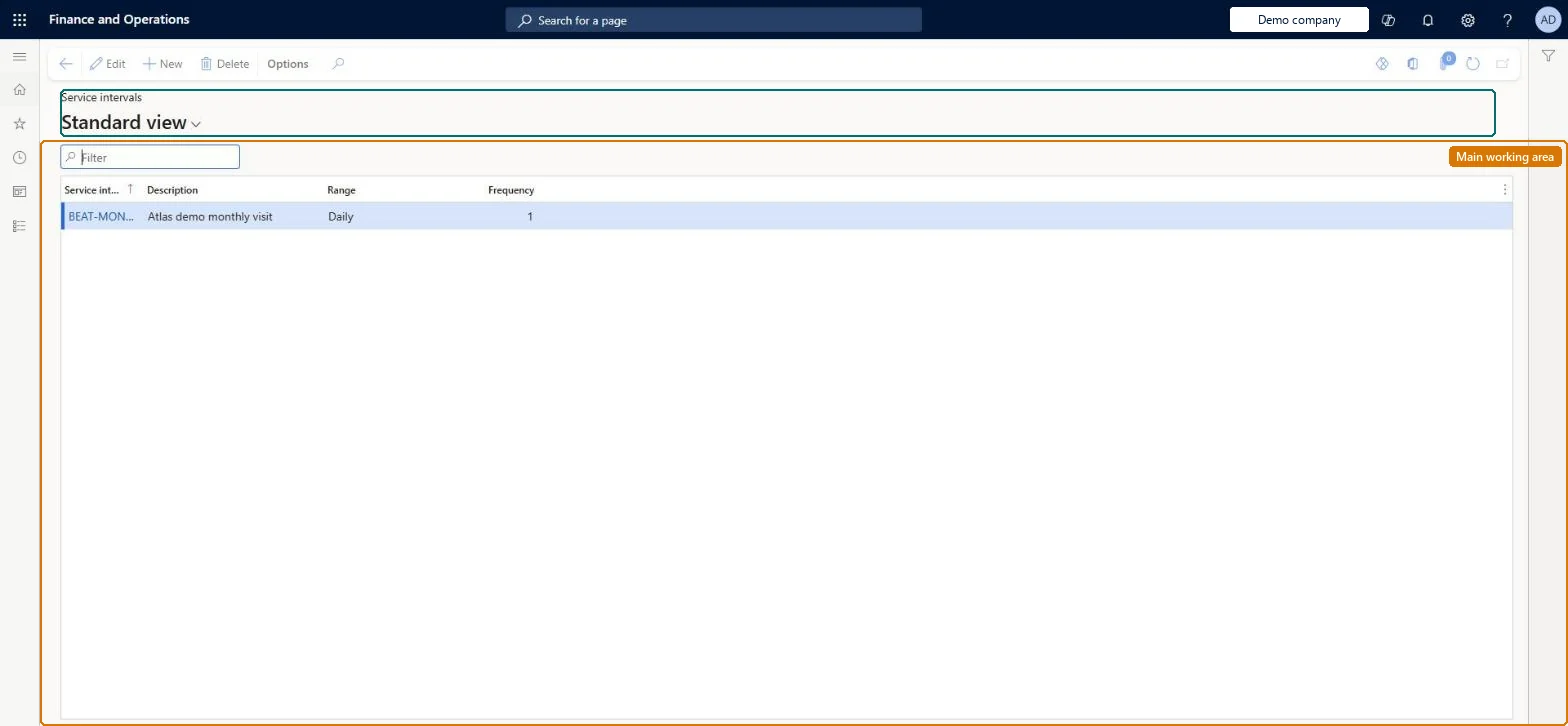
Setup step on the Service intervals page · Service management
Set up Service intervals
Use this page to create the recurring frequencies that you select on service agreement lines so that planned service orders are created automatically at the right dates.
SETUP GUIDEHow to set it up8 sections. Choose a role to highlight what matters to you.
Everyone
1What it is and why
What it is
A setup page where you define service intervals, each as a range (such as daily or weekly) multiplied by a frequency, that control how often service order lines are generated from service agreement lines.
What you do here
Use this page to create the recurring frequencies that you select on service agreement lines so that planned service orders are created automatically at the right dates.
Example
For example, to service an object every 10 days, create an interval with Range set to Daily and Frequency set to 10.
The page in Dynamics 365. page title tab to open what to set or check
About the examples: Examples and screenshots in this guide use BEAT, a demo company in a Dynamics 365 test environment. Use your own company's codes and values instead of copying them.
Setup steps on this page
Set up Service intervals
Use this page to create the recurring frequencies that you select on service agreement lines so that planned service orders are created automatically at the right dates.
Steps from Microsoft
Go to Service management > Setup > Service agreements > Service intervals.
On the Action Pane, select New.
Enter the ID and description of the service interval.
One interval per contracted visit frequency, built as Range x Frequency (for example Daily x 10 for every 10 days)Frequency is the factor that multiplies the range, and automatic service order creation places lines at that interval from the agreement line's start date.
Reversible: The interval is read when service orders are created; orders already generated are not part of this setup.
If you change it later
An agreement line without an interval is a one-time event and does not generate repeated service orders; the interval drives how many service order lines are created in a service period. Microsoft Learn
Technical architect
6Technical
Menu item
SMAAgreementIntervalChecked in Dynamics 365
Form
SMAAgreementIntervalChecked in Dynamics 365
Table
SMAAgreementIntervalShown as “SERVICE INTERVALS” in Record infoChecked in Dynamics 365
PrivilegesMaintain service intervals SMAAgreementIntervalMaintainView service intervals SMAAgreementIntervalViewDutiesInquire into service agreement policies SMAServiceAgreementPoliciesInquireEnable service agreement process SMAServiceAgreementProcessEnable1 security roleService delivery manager SMAServiceDeliveryManagerChecked in Dynamics 365
Roles to set it up and use it
To set it up or change itService delivery manager SMAServiceDeliveryManagerGive people one of these roles. On this system, 1 role can open this page.Checked in Dynamics 365