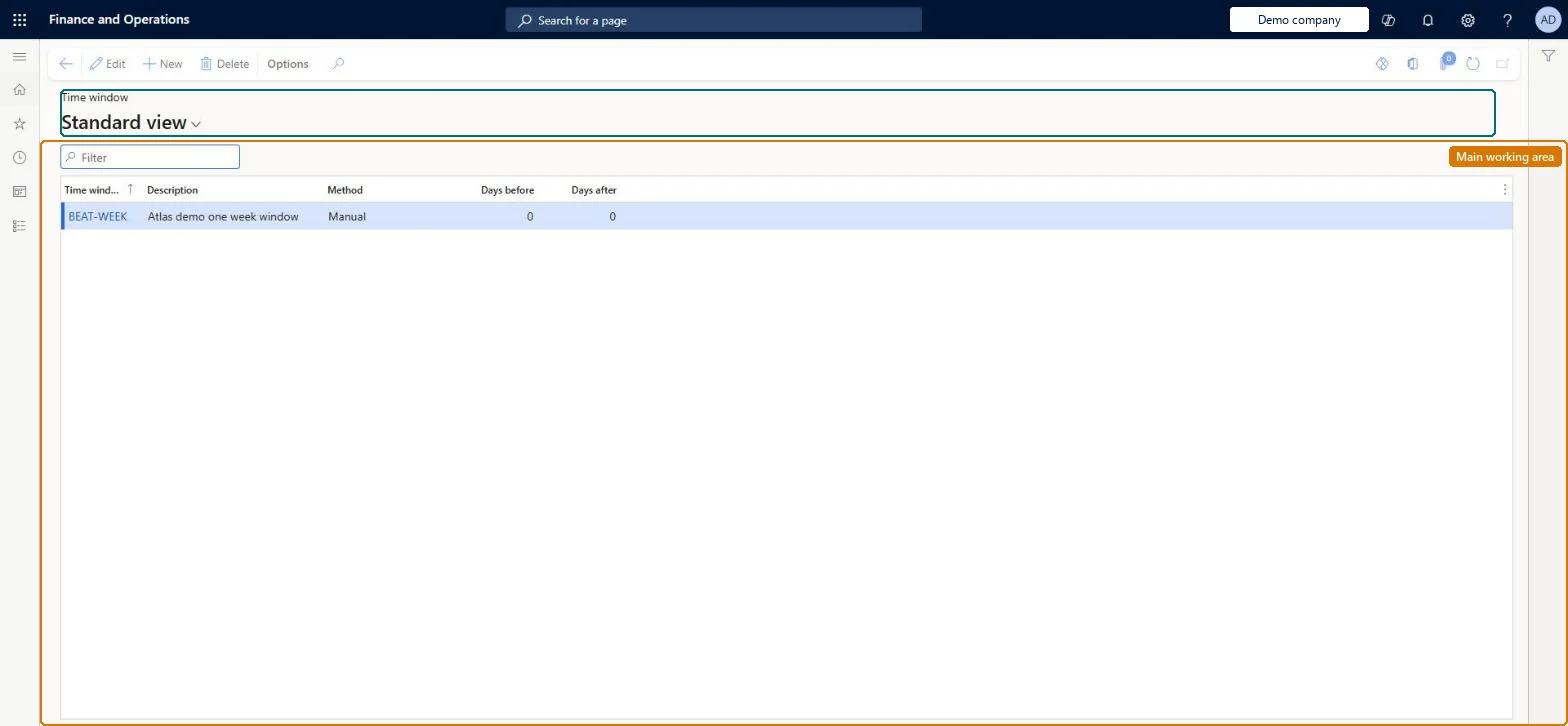
A setup page where you define time windows (Week, Month or a manual number of days) that state how far a generated service order line may be moved from its calculated date.
PAGE GUIDEWhat the page does and how to use it8 sections. Choose a role to highlight what matters to you.
Everyone
1What it is and why
What it is
A setup page where you define time windows (Week, Month or a manual number of days) that state how far a generated service order line may be moved from its calculated date.
What you do here
Use this page to give the automatic creation of service orders room to move service order lines so that as many lines as possible are combined into as few service orders as possible.
Example
For example, with a Month time window a line calculated for February 15, 2017 can be scheduled on any weekday between February 1 and February 28, 2017.
The page in Dynamics 365. page title tab to open what to set or check
About the examples: Examples and screenshots in this guide use BEAT, a demo company in a Dynamics 365 test environment. Use your own company's codes and values instead of copying them.
Setup steps on this page
Set up Time window
Use this page to give the automatic creation of service orders room to move service order lines so that as many lines as possible are combined into as few service orders as possible.
Steps from Microsoft
Go to Service management > Setup > Service agreements > Time window.
On the Action Pane, select New to create a new time window.
In the Time window field, enter a name for the time window.
In the Description field, enter a description.
In the Method field, select Week, Month or Manual.
If the method is Manual, specify the number of days before and after the calculated date that the line can be moved.
Week or Month on routine maintenance lines that can be combined; Manual (a set number of days before or after) when the customer allows only a narrow shiftThe time window lets automatic creation move a line from its calculated date so as many lines as possible go onto as few service orders as possible.
Leaving the time window empty on agreement lines. The derived service order line must then fall on its exact calculated date and can't be combined.
Solution architect
5Design impact
Can it be undone
Reversible: Time windows can be changed at any time; they only affect how lines are scheduled the next time service orders are created. Microsoft Learn
If you change it later
Without a time window on an agreement line, generated service order lines must fall on the exact calculated date, so they cannot be combined with other orders. Microsoft Learn
Technical architect
6Technical
Menu item
SMATimeAgreementChecked in Dynamics 365
Form
SMATimeAgreementChecked in Dynamics 365
Table
SMATimeAgreementShown as “TIME WINDOW” in Record infoChecked in Dynamics 365
PrivilegesMaintain time windows SMATimeAgreementMaintainView time windows SMATimeAgreementViewDutiesInquire into service agreement policies SMAServiceAgreementPoliciesInquireEnable service agreement process SMAServiceAgreementProcessEnableReview service agreement process performance SMAServiceAgreementProcessPerfReview2 security rolesChief executive officer CompanyChiefExecutiveOfficerService delivery manager SMAServiceDeliveryManagerChecked in Dynamics 365
Roles to set it up and use it
To set it up or change itService delivery manager SMAServiceDeliveryManagerTo use itChief executive officer CompanyChiefExecutiveOfficerGive people one of these roles. On this system, 2 roles can open this page.Checked in Dynamics 365