SETUP GUIDEHow to set it up8 sections. Choose a role to highlight what matters to you.
Everyone
1What it is and why
What it is
A page where you set up trade allowance templates with default values for new trade allowance agreements.
What you do here
Use this page to keep new agreements consistent with the organization's marketing objectives.
Example
For example, BEAT's customer BEAT-000310 deducts 450.00 from a payment for in-store display costs with no approved rebate to match. The collections manager settles it as a one-time promotion; the new agreement takes its currency and period from template ONE-TIME.
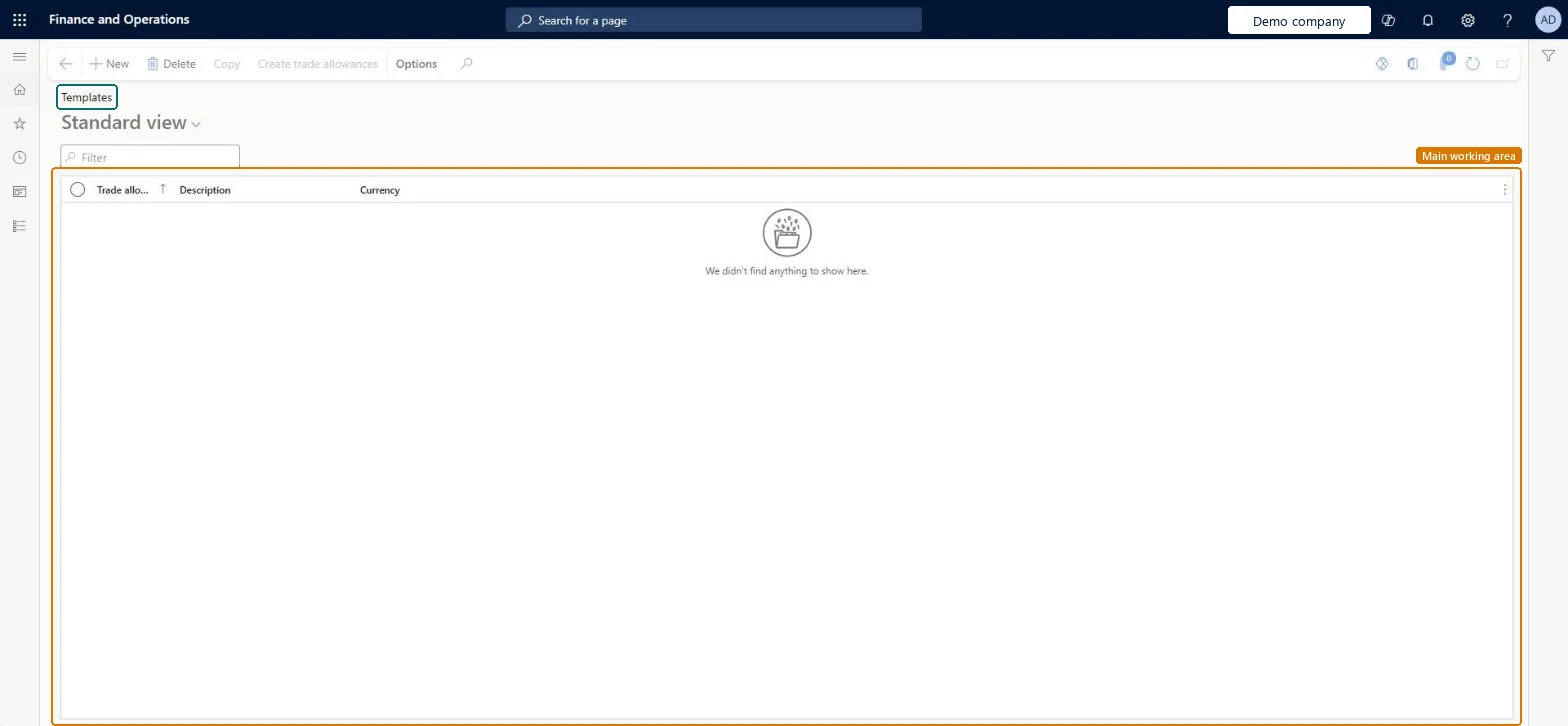
The page in Dynamics 365. page title tab to open what to set or check
About the examples: Examples and screenshots in this guide use BEAT, a demo company in a Dynamics 365 test environment. Use your own company's codes and values instead of copying them.
Setup steps on this page
Set up the trade allowance template for one-time promotions
Use this page to keep new agreements consistent and to let the deduction workbench settle unmatched deductions as one-time promotions.
Steps from Microsoft
Go to Sales and marketing > Trade allowances > Templates.
On the Action Pane, select New.
Enter the information that new agreements should get from the template.
On the Customers FastTab, in the Hierarchy field, select a hierarchy level.
Select the customer and select the right arrow button to add it.
Set the remaining fields and close the page.
Go to Trade allowance management parameters, and on the Overview tab select the template in the One-time promotion template field.
The default agreement period, or specific order dates.Microsoft Learn
Q1 2027
Common errors and fixes
Message
What to do
Settle deduction as one-time promotion doesn't create the agreement.
Select the template in One-time promotion template on the Overview tab of Trade allowance management parameters, make sure the customer is in the template's Trade allowance agreement customers, and enter funds whose percentages total 100 percent. Microsoft Learn
Test checklist
Create a template, pick a level in Hierarchy on the Customers FastTab and move the customer that has an unmatched deduction to Trade allowance agreement customers.
In Trade allowance management parameters, on the Overview tab, select the template in One-time promotion template.
On the Deduction workbench, mark that customer's deduction and select Maintain > Settle deduction as one-time promotion, with funds that total 100 percent.
Check that a new trade allowance agreement with a lump sum merchandising event is created with the template's values and that the deduction is matched.
Keep one template for one-time promotions, with the customers that can take unmatched deductions, and select it in One-time promotion template in Trade allowance management parameters.The one-time promotion feature creates a new trade allowance agreement with a lump sum event from this template and matches the lump sum to the deduction.
Reversible: Changes affect agreements created later.
If you change it later
The template's values are copied into each agreement created from it, including the agreement with a lump sum merchandising event that Settle deduction as one-time promotion creates on the deduction workbench. Changing it affects new agreements only. Microsoft Learn
Technical architect
6Technical
Menu item
TAMTemplateListPageChecked in Dynamics 365
Form
TAMTemplateListPageChecked in Dynamics 365
Table
TAMTradePromotionShown as “Trade allowance” in Record infoChecked in Dynamics 365
Data entities
TAMTradeAllowanceAgreementHeaderEntityTrade allowance agreement headers Microsoft data model
To set it up or change itSales manager TradeSalesManagerMarketing manager CRMMarketingManagerAccounts receivable clerk CustInvoiceAccountsReceivableClerkGive people one of these roles. On this system, 3 roles can open this page.Checked in Dynamics 365
Actions on the page
Options: Personalize, Page options, ShareChecked in Dynamics 365
TAMTradeAllowanceAgreementHeaderEntity (Trade allowance agreement headers): templates share the trade allowance table; check the template flag when loading.Load order: No default configuration template places this entity. Load templates after the customer category hierarchies, then select the one-time promotion template in Trade allowance management parameters.Load first: Customer category hierarchyMicrosoft Learn
Checked in a working Dynamics 365 system, version 10.0.49: the menu item, form, table and security, the page.
To cite this step: SM-TRD-130, Set up the trade allowance template for one-time promotions. Beyond ERP Atlas Hub, 2026-11-11. https://www.beyonderp.cloud/atlas/step/SM-TRD-130