SETUP GUIDEHow to set it up8 sections. Choose a role to highlight what matters to you.
Everyone
1What it is and why
What it is
An inquiry page that shows the details, documents, payments and events of a trade allowance agreement.
What you do here
Use this page to see a promotion's key figures, such as quantities sold, amounts invoiced and bill-backs paid.
Example
For example, after BEAT's spring promotion TA-000045 ends, the marketing manager opens it here and sees 6,200 units sold, 74,400.00 invoiced and 3,100.00 of bill-backs paid against a planned lift of 20 percent.
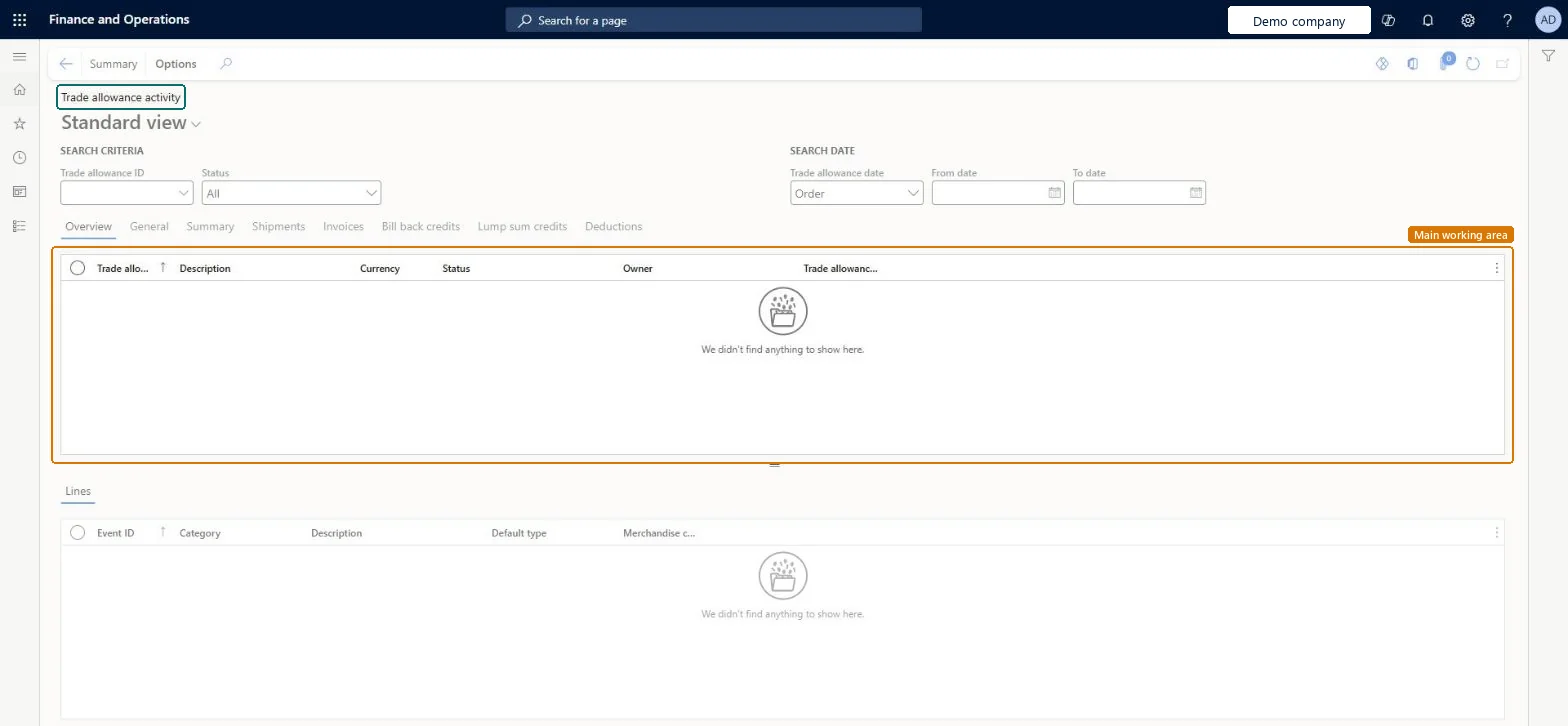
The page in Dynamics 365. page title tab to open what to set or check
About the examples: Examples and screenshots in this guide use BEAT, a demo company in a Dynamics 365 test environment. Use your own company's codes and values instead of copying them.
Setup steps on this page
Review a promotion's results on Trade allowance activity
Use this page to see a promotion's key figures, such as quantities sold, amounts invoiced and bill-backs paid.
Steps from Microsoft
Go to Sales and marketing > Trade allowances > Trade allowance analysis > Trade allowance activity.
Under Search criteria, choose a Trade allowance ID and a Status, and under Search date the From date and To date.
On the Overview tab, select the trade allowance to see its main details.
Open the Summary tab for the quantity sold, the amount invoiced and the bill-backs and lump sums paid.
Open the Bill back credits tab for the bill-backs credited to the customer, and the other tabs for shipments, invoices, lump sum credits and deductions.
The Summary tab shows no bill-backs paid for a promotion with invoices.
Process the bill-back claims on the Bill back workbench and create the credit note from Settle transactions > Functions > Bill back program. Microsoft Learn
Test checklist
Confirm a trade allowance agreement with a Bill back merchandising event, then post a sales invoice for a customer and item in the agreement.
On the Bill back workbench, cumulate, approve and process the claim, then create the credit note from Settle transactions > Functions > Bill back program.
Open Trade allowance activity for the agreement and check that the Summary tab shows the quantity sold, the invoiced amount and the bill-backs paid.
Check that the Bill back credits tab lists the bill-back credited to the customer.
Search by Trade allowance ID and set the Search date range to the agreement's order period before reading the Summary tab.The Summary and Bill back credits tabs show what was sold, invoiced and paid under the agreement; a narrower date range leaves out part of the promotion.
Nothing changes: the page reads the agreement's documents and payments. Its figures grow as invoices are posted and bill-back claims are processed and credited. Microsoft Learn
Technical architect
6Technical
Menu item
TAMTradePromotionAnalysisChecked in Dynamics 365
Form
TAMTradePromotionAnalysisChecked in Dynamics 365
Table
TAMTradePromotionShown as “Trade allowance” in Record infoChecked in Dynamics 365
Data entities
TAMTradeAllowanceAgreementHeaderEntityTrade allowance agreement headers Microsoft data model
To use itSales manager TradeSalesManagerAccounts receivable clerk CustInvoiceAccountsReceivableClerkMarketing manager CRMMarketingManagerGive people one of these roles. On this system, 3 roles can open this page.Checked in Dynamics 365
Actions on the page
Options: Personalize, Page options, ShareChecked in Dynamics 365
TAMTradeAllowanceAgreementHeaderEntity (Trade allowance agreement headers): the agreements this inquiry reads.Load order: Nothing is loaded through this inquiry; its figures come from posted documents of the agreements.Microsoft Learn
Checked in a working Dynamics 365 system, version 10.0.49: the menu item, form, table and security, the page.
To cite this step: SM-TRD-140, Review a promotion's results on Trade allowance activity. Beyond ERP Atlas Hub, 2026-11-11. https://www.beyonderp.cloud/atlas/step/SM-TRD-140