Accounts payable manager, Auditor, Accounts receivable clerk and 2 more roles
Business process
Process customer rebates
Menu item
PdsRebateAgreements
Main table
PdsRebateAgreement
Data entity
SalesRebateAgreementHeaderV2Entity
Setup steps
1 on this page
Show what matters for
SETUP GUIDEHow to set it up8 sections. Choose a role to highlight what matters to you.
Everyone
1What it is and why
What it is
A page where you set up customer rebate agreements: who and what qualifies, how sales are cumulated, the rebate thresholds and amounts, and how the rebate is paid. These are the older customer rebates of Sales and marketing. Microsoft describes Rebate management as the newer module for rebate deals, provisions and royalties; choose one of the two for a project.
What you do here
Use this page to define which customers and items qualify for a rebate, how it is calculated and how it is paid.
Example
For example, BEAT gives customer BEAT-000123 a rebate of 2.00 per unit on item BEAT-ITEM-0042 when weekly purchases are 1 to 50 units and 4.00 per unit above 50, with Cumulate sales by Week and Price taken from Gross.
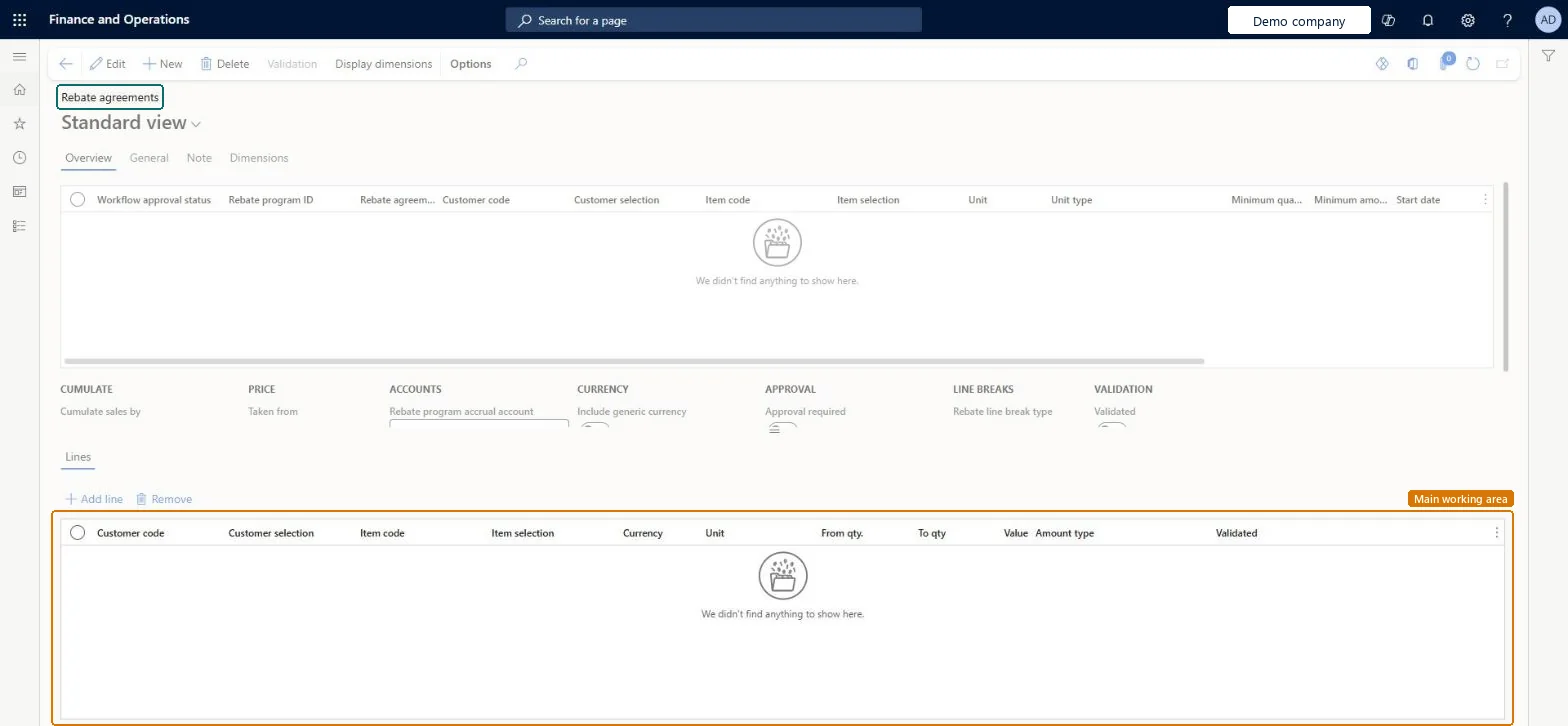
The page in Dynamics 365. page title tab to open what to set or check
About the examples: Examples and screenshots in this guide use BEAT, a demo company in a Dynamics 365 test environment. Use your own company's codes and values instead of copying them.
Setup steps on this page
Set up and approve customer rebate agreements
Use this page to define which customers and items qualify for a rebate, how it is calculated and how it is paid.
Steps from Microsoft
Go to Sales and marketing > Customer rebates > Rebate agreements.
Select New and, in the Rebate program ID field, select the rebate program.
Select the customer or customer rebate group, and the item or item rebate group.
Set the unit, Payment type, Cumulate sales by, Price taken from and Rebate line break type.
On the lines, enter each threshold range with its value and Amount type.
Select Validation on the Action Pane so that the Workflow approval status becomes Approved before orders are invoiced.
The rebate program type the agreement uses; it sets the kind of rebate and the default accrual and expense accounts.Microsoft Learn
VOLUME
PdsRebateType
Payment type
How the customer receives the rebate, for example through accounts payable, a customer deduction, trade spending or freight.Microsoft Learn
Customer deductions
PdsPaymtType
Cumulate sales by
The period over which sales are added up to calculate the rebate, for example Invoice, Week, Month, Year, a customized period or Lifetime.Microsoft Learn
Week
PdsCumulateSalesBy
Price taken from
Gross means the rebate is based on the line amount before the line discount; Net uses the amount after it.Microsoft Learn
Gross
Rebate line break type
Whether the thresholds on the lines are sales quantities or sales amounts.Microsoft Learn
Quantity
PdsRebateLineBreakType
Amount type
Whether the line's value is an amount per unit, a fixed amount or a percentage.Microsoft Learn
Amount per unit
RebateAmtType
Common errors and fixes
Message
What to do
The Price details option or its Rebates section doesn't show the rebate on a sales order line.
Set Enable price details to Yes on the Prices tab of Accounts receivable parameters, and approve the agreement with Validation so its Workflow approval status is Approved. Microsoft Learn
Test checklist
Set Enable price details to Yes on the Prices tab of Accounts receivable parameters.
Create a rebate agreement for one customer and item with Rebate line break type Quantity and two quantity breaks, then select Validation to approve it.
Create a sales order for that customer and item, open Price details on the line and check the Rebates section shows the estimated rebate.
Invoice the order and check a claim appears on Customer rebates > Rebates.
Decide Cumulate sales by, Price taken from and Rebate line break type with the sales manager before approval, then approve the agreement with Validation before the first qualifying order is invoiced.Claims are created from invoiced sales lines under the approved agreement. A periodic agreement cumulates the customer's sales for the period, so these three settings decide every claim amount.
On the live system, Sales manager (maintain), and Accounts receivable clerk, Accounts receivable manager, Accounts payable manager and Auditor (view) use this page.
Hard to reverse: Once approved, every qualifying invoice creates claims; settings changed later don't change claims already created.
If you change it later
From approval on, each invoiced sales line that meets the agreement creates a rebate claim. Claims from weekly, monthly or yearly agreements wait in To be calculated until Cumulate is run; the Price details page of a sales order line only shows an estimate. Microsoft Learn
Technical architect
6Technical
Menu item
PdsRebateAgreementsChecked in Dynamics 365
Form
PdsRebateAgreementChecked in Dynamics 365
Table
PdsRebateAgreementShown as “Rebate agreements” in Record infoKey field: PdsRebateType, PdsRebateProgramType, RebateAgreementIdChecked in Dynamics 365
Data entities
SalesRebateAgreementHeaderV2EntityCustomer rebate agreement headers V2 Microsoft data model TAMTradeAllowanceAgreementMerchandisingEventBillBackEntityTrade allowance agreement merchandising event bill backs Microsoft data model
Who can open it
PrivilegesMaintain rebate agreements PdsRebateAgreementsMaintainView rebate agreements PdsRebateAgreementsViewDutiesMaintains customer rebate agreements PdsRebateAgreementMaintainProcesses customer rebates PdsRebateProcessInquire into purchase order to invoice policies PurchOrderToInvoicePoliciesInquire5 security rolesAuditor AuditPolicyManagerAccounts receivable clerk CustInvoiceAccountsReceivableClerkAccounts receivable manager CustInvoiceAccountsReceivableManagerSales manager TradeSalesManagerAccounts payable manager VendInvoiceAccountsPayableManagerChecked in Dynamics 365
Roles to set it up and use it
To set it up or change itSales manager TradeSalesManagerTo use itAccounts receivable clerk CustInvoiceAccountsReceivableClerkAccounts receivable manager CustInvoiceAccountsReceivableManagerAccounts payable manager VendInvoiceAccountsPayableManagerAuditor AuditPolicyManagerGive people one of these roles. On this system, 5 roles can open this page.Checked in Dynamics 365
SalesRebateAgreementHeaderV2Entity (Customer rebate agreement headers V2): loaded for each company.Load order: No default configuration template places this entity. Load the agreement headers after the rebate program types, customer and item rebate groups, customers and released products they refer to, then approve the agreements in the system.Load first: Rebate program types, Customer rebate groups, Item rebate groups, Customers, Released productsMicrosoft Learn
Checked in a working Dynamics 365 system, version 10.0.49: the menu item, form, table and security, the page.
To cite this step: SM-TRD-040, Set up and approve customer rebate agreements. Beyond ERP Atlas Hub, 2026-11-11. https://www.beyonderp.cloud/atlas/step/SM-TRD-040