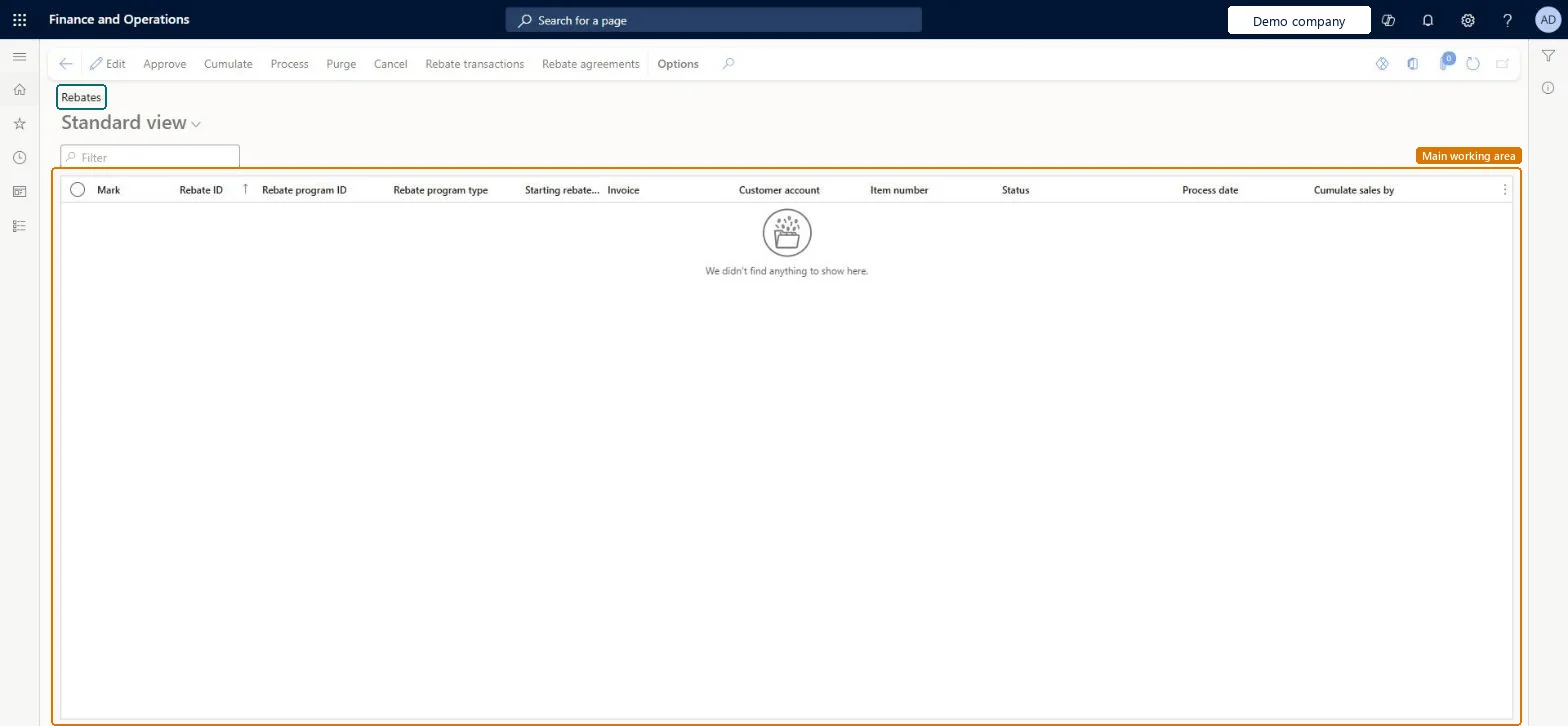
A workbench page where you review, cumulate, approve and process customer rebate claims created from invoiced sales. These are the older customer rebates of Sales and marketing. Microsoft describes Rebate management as the newer module for rebate deals, provisions and royalties; choose one of the two for a project.
Accounts receivable clerk, Accounts receivable manager, Sales clerk and 1 more role
Business process
Process customer rebates
Menu item
PdsRebateTableListPage
Main table
PdsRebateTable
Data entity
SalesRebateEntity
Setup steps
1 on this page
Show what matters for
PAGE GUIDEWhat the page does and how to use it8 sections. Choose a role to highlight what matters to you.
Everyone
1What it is and why
What it is
A workbench page where you review, cumulate, approve and process customer rebate claims created from invoiced sales. These are the older customer rebates of Sales and marketing. Microsoft describes Rebate management as the newer module for rebate deals, provisions and royalties; choose one of the two for a project.
What you do here
Use this page to recalculate claims for the period, approve them and process them so that rebate accruals are posted.
Example
For example, BEAT invoices 40 and 60 units of BEAT-ITEM-0042 to BEAT-000123 in one week, creating claims of 80.00 and 240.00. Cumulate reaches the 4.00 rate for all 100 units and adds an adjustment claim of 80.00; Approve and Process then post the 400.00 accrual.
The page in Dynamics 365. page title tab to open what to set or check
About the examples: Examples and screenshots in this guide use BEAT, a demo company in a Dynamics 365 test environment. Use your own company's codes and values instead of copying them.
Setup steps on this page
Cumulate, approve and process customer rebate claims
Use this page to recalculate claims for the period, approve them and process them so that rebate accruals are posted.
Steps from Microsoft
Go to Sales and marketing > Customer rebates > Rebates.
Review the claims; claims of periodic agreements are in To be calculated.
Select Cumulate, select the customer and the start date, and select OK; an adjustment claim is added when the period's volume reaches a higher break.
Mark the claims and select Approve.
Select Process, select the customer and select OK.
Check that the claims have status Mark, then create the credit note from the customer's Settle transactions page.
Where the claim is in the process: To be calculated (waiting for Cumulate), Calculated, Approved, Mark (processed: the rebate accrual journal is posted) and Processed.Microsoft Learn
To be calculated
Common errors and fixes
Message
What to do
Claims stay in To be calculated and can't be approved and processed.
Run Cumulate for the customer and the period first; the claims change to Calculated and can then be approved. Microsoft Learn
Test checklist
Invoice two sales orders that qualify under a periodic rebate agreement and open Customer rebates > Rebates.
Check the claims are in To be calculated, then select Cumulate for the customer and check an adjustment claim is created and the status changes to Calculated.
Mark the claims, select Approve, then Process for the customer.
Check the status changes to Mark and the voucher credits the rebate accrual account and debits the rebate expense account.
At the end of each cumulation period, run Cumulate for the customer before approving, then Approve and Process the claims of that period together.Claims of periodic agreements are first created per invoice line at the rate of that line. Cumulate recalculates them on the period's total volume and adds an adjustment claim; Process posts the Rebate accrual journal.
Hard to reverse: Cumulate and Approve can be redone, but Process posts the Rebate accrual journal: the rebate accrual account is credited, the rebate expense account is debited, and the claims move to the customer's temporary balance as deductions (status Mark). Reversing that means further accounting entries. Microsoft Learn
If you change it later
Processing claims posts a rebate accrual journal and moves the claims to the customer's temporary balance as deductions. Microsoft Learn
Technical architect
6Technical
Menu item
PdsRebateTableListPageChecked in Dynamics 365
Form
PdsRebateTableListPageChecked in Dynamics 365
Table
PdsRebateTableShown as “Rebate” in Record infoChecked in Dynamics 365
PrivilegesMaintain TMA rebate groups PdsRebateTableMaintainView TMA rebate groups PdsRebateTableViewDutiesViews customer rebate agreements PdsRebateAgreementViewProcesses customer rebates PdsRebateProcessMaintain customer rebates PdsRebateTableMaintainInquire into product sales prices and discount master PriceDiscProdSalesPriceDiscMasterInquir5 security rolesAccounts receivable clerk CustInvoiceAccountsReceivableClerkAccounts receivable manager CustInvoiceAccountsReceivableManagerMCRTestUserRoleSales clerk TradeSalesClerkSales manager TradeSalesManagerChecked in Dynamics 365
Roles to set it up and use it
To set it up or change itSales manager TradeSalesManagerAccounts receivable manager CustInvoiceAccountsReceivableManagerAccounts receivable clerk CustInvoiceAccountsReceivableClerkTo use itSales clerk TradeSalesClerkGive people one of these roles. On this system, 4 roles can open this page.Checked in Dynamics 365
Actions on the page
Options: Personalize, Page options, ShareChecked in Dynamics 365
SalesRebateEntity (Customer rebates): loaded for each company.Load order: No default configuration template places this entity. Claims are created by invoicing; load open claims only after the approved rebate agreements they belong to.Load first: Rebate agreements, CustomersMicrosoft Learn