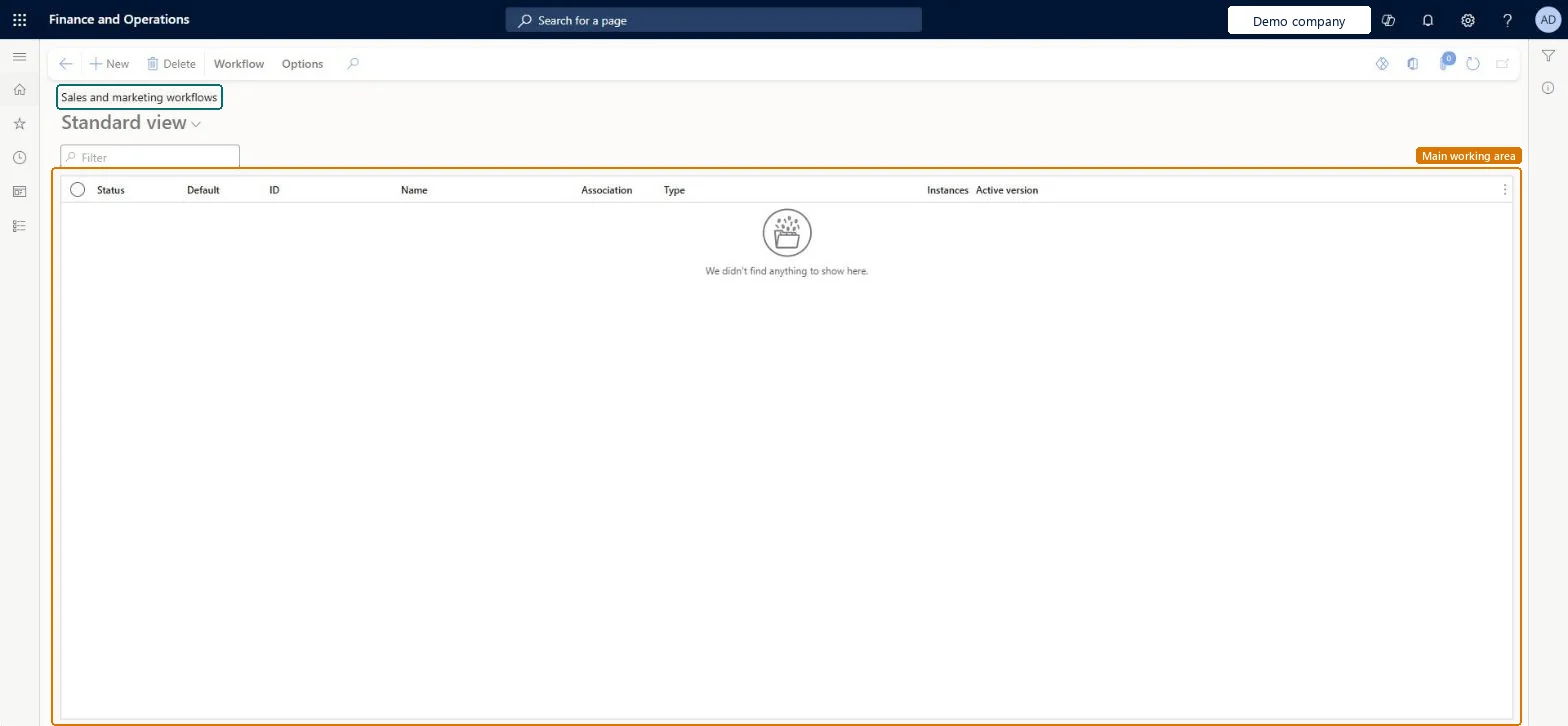
Setup step on the Sales and marketing workflows page · Sales and marketing
Set up Sales and marketing workflows
The list of workflow configurations for the Sales and marketing area, with status, default flag, ID, name, association, type, number of instances and active version for each.
Define order management policies for Dynamics 365 Supply Chain Management
Menu item
TAMWorkflowConfigurationSM
Main table
WorkflowTable
Setup steps
1 on this page
Show what matters for
SETUP GUIDEHow to set it up8 sections. Choose a role to highlight what matters to you.
Everyone
1What it is and why
What it is
The list of workflow configurations for the Sales and marketing area, with status, default flag, ID, name, association, type, number of instances and active version for each.
What you do here
Use it to create, activate and maintain the approval workflows that Sales and marketing documents are submitted to.
Example
BEAT wants one approval path for Denmark and another for Spain for the same workflow type. It creates two workflows of that type, sets activation conditions country/region = DK and country/region = ES, and marks the DK one as default, so a document from any other country follows the default path.
The page in Dynamics 365. page title tab to open what to set or check
About the examples: Examples and screenshots in this guide use BEAT, a demo company in a Dynamics 365 test environment. Use your own company's codes and values instead of copying them.
Setup steps on this page
Set up Sales and marketing workflows
Steps from Microsoft
Go to Sales and marketing > Setup > Sales and marketing workflows.
Select New and choose the workflow type in the list that opens; the workflow editor starts.
Build the approval steps, and on Activation set conditions if more than one workflow uses the same type.
Resolve every message in the Errors and warnings pane, select Save and close and then Activate the new version.
Submit a document of that type and check that the work item reaches the expected approver.
Whether the workflow configuration is active, so documents can be submitted to it.Microsoft Learn
Active
Default
Marks the workflow used for its type when no activation condition of another workflow of that type is met.Microsoft Learn
Yes
ID
The ID of the workflow configuration.Checked in Dynamics 365
000123
Name
The name of the workflow configuration.Checked in Dynamics 365
BEAT approval
Type
The workflow type the configuration is built on; several configurations can share a type.Microsoft Learn
Approval
Instances
The number of workflow instances that have run on the configuration, read from the list column.Checked in Dynamics 365
12
Active version
The version of the configuration that documents use; each save creates a new version that you choose whether to activate.Microsoft Learn
2
Common errors and fixes
Message
What to do
The new workflow version can't be activated
All errors and warnings in the Errors and warnings pane must be resolved before a workflow can be made active. Double-click each message to go to the element that raised it. Microsoft Learn
Documents follow the wrong workflow when two workflows share a type
Set activation conditions on each workflow. When no condition is met, the default workflow is used. Microsoft Learn
Test checklist
Select New, pick the workflow type and build it in the workflow editor.
Resolve every item in the Errors and warnings pane, select Save and close and choose Activate the new version.
Submit a document of that type and check that the work item reaches the assigned approver.
If you added a second workflow with activation conditions, submit a document that meets them and one that doesn't, and check which workflow each one uses.
One workflow per workflow type as the default; add a second workflow of the same type only with activation conditions.When several workflows use the same type, activation conditions decide which one runs and the default workflow is used when no condition is met; with only one workflow for a type, it runs regardless of conditions.
Each configuration belongs to one workflow type. When several configurations share a type, activation conditions decide which one a document uses, and the default configuration is used when no condition is met; a single configuration for a type is used regardless of conditions. Microsoft Learn
Can it be undone
Reversible: Each save creates a version; you can make another version active or make the workflow inactive from Versions.
If you change it later
A saved change creates a new version; documents use it only after you activate that version. Activation conditions change which workflow new submissions go to. Microsoft Learn
Technical architect
6Technical
Menu item
TAMWorkflowConfigurationSMChecked in Dynamics 365
Form
WorkflowTableListPageRnrChecked in Dynamics 365
Table
WorkflowTableShown as “Workflow configurations” in Record infoKey field: SequenceNumberChecked in Dynamics 365
Load order: Sales and marketing workflows has no data entity in Data management. Create the workflow in the workflow editor in the target environment and activate it there.Checked in Dynamics 365
Checked in a working Dynamics 365 system, version 10.0.49: the menu item, form, table and security, the page.
To cite this step: SM-SETUP-790, Set up Sales and marketing workflows. Beyond ERP Atlas Hub, 2026-11-11. https://www.beyonderp.cloud/atlas/step/SM-SETUP-790