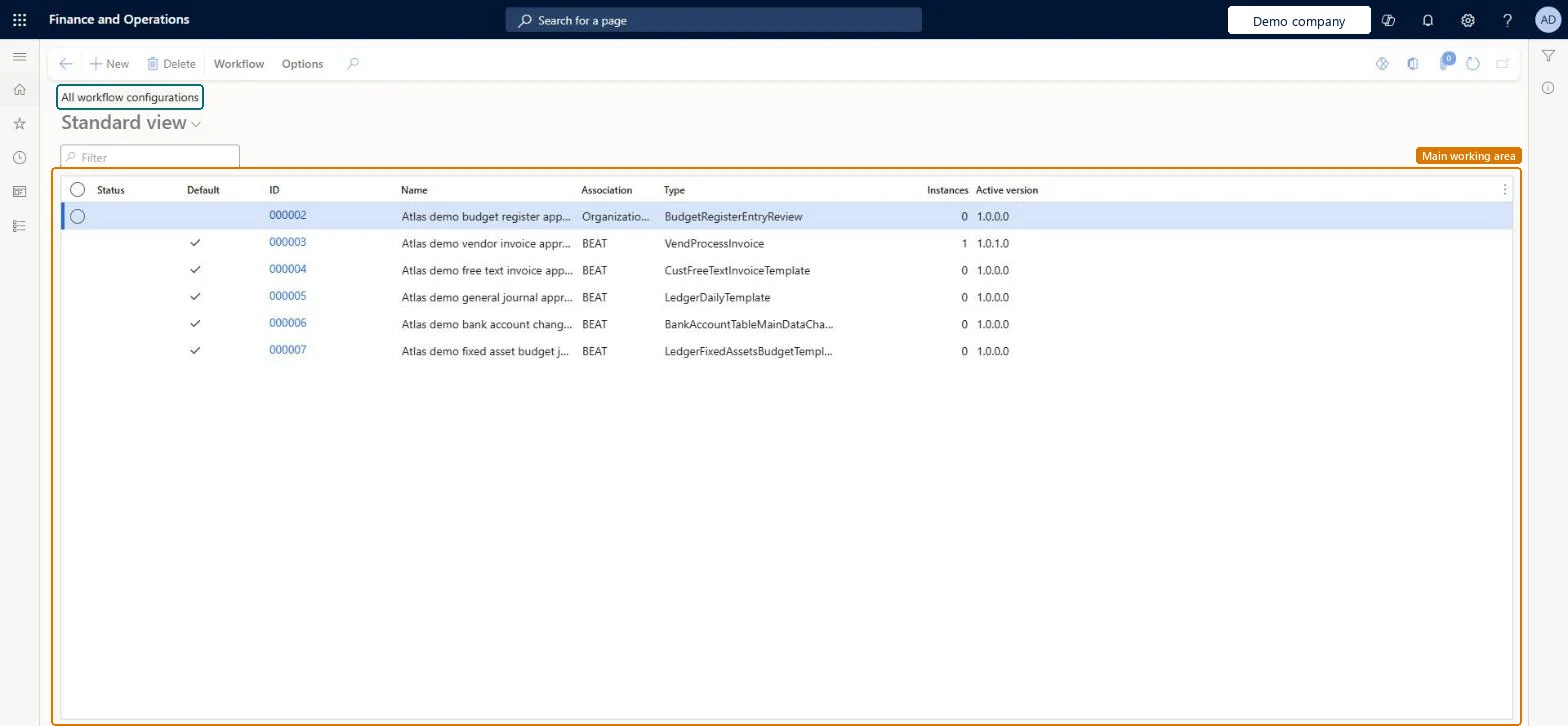
A list page that shows the workflow configurations in the system, with the ID, name, association, workflow type, number of instances and active version of each.
PAGE GUIDEWhat the page does and how to use it8 sections. Choose a role to highlight what matters to you.
Everyone
1What it is and why
What it is
A list page that shows the workflow configurations in the system, with the ID, name, association, workflow type, number of instances and active version of each.
What you do here
Use this page to review the workflow configurations across all areas in one list and to create or delete a configuration, or manage it from the Workflow tab.
Example
For example, BEAT finds the purchase requisition workflow here, sees Active version 3 and 12 instances, and opens it to add an approval step as version 4.
The page in Dynamics 365. page title tab to open what to set or check
About the examples: Examples and screenshots in this guide use BEAT, a demo company in a Dynamics 365 test environment. Use your own company's codes and values instead of copying them.
Setup steps on this page
Review all workflow configurations
Use the list to check which workflows exist and which version is active in each area.
Steps from Microsoft
Go to System administration > Workflow > All workflow configurations.
Use the Filter box to find a configuration, and read its ID, Name, Association, Type, Instances and Active version.
Select a configuration, then open the Workflow tab and select Manage or Hierarchy.
Select New to create a configuration.
Select a configuration, then select Delete to remove it.
Change a workflow by saving a new version and activating it, never by deleting the configurationVersions keep documents that are already in workflow on their old version, while new documents follow the new one.
Each workflow configuration belongs to the company it was created in, except system workflows such as user requests. Microsoft Learn
Can it be undone
Reversible: Changing a workflow creates a new version; when you save, you choose whether to activate the new version or keep the current one and activate it later. Microsoft Learn
If you change it later
A new version applies to documents submitted after activation; deleting a configuration stops new submissions of that document type. Microsoft Learn
Technical architect
6Technical
Menu item
WorkflowConfigurationSysAdminChecked in Dynamics 365
Form
WorkflowTableListPageRnrChecked in Dynamics 365
Table
WorkflowTableShown as “Workflow configurations” in Record infoKey field: SequenceNumberChecked in Dynamics 365
Data entities
WorkflowVersionEntityWorkflow version (the workflow configurations (versions))
Actions on the page
Workflow: Manage, HierarchyOptions: Personalize, Page options, ShareChecked in Dynamics 365
WorkflowVersionEntity (Workflow version): shared, in Microsoft's default template 022 - Workflow. Change the owner of every record to Admin unless the workflow users are already imported. Use XML, because workflow expressions can be too long for Excel.Load order: Template 022 - Workflow loads System email template at level 22, sequence 10, Workflow version at sequence 20 and Workflow system parameters at sequence 30. Copy into legal entity doesn't support workflows; set them up by hand in that case.Load first: Users, System email templatesMicrosoft Learn