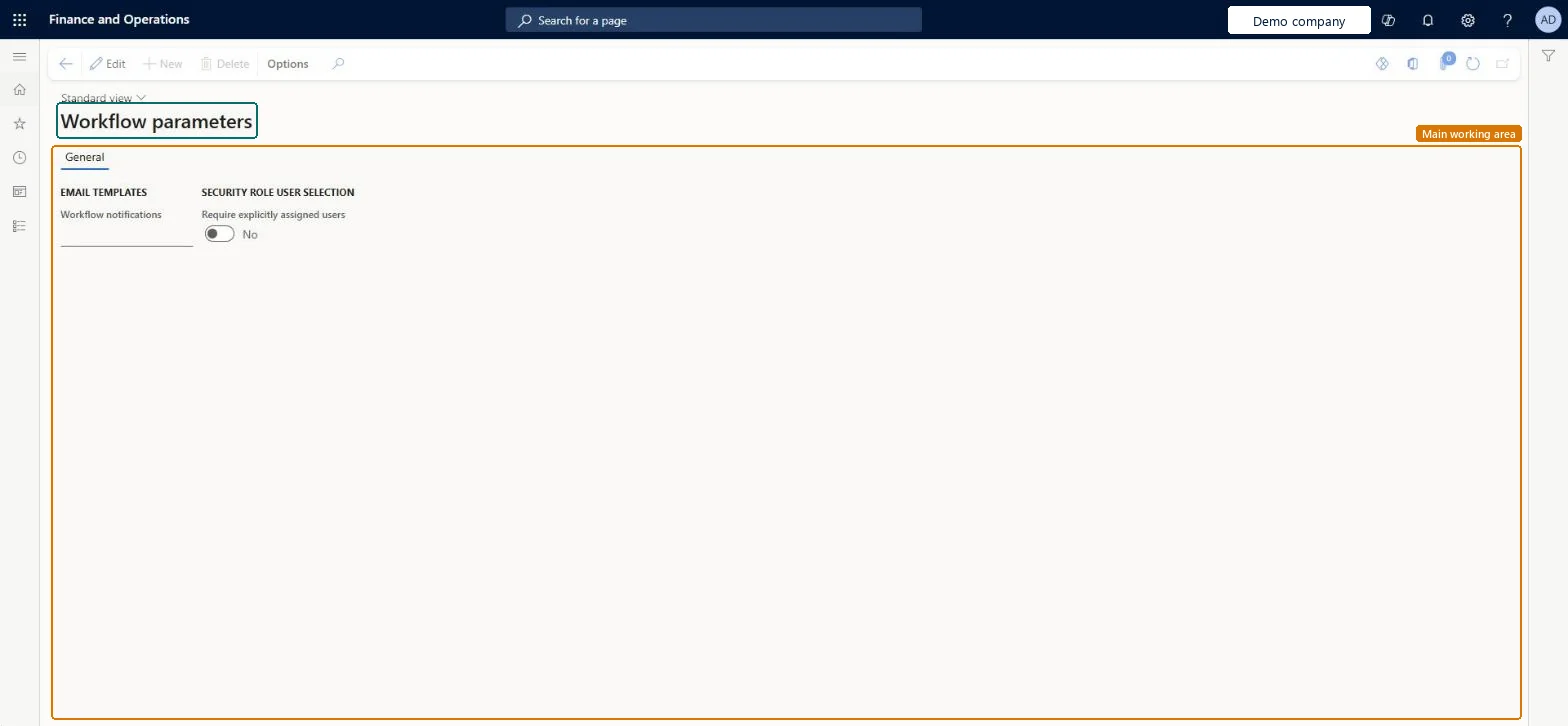
A setup page where you set general options for the workflow system, such as how many workflow items are processed in each batch and whether submitters can approve their own documents.
PAGE GUIDEWhat the page does and how to use it8 sections. Choose a role to highlight what matters to you.
Everyone
1What it is and why
What it is
A setup page where you set general options for the workflow system, such as how many workflow items are processed in each batch and whether submitters can approve their own documents.
What you do here
Use this page to control how workflows are processed and to stop people from approving documents they submitted themselves.
The page in Dynamics 365. page title tab to open what to set or check
About the examples: Examples and screenshots in this guide use BEAT, a demo company in a Dynamics 365 test environment. Use your own company's codes and values instead of copying them.
Step by step, with screenshots
Set up Workflow parameters1 screen
Use this page to control how workflows are processed and to stop people from approving documents they submitted themselves.
Screen 1
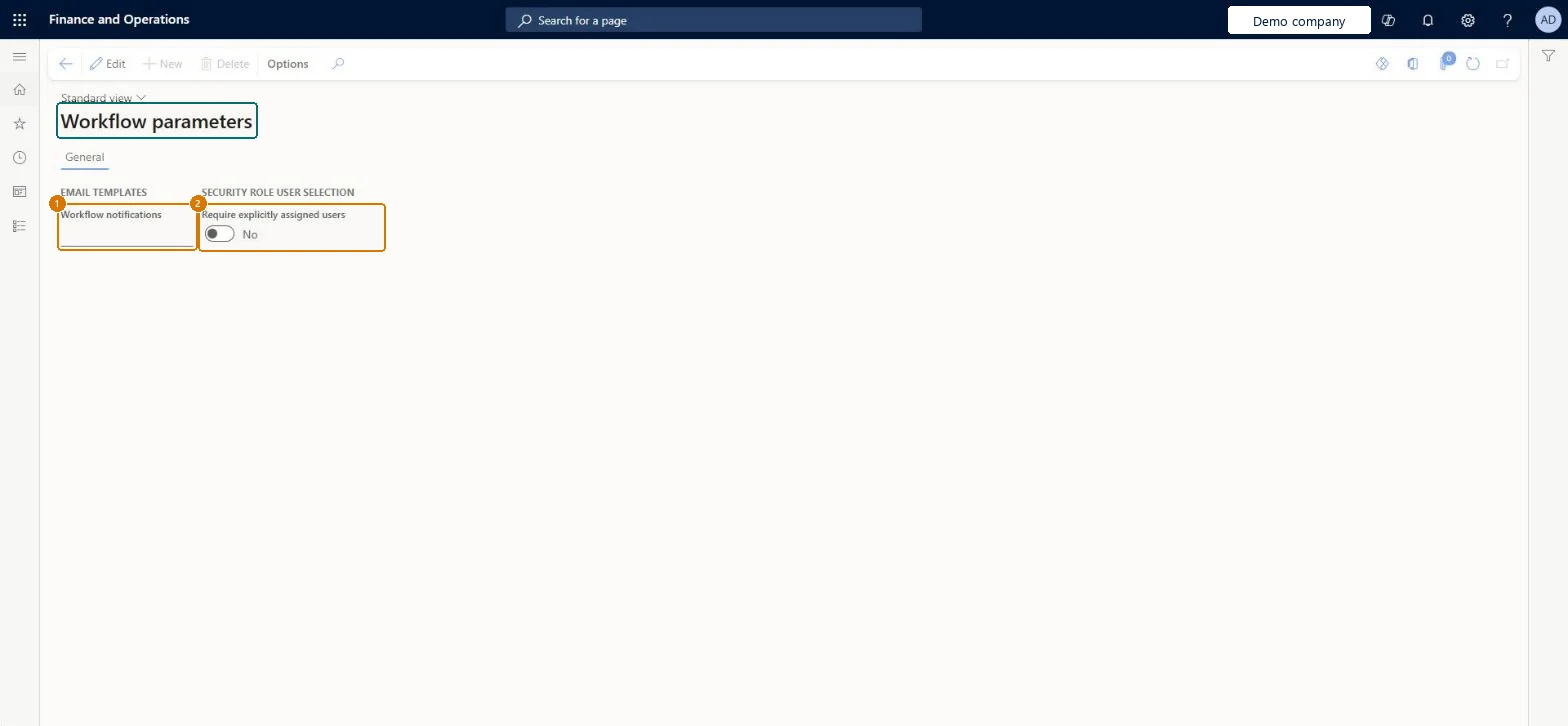
Check the workflow parameters
Go to Organization administration > Workflow > Workflow parameters
Check which email template is used for workflow notifications
Check whether assignments to a security role need users assigned to that role explicitly
Select Edit only to change them
1Workflow notifications
(none)
2Require explicitly assigned users
No
Show the full screen page title tab to open what to set or check
How to use it
Go to Organization administration > Workflow > Workflow parameters.
Select Edit to make the page editable.
On the General tab, choose the Workflow notifications email template.
Set Require explicitly assigned users to Yes or No.
Source: Checked in Dynamics 365
Fields on the page
Field
What it means
Example
Table column
Number of workflow items per batch
How many workflow items are processed in each batch; 0 means the default of 20.Microsoft Learn
Disallow approval by submitter
Stops the person who submitted a document from approving it.Microsoft Learn
Workflow notifications
The email template used to send workflow notification messages.Microsoft Learn
(none)
WorkItemEmailId
Require explicitly assigned users
No
RequireExplicitUserAssignmentToLegalEntities
Test checklist
Turn on Disallow approval by submitter.
Submit a document to an approval workflow where the submitter is also an approver.
Check the submitter can't approve their own work item.
Leave Number of workflow items per batch at 0 and check the workflow processing batch job completes without deadlock errors.
Number of workflow items per batch = 0 (the system then uses 20); turn on Disallow approval by submitter where segregation of duties is requiredA value of 0 means 20 items per batch. Microsoft warns that more than 40 items per batch can cause SQL deadlocks.
Raising Number of workflow items per batch above 40 to clear a backlog faster, which can cause SQL deadlocks in workflow processing.
Reversible: Change the values at any time; they affect workflow processing and approvals from then on. Microsoft Learn
If you change it later
Setting a high number of workflow items per batch, above about 40, can cause SQL deadlocks. Microsoft Learn
Technical architect
6Technical
Menu item
WorkflowParametersChecked in Dynamics 365
Form
WorkflowParametersChecked in Dynamics 365
Table
WorkflowParametersShown as “Settings for workflow” in Record infoChecked in Dynamics 365
Data entities
WorkflowParametersOrganizationEntityWorkflow organization parameters Microsoft data model
Who can open it
PrivilegesSet up the workflow infrastructure WorkflowSetupWorkflowInfraDutiesMaintain workflow and alerts settings WorkflowAlertsSettingsMaintain1 security roleInformation technology manager SysServerITManagerChecked in Dynamics 365
Roles to set it up and use it
To set it up or change itInformation technology manager SysServerITManagerGive people one of these roles. On this system, 1 role can open this page.Checked in Dynamics 365
Actions on the page
Options: Personalize, Page options, ShareChecked in Dynamics 365
WorkflowParametersOrganizationEntity (Workflow organization parameters): loaded for each company, in Microsoft's default template 025 - General ledger.Load order: Microsoft's default template 025 - General ledger loads Workflow organization parameters at execution unit 1, level 25, sequence 30. Lower levels load first, and entities at the same level load in sequence order.Load first: the default templates at lower levels (System setup to Workflow)Microsoft Learn
Checked in a working Dynamics 365 system, version 10.0.49: the menu item, form, table and security, the page, the demo records and the values in the screenshots.