Setup step on the Relation types page · Sales and marketing
Set up Relation types
A setup page where you set up the relation types used to classify business relations such as prospects, and see which table each type's records are kept in.
Marketing manager, Information technology manager, Sales manager
Business process
Identify and qualify leads
Menu item
smmBusRelTypeGroup
Main table
smmBusRelTypeGroup
Data entity
SalesProspectRelationTypeEntity
Setup steps
1 on this page
Show what matters for
SETUP GUIDEHow to set it up8 sections. Choose a role to highlight what matters to you.
Everyone
1What it is and why
What it is
A setup page where you set up the relation types used to classify business relations such as prospects, and see which table each type's records are kept in.
What you do here
Use this page to set up the relation types used to classify prospects, and to see which table each type's records come from. The prospect type set on Sales and marketing parameters must be one of these types.
Example
BEAT keeps the type Prospect with table source Relation table as its default prospect type, and adds B2B prospect for trade customers. In the prospect-to-cash setup, the same type is entered as Default relation type on Accounts receivable parameters.
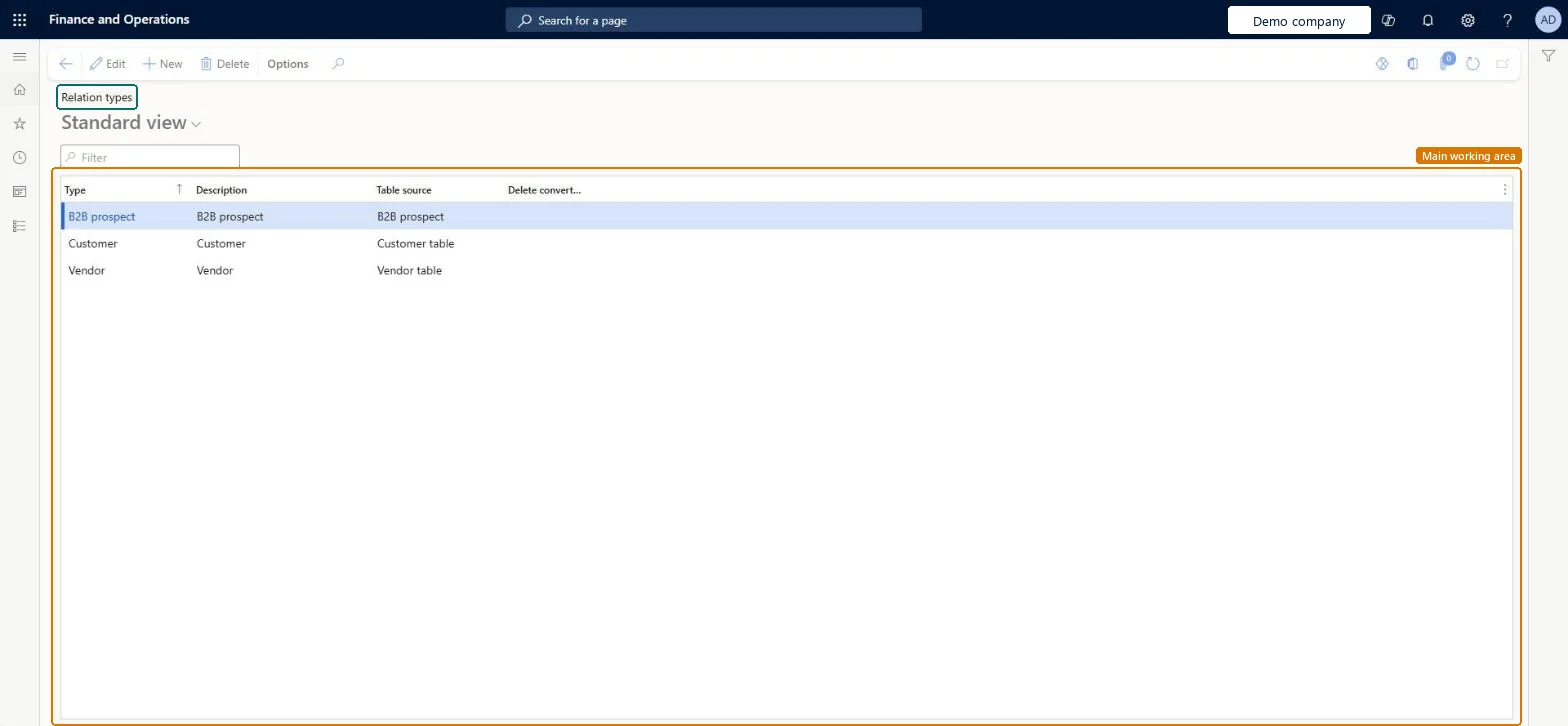
The page in Dynamics 365. page title tab to open what to set or check
About the examples: Examples and screenshots in this guide use BEAT, a demo company in a Dynamics 365 test environment. Use your own company's codes and values instead of copying them.
Step by step, with screenshots
Set up Relation types1 screen
Screen 1
Check the relation types
Go to Sales and marketing > Setup > Prospects > Relation types
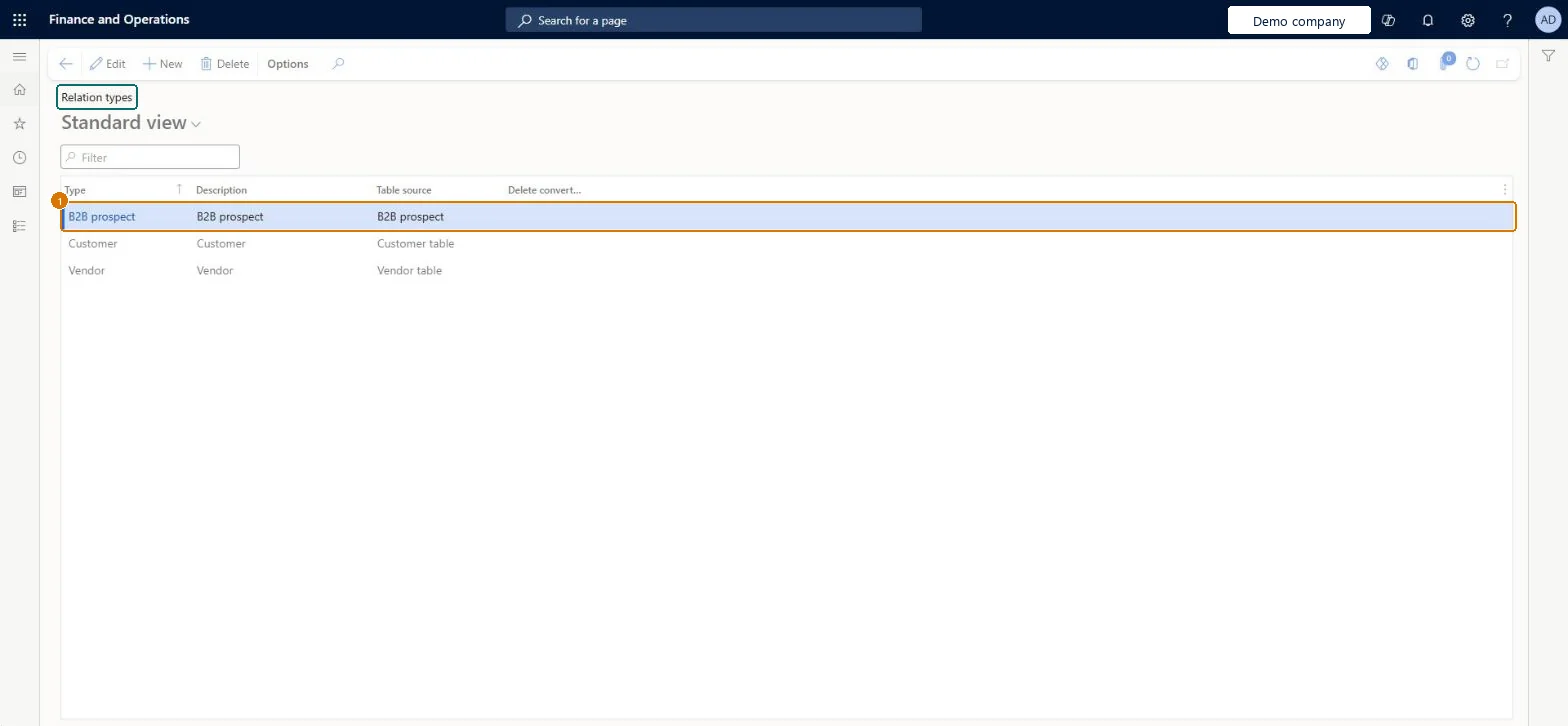
Review the delivered relation types and the table each one comes from
Add a new type only when you need another kind of business relation, then enter the type, description and table source and select Save
1Type
B2B prospect
1Description
B2B prospect
1Table source
B2B prospect
Show the full screen page title tab to open what to set or check
Steps from Microsoft
Go to Sales and marketing > Setup > Prospects > Relation types.
Review the Type, Description and Table source columns for each relation type.
Select New to add a relation type, and enter the Type and Description.
Go to Sales and marketing > Setup > Sales and marketing parameters and, on the Prospects tab, set Type to the prospect type and check that Table source is Relation table.
The code of the relation type, for example Prospect. It is the value set in the Type field on the Prospects tab of Sales and marketing parameters.Microsoft Learn
Prospect
TypeId
Description
A short description of the relation type.Checked in Dynamics 365
B2B prospect
TypeDescription
Table source
The table that records of this relation type are kept in. For the prospect type used with prospect-to-cash, Learn requires Relation table.Microsoft Learn
Relation table
TableType
Common errors and fixes
Message
What to do
Prospects created in Dynamics 365 Sales arrive with the wrong relation type, or conversion to customer fails.
Set Default relation type on the Prospect FastTab of Accounts receivable parameters to the same type as on Sales and marketing parameters, and check that prospect and customer number sequences don't overlap. Microsoft Learn
Test checklist
Check that the type Prospect has Table source Relation table.
On Sales and marketing parameters, Prospects tab, set Type to Prospect.
Keep the type Prospect with Table source Relation table as the prospect type on Sales and marketing parameters, and use the same type as Default relation type on Accounts receivable parameters.Learn's prospect-to-cash setup requires the prospect type with table source Relation table on Sales and marketing parameters and the same default type on Accounts receivable parameters.
On the live system, Sales manager, Marketing manager and Information technology manager can maintain this page. With prospect-to-cash, the features Integrate Sales Quotation lifecycle with Dynamics 365 Sales and Enable prospects in Sales quotation lifecycle with Dynamics 365 Sales are on by default as of version 10.0.41; the second is mandatory as of 10.0.43.
Hard to reverse: Existing prospects keep the type they were created with.
If you change it later
The prospect type on Sales and marketing parameters and the Default relation type on Accounts receivable parameters must point to the same relation type for prospect-to-cash; changing the type changes the type of new prospects only. Microsoft Learn
Technical architect
6Technical
Menu item
smmBusRelTypeGroupChecked in Dynamics 365
Form
smmBusRelTypeGroupChecked in Dynamics 365
Table
smmBusRelTypeGroupShown as “Type table” in Record infoChecked in Dynamics 365
PrivilegesMaintain prospect types smmBusRelTypeGroupMaintainView prospect types smmBusRelTypeGroupViewDutiesEnable prospect process smmBusinessRelationProcessEnableInquire into prospect reference data smmBusinessRelationReferenceDataInquireEnable the Sales and marketing process smmCRMProcessEnableInquire into Sales and marketing reference data smmCRMReferenceDataInquire3 security rolesMarketing manager CRMMarketingManagerInformation technology manager SysServerITManagerSales manager TradeSalesManagerChecked in Dynamics 365
Roles to set it up and use it
To set it up or change itSales manager TradeSalesManagerMarketing manager CRMMarketingManagerInformation technology manager SysServerITManagerGive people one of these roles. On this system, 3 roles can open this page.Checked in Dynamics 365
Actions on the page
Options: Personalize, Page options, ShareChecked in Dynamics 365
SalesProspectRelationTypeEntity (Prospect relation types): loaded for each company, in Microsoft's default template 330 - Sales and marketing.Load order: Microsoft's default template 330 - Sales and marketing loads Prospect relation types at execution unit 1, level 30, sequence 10. Lower levels load first, and entities at the same level load in sequence order.Load first: the default templates at lower levels (System setup to General ledger)Microsoft Learn
Checked in a working Dynamics 365 system, version 10.0.49: the menu item, form, table and security, the page, the demo records and the values in the screenshots.
To cite this step: SM-SETUP-280, Set up Relation types. Beyond ERP Atlas Hub, 2026-11-11. https://www.beyonderp.cloud/atlas/step/SM-SETUP-280