SETUP GUIDEHow to set it up8 sections. Choose a role to highlight what matters to you.
Everyone
1What it is and why
What it is
A setup page where you create the processes that campaigns follow.
What you do here
Use this page to set the stages of your campaign process, so workers complete each stage before moving to the next. These campaign pages belong to the built-in marketing features. Where Dynamics 365 Sales is used, quotations and orders are shared with Supply Chain Management through prospect-to-cash dual-write.
Example
For example, BEAT builds the campaign process STANDARD with 3 stages, Plan, Launch and Evaluate, names MARKETING as the responsibility, and every new campaign follows those 3 stages before it is closed.
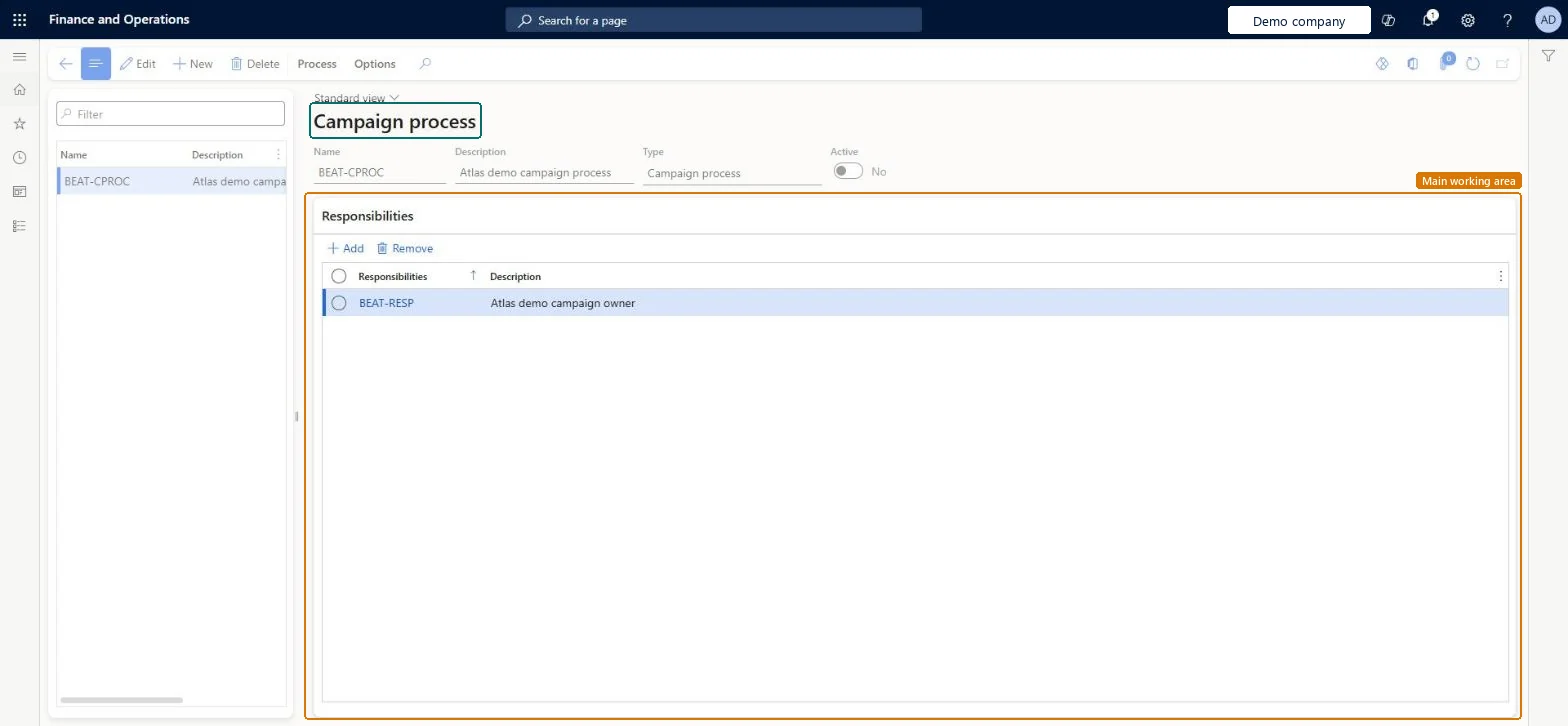
The page in Dynamics 365. page title tab to open what to set or check
About the examples: Examples and screenshots in this guide use BEAT, a demo company in a Dynamics 365 test environment. Use your own company's codes and values instead of copying them.
Step by step, with screenshots
Set up Campaign process1 screen
Use this page to set the steps of your campaign process, so workers complete each step before moving to the next.
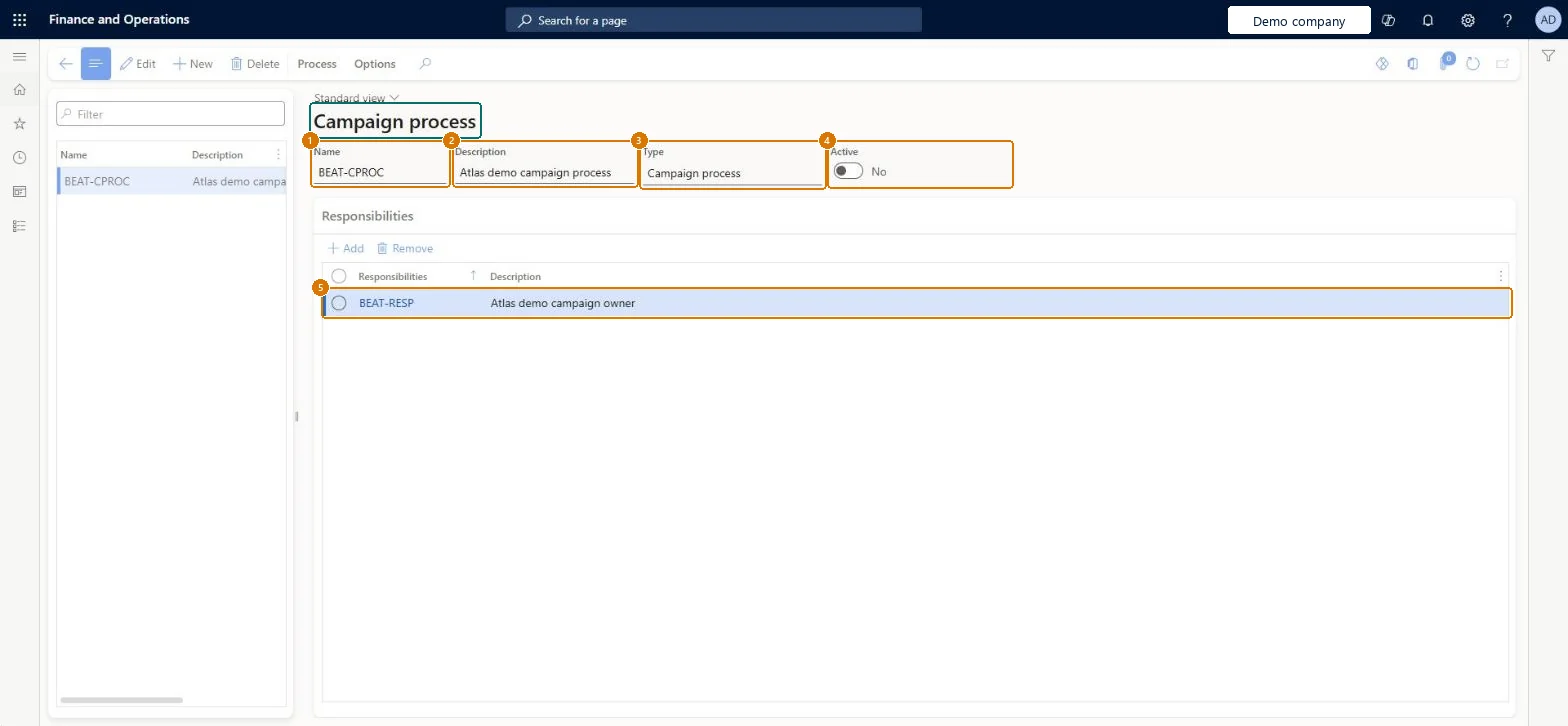
Screen 1
Create a campaign process
Go to Sales and marketing > Setup > Campaigns > Campaign process
Make sure the responsibility exists (Sales and marketing > Setup > Sales management > Responsibilities)
Select New
Enter the name and description
Leave Active off until the process steps are ready
Under Responsibilities, add the responsibility
Select Save
Use Process to add the stages and activities
1Name
BEAT-CPROC
2Description
Campaign process
3Type
Campaign process
4Active
No
5Responsibilities
BEAT-RESP
Show the full screen page title tab to open what to set or check
Steps from Microsoft
Go to Sales and marketing > Setup > Campaigns > Campaign process.
Select New to create a process, and enter its name and a short description.
Leave the Active check box selected, or clear it if the process should be inactive.
On the Responsibilities tab, enter the responsibilities for the process and their descriptions.
Add the stages of the process, then select the process on the campaigns that should follow it.
Shows whether the process is in use; clear it to make the process inactive.Microsoft Learn
No
IsActive
Name
The name of the campaign process.Checked in Dynamics 365
STANDARD
Name
Description
A short description of the process.Checked in Dynamics 365
Plan, launch and evaluate
Description
Type
The kind of process. This page shows processes of the Campaign process type; the same process pages are used for leads, opportunities and cases.Checked in Dynamics 365
Campaign process
HierarchyType
Responsibilities
The responsibilities involved in the process, entered on the Responsibilities tab.Microsoft Learn
MARKETING
ResponsibilityId
Common errors and fixes
Message
What to do
A campaign process isn't offered on new campaigns.
Check the Active check box on the process; a cleared Active setting makes the process inactive. Microsoft Learn
Test checklist
Create campaign process STANDARD with 3 stages.
Select it on a new campaign.
Check that the campaign shows the 3 stages in order.
One active standard campaign process with a few stages and named responsibilities; extra processes only for campaigns that really run differently.Processes make workers complete each stage before the next; a process per campaign adds upkeep without changing how campaigns run.
On the live system, Sales manager and Marketing manager can maintain this page.
Checked in Dynamics 365
Solution architect
5Design impact
Shared or per company
Campaign, lead (qualify), opportunity (sales) and case processes are kept in the same process structure, each with its own type; this page shows the campaign processes. Checked in Dynamics 365
Can it be undone
Reversible: A process can be made inactive instead of deleted.
If you change it later
Campaigns follow the stages of the process they use; changing the stages changes what workers must complete on campaigns that use it. Microsoft Learn
Technical architect
6Technical
Menu item
smmProcessCampaignDefinitionChecked in Dynamics 365
Form
HierarchyChecked in Dynamics 365
Table
HierarchyShown as “Hierarchies” in Record infoKey field: HierarchyId, NameChecked in Dynamics 365
Who can open it
PrivilegesMaintain campaign process smmProcessCampaignDefinitionMaintainView campaign process smmProcessCampaignDefinitionViewDutiesInquire into marketing policies smmMarketingPolicyInquireEnable marketing process smmMarketingProcessEnable2 security rolesMarketing manager CRMMarketingManagerSales manager TradeSalesManagerChecked in Dynamics 365
Roles to set it up and use it
To set it up or change itSales manager TradeSalesManagerMarketing manager CRMMarketingManagerGive people one of these roles. On this system, 2 roles can open this page.Checked in Dynamics 365
Actions on the page
Process: View, InquiryOptions: Personalize, Page options, ShareChecked in Dynamics 365
Load order: Campaign process has no data entity in Data management. Create the process and its stages on this page in each company, or copy them with a configuration that you check by hand.Checked in Dynamics 365
Checked in a working Dynamics 365 system, version 10.0.49: the menu item, form, table and security, the page, the demo records and the values in the screenshots.
To cite this step: SM-SETUP-080, Set up Campaign process. Beyond ERP Atlas Hub, 2026-11-11. https://www.beyonderp.cloud/atlas/step/SM-SETUP-080