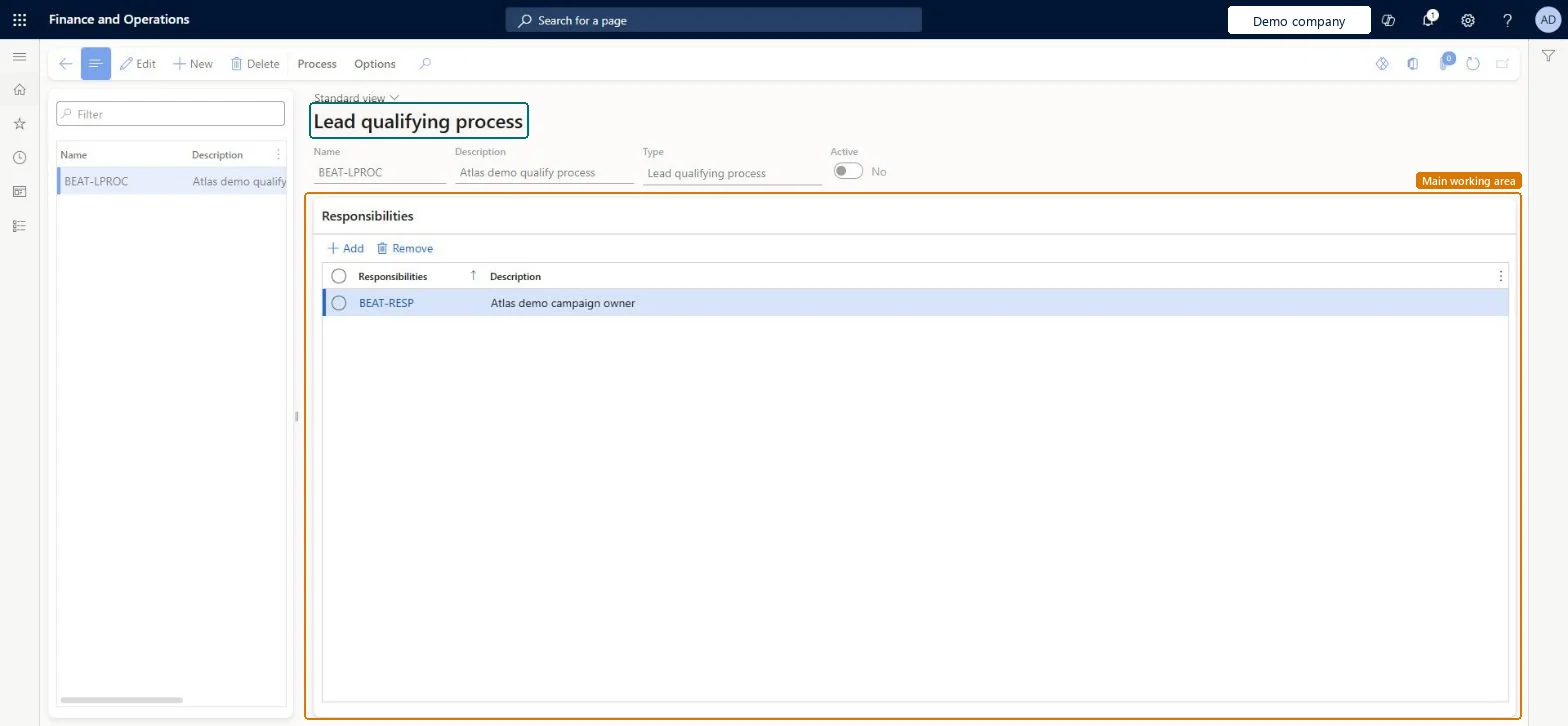
A setup page where you create the processes for qualifying leads, each with a name, a description, an Active check box and the responsibilities that take part.
Marketing manager, Information technology manager, Sales manager
Business process
Identify and qualify leads
Menu item
smmProcessLeadDefinition
Main table
Hierarchy
Setup steps
1 on this page
Show what matters for
PAGE GUIDEWhat the page does and how to use it8 sections. Choose a role to highlight what matters to you.
Everyone
1What it is and why
What it is
A setup page where you create the processes for qualifying leads, each with a name, a description, an Active check box and the responsibilities that take part.
What you do here
Use this page to set the steps a lead goes through before it is qualified, so workers complete each step before moving to the next.
Example
BEAT creates the qualify process QUALIFY-B2B with the responsibilities MANAGER and SALESREP. Lead LEAD-000431 follows it: the sales rep confirms budget and timing, and the sales manager qualifies the lead before it becomes opportunity OPP-000077.
The page in Dynamics 365. page title tab to open what to set or check
About the examples: Examples and screenshots in this guide use BEAT, a demo company in a Dynamics 365 test environment. Use your own company's codes and values instead of copying them.
Step by step, with screenshots
Set up Qualify process1 screen
Use this page to set the steps a lead goes through before it is qualified, so workers complete each step before moving to the next.
Screen 1
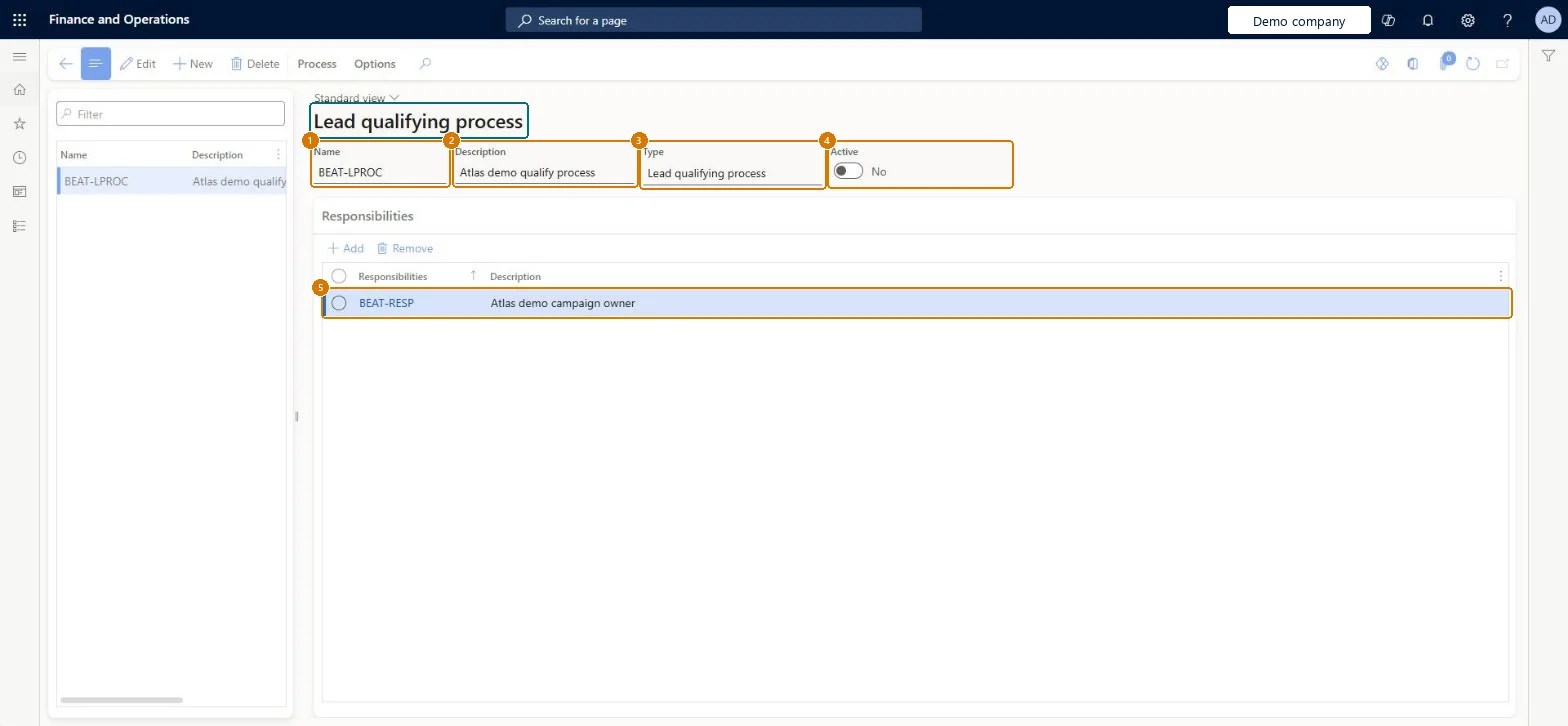
Create a lead qualifying process
Go to Sales and marketing > Setup > Leads > Qualify process
Make sure the responsibility exists (Sales and marketing > Setup > Sales management > Responsibilities)
Select New
Enter the name and description
Leave Active off until the process steps are ready
Under Responsibilities, add the responsibility
Select Save
Use Process to add the stages and activities
1Name
BEAT-LPROC
2Description
Qualify process
3Type
Lead qualifying process
4Active
No
5Responsibilities
BEAT-RESP
Show the full screen page title tab to open what to set or check
Steps from Microsoft
Go to Sales and marketing > Setup > Leads > Qualify process.
Select New and enter the name of the process and a short description.
Leave the Active check box selected, or clear it if the process should be inactive.
On the Responsibilities tab, enter the responsibilities for the process and their descriptions.
Open a lead on All leads and qualify it with Change status > Qualify to check that the process applies.
One active qualify process per kind of lead, with the responsibilities that must sign off, and the activities that must be done before a lead can be qualified.You can require workers to complete each step before they proceed, and responsibility owners are added to new processes automatically.
On the live system, Sales manager and Information technology manager can maintain this page.
Checked in Dynamics 365
Solution architect
5Design impact
Shared or per company
Per company: each legal entity has its own processes. Microsoft Learn
Can it be undone
Reversible: A process can be made inactive by clearing Active instead of deleting it, so leads that used it keep their history. Microsoft Learn
If you change it later
A lead stores the name of its process (ProcessName). When responsibilities are set up, their owners are added to new processes automatically, so changes to Responsibilities affect processes you create afterwards. Microsoft Learn
Technical architect
6Technical
Menu item
smmProcessLeadDefinitionChecked in Dynamics 365
Form
HierarchyChecked in Dynamics 365
Table
HierarchyShown as “Hierarchies” in Record infoKey field: HierarchyId, NameChecked in Dynamics 365
Who can open it
PrivilegesMaintain qualifying processes smmProcessLeadDefinitionMaintainView qualifying processes smmProcessLeadDefinitionViewDutiesInquire into Sales and marketing policies smmCRMPolicyInquireEnable the Sales and marketing process smmCRMProcessEnableInquire into marketing policies smmMarketingPolicyInquire3 security rolesMarketing manager CRMMarketingManagerInformation technology manager SysServerITManagerSales manager TradeSalesManagerChecked in Dynamics 365
Roles to set it up and use it
To set it up or change itSales manager TradeSalesManagerInformation technology manager SysServerITManagerTo use itMarketing manager CRMMarketingManagerGive people one of these roles. On this system, 3 roles can open this page.Checked in Dynamics 365
Actions on the page
Process: View, InquiryOptions: Personalize, Page options, ShareChecked in Dynamics 365
Checked in a working Dynamics 365 system, version 10.0.49: the menu item, form, table and security, the page, the demo records and the values in the screenshots.