SETUP GUIDEHow to set it up8 sections. Choose a role to highlight what matters to you.
Everyone
1What it is and why
What it is
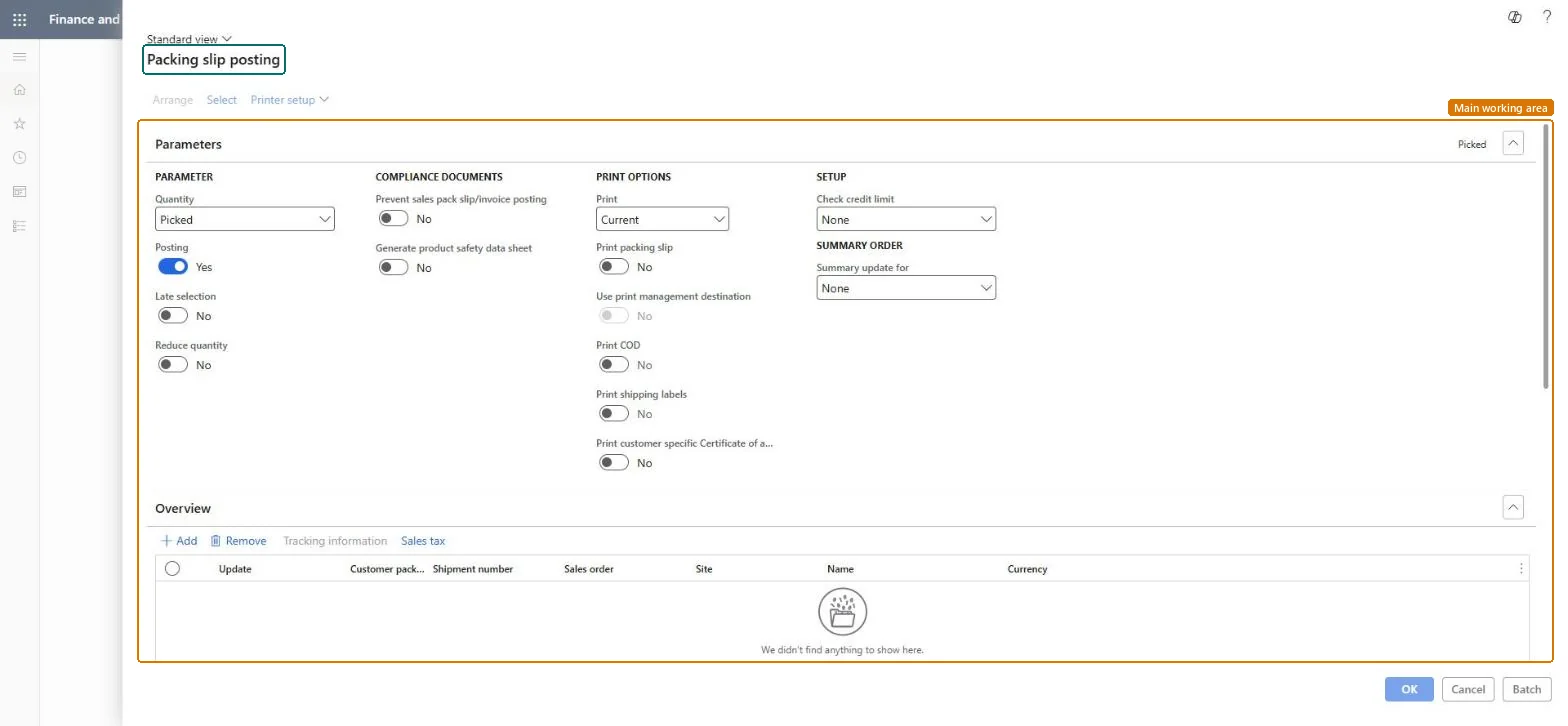
The sales order packing slip update run as a simulation (menu item SalesFormLetter_Simulate_PackingSlip): the same Parameters, Setup and Overview as Post packing slip, for a trial run before the real posting.
What you do here
Use it before Post packing slip when you want to check quantities, the credit limit check and how orders are split into packing slips, without committing the shipment.
Example
For example, before shipping 12 orders for BEAT-000123 combined by Summary update for, the clerk simulates the packing slip run and sees one order that fails the credit check (excess 410.00), clears it with credit control, then posts the real run.
The page in Dynamics 365. page title tab to open what to set or check
About the examples: Examples and screenshots in this guide use BEAT, a demo company in a Dynamics 365 test environment. Use your own company's codes and values instead of copying them.
When to run it
When to run it
Before posting packing slips you aren't sure about, for example orders with partial deliveries, summary updates or tight credit limits.
How often
On demand.
Batch settings
Run it interactively to read the messages.
What the output shows
Messages for the orders and quantities in the run, such as credit limit or stock problems, before the real posting.
All, Deliver now for a partial shipment, or Picked when picking is registered with a picking list.Microsoft Learn
Deliver now
Check credit limit
The credit limit check for the run; by default from the parameters.Microsoft Learn
Balance+All
Summary update for
Decides whether several orders share one packing slip; they combine only with the same invoice account and currency.Microsoft Learn
Order
Common errors and fixes
Message
What to do
Sales order <order number> Credit limit exceeded Open balance: <balance amount> Current order: <order amount> New balance: <balance amount> Credit limit: <limit amount> Credit excess: <excess amount>
The classic credit limit check found the customer over the limit; warning or error depends on Message when exceeding credit limit. Clear it with credit control before the real posting. Microsoft Learn
Unable to post packing slip when stopping a sales order line after confirming the outbound shipment A quantity cannot be picked.
On the related lines set Stopped to No (Line details FastTab, General tab), post the packing slip, then handle the customer's cancellation as a return. Microsoft Learn
Simulate with the same Quantity, Check credit limit and Summary update for settings you will post with.Different settings give a different result, so the simulation only helps when it matches the real run.
On the live system, Sales clerk, Customer service representative and Rental manager use this page.
Checked in Dynamics 365
Solution architect
5Design impact
Shared or per company
Per company: works on the sales orders of the current legal entity. Microsoft Learn
Can it be undone
Reversible: A simulation doesn't commit the shipment.
If you change it later
Shows the outcome of the packing slip run in advance. The packing slip update records the physical shipment: it commits the change to inventory and, when the item model group posts physical inventory and Post packing slip in ledger is on, posts to the ledger. Microsoft Learn
Technical architect
6Technical
Menu item
action:SalesFormLetter_Simulate_PackingSlipChecked in Dynamics 365
Form
SalesEditLinesChecked in Dynamics 365
Roles to set it up and use it
To use itRental manager RentalManagerRental coordinator agent RentalCoordinatorAgentSales clerk TradeSalesClerkRental sales manager RentalSalesManagerCustomer service representative TradeCustomerServiceRepresentativeGive people one of these roles. On this system, 10 roles can run this page.Checked in Dynamics 365