Materials manager, Quality control manager, Warehouse manager
Business process
Process outbound goods
Menu item
WMSPickingRoutesJournal
Main table
WMSPickingRoute
Setup steps
1 on this page
Show what matters for
SETUP GUIDEHow to set it up8 sections. Choose a role to highlight what matters to you.
Everyone
1What it is and why
What it is
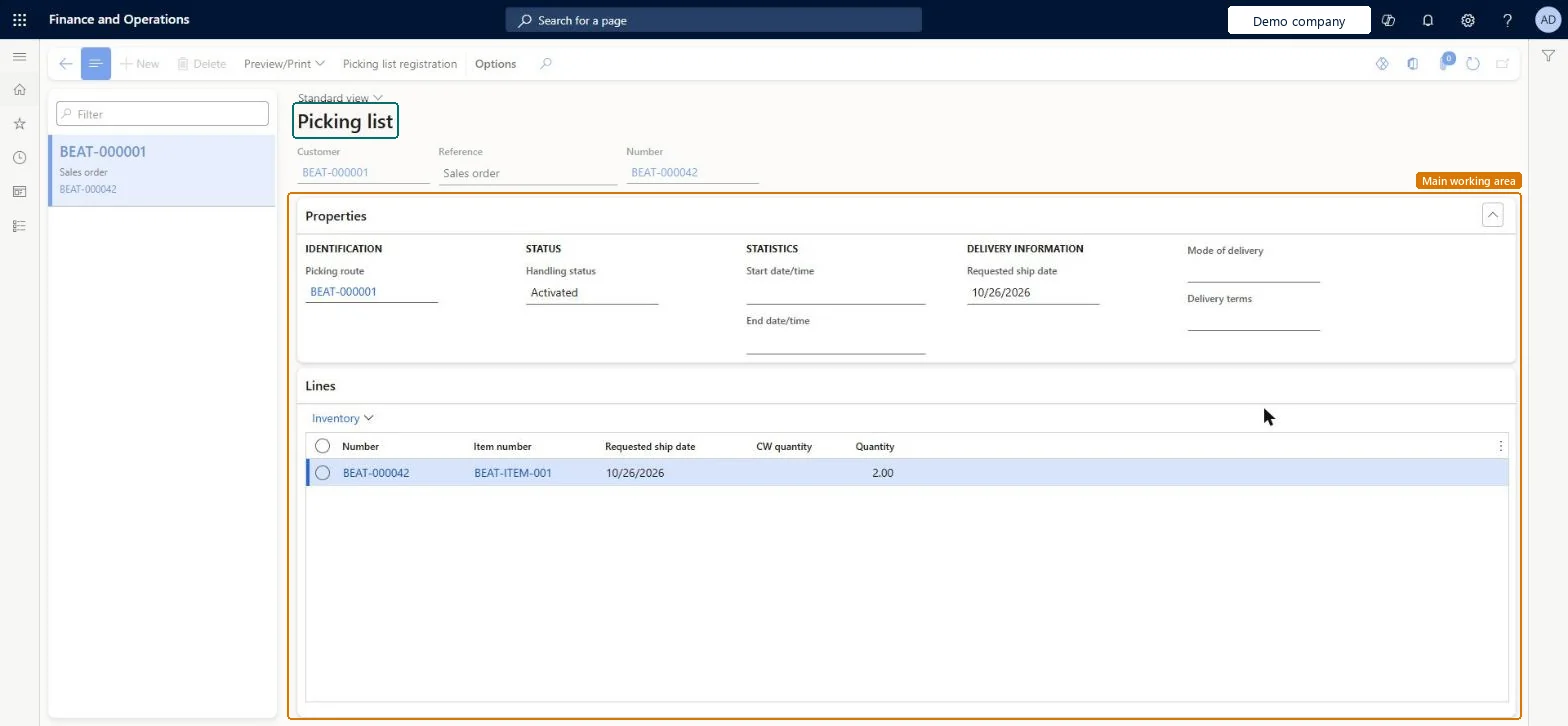
A page that shows picking list journals, each with its customer, reference, picking route, handling status, dates, delivery information and picked lines.
What you do here
Use this page to review a picking list for a sales order, see its status and requested ship date, and open picking list registration or print the list.
Example
For example, the warehouse manager checks picking list PL-000331 for BEAT-000123: requested ship date 2026-11-12, mode of delivery TRUCK, two lines of 20.00 and 6.00 pcs, then opens Picking list registration to finish it.
The page in Dynamics 365. page title tab to open what to set or check
About the examples: Examples and screenshots in this guide use BEAT, a demo company in a Dynamics 365 test environment. Use your own company's codes and values instead of copying them.
Setup steps on this page
Review picking lists
Check picking lists before and during picking.
Steps from Microsoft
Go to Sales and marketing > Sales orders > Order shipping > Picking list.
Find the picking list in the left list.
Check the Handling status, Requested ship date and Mode of delivery.
Check the lines and quantities to pick.
Select Picking list registration to register the picking.
Reading the list changes nothing; picking is reported on Picking list registration. Microsoft Learn
Technical architect
6Technical
Menu item
WMSPickingRoutesJournalChecked in Dynamics 365
Form
WMSPickingRoutesJournalChecked in Dynamics 365
Table
WMSPickingRouteShown as “Picking route” in Record infoKey field: pickingRouteIDChecked in Dynamics 365
Who can open it
PrivilegesView sales order picking lists WMSPickingRoutesJournalViewDutiesInquire into shipping progress InventShippingProgressInquire3 security rolesMaterials manager InventMaterialsManagerQuality control manager InventQualityControlManagerWarehouse manager WMSWarehouseManagerChecked in Dynamics 365
Roles to set it up and use it
To use itWarehouse manager WMSWarehouseManagerMaterials manager InventMaterialsManagerQuality control manager InventQualityControlManagerGive people one of these roles. On this system, 3 roles can open this page.Checked in Dynamics 365
Actions on the page
Options: Personalize, Page options, ShareChecked in Dynamics 365
Load order: Picking list has no data entity in Data management. No entity in the Common Data Model is built on its table (WMSPickingRoute); picking lists are created by Generate picking list on migrated orders.Checked in Dynamics 365