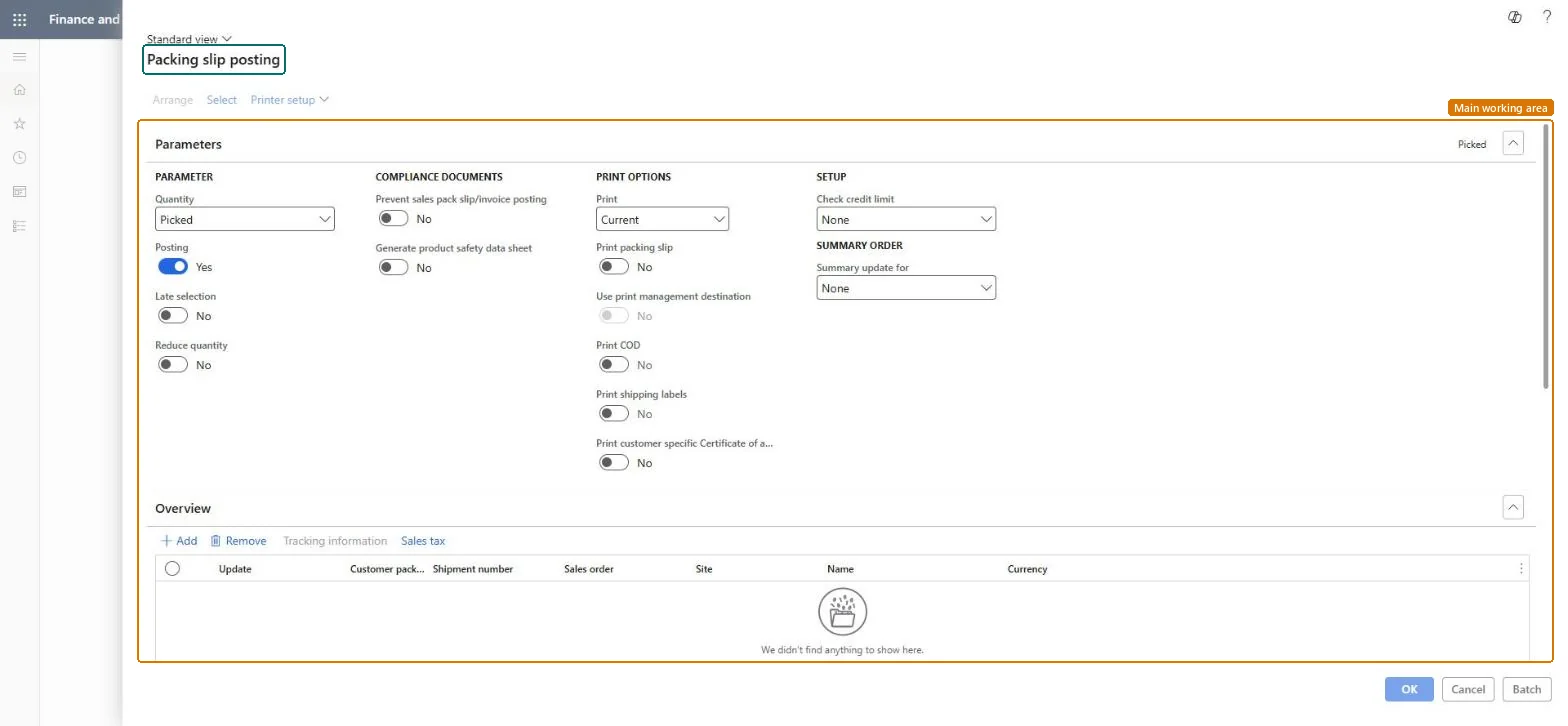
The sales order packing slip update opened from the menu for several orders at once (menu item SalesFormLetter_PackingSlipPost), with Parameters, Print options, Setup and an Overview of the orders in the run.
PAGE GUIDEWhat the page does and how to use it8 sections. Choose a role to highlight what matters to you.
Everyone
1What it is and why
What it is
The sales order packing slip update opened from the menu for several orders at once (menu item SalesFormLetter_PackingSlipPost), with Parameters, Print options, Setup and an Overview of the orders in the run.
What you do here
Use it to post packing slips for many sales orders in one run, for example all orders that shipped today, and to combine them with Summary update for.
Example
For example, at 17:00 BEAT's shipping clerk adds the 23 orders shipped today to the Overview, sets Summary update for to Order so BEAT-000123's four orders share one packing slip, and runs it in batch.
The page in Dynamics 365. page title tab to open what to set or check
About the examples: Examples and screenshots in this guide use BEAT, a demo company in a Dynamics 365 test environment. Use your own company's codes and values instead of copying them.
When to run it
When to run it
At the end of each shipping run, for all orders that shipped.
How often
Daily.
Batch settings
Run it in batch for many orders.
What the output shows
Packing slips for the orders in the Overview, combined according to Summary update for.
Post with Quantity = Picked when picking is registered and set Summary update for to match what customers expect on paper.Summary update decides how many packing slips the customer gets; quantity decides what is recorded as shipped.
On the live system, Sales clerk, Customer service representative and Rental manager use this page.
Checked in Dynamics 365
Solution architect
5Design impact
Shared or per company
Per company: works on the sales orders of the current legal entity. Microsoft Learn
Can it be undone
Hard to reverse: Posted packing slips stay; for warehouse-managed items a packing slip posted from the order can't be canceled. Microsoft Learn
If you change it later
The packing slip update records the physical shipment: it commits the change to inventory and, when the item model group posts physical inventory and Post packing slip in ledger is on, posts to the ledger. Microsoft Learn
Technical architect
6Technical
Menu item
action:SalesFormLetter_PackingSlipPostChecked in Dynamics 365
Form
SalesEditLinesChecked in Dynamics 365
Roles to set it up and use it
To use itRental manager RentalManagerRental coordinator agent RentalCoordinatorAgentSales clerk TradeSalesClerkRental sales manager RentalSalesManagerCustomer service representative TradeCustomerServiceRepresentativeGive people one of these roles. On this system, 10 roles can run this page.Checked in Dynamics 365
Load order: Packing slip journal post has no data entity in Data management. It's a posting job; packing slips are created by posting and aren't migrated.Checked in Dynamics 365