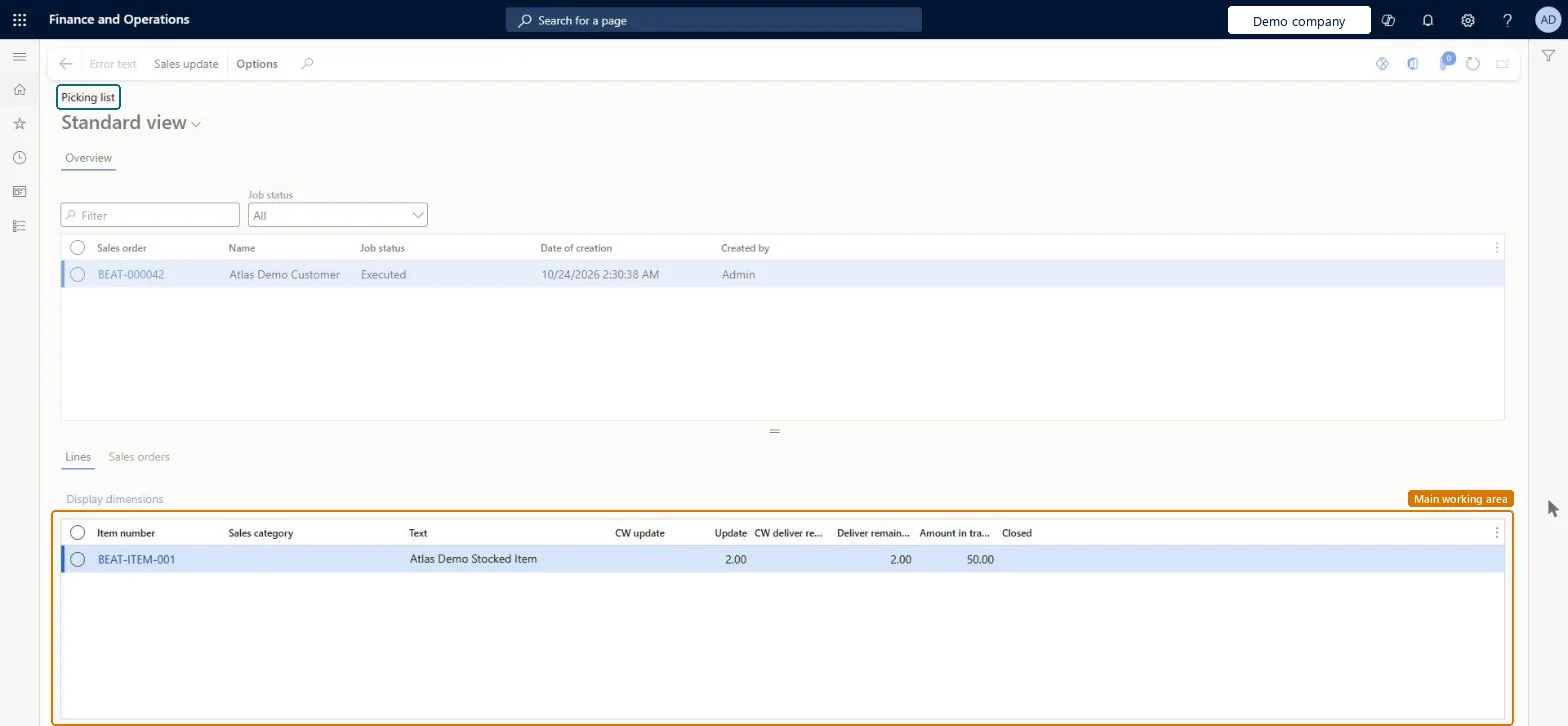
An inquiry page that shows the update history of picking list posting: each picking list update job with its job status, date of creation and creator, the sales orders it covered and the quantities updated on each line.
Sales and marketingInquiries and reportsOrder posting
SalesPostingHistoryPickingList
Used by
Credit management clerk, Credit management manager, Shipping clerk and 3 more roles
Business process
Manage sales orders
Menu item
SalesPostingHistoryPickingList
Main table
SalesParmTable
Setup steps
1 on this page
Show what matters for
PAGE GUIDEWhat the page does and how to use it8 sections. Choose a role to highlight what matters to you.
Everyone
1What it is and why
What it is
An inquiry page that shows the update history of picking list posting: each picking list update job with its job status, date of creation and creator, the sales orders it covered and the quantities updated on each line.
What you do here
Use it to check whether a picking list update for an order was executed, ended in error or is still waiting, and to read the error text of a failed job. Every confirmation, picking list, packing slip and invoice update creates such history.
Example
For example, BEAT's warehouse expected 12 picking lists from the 07:00 run on 07.11.2026 but received 11. Order posting > Picking list with Job status All shows the job for SO-001262 in error; Error text explains it and the shipping clerk generates that picking list again.
The page in Dynamics 365. page title tab to open what to set or check
About the examples: Examples and screenshots in this guide use BEAT, a demo company in a Dynamics 365 test environment. Use your own company's codes and values instead of copying them.
Setup steps on this page
Check picking list update jobs
Find out whether a picking list was generated for an order and why a job failed.
Steps from Microsoft
Go to Sales and marketing > Inquiries and reports > Order posting > Picking list.
In Job status, choose the status you are looking for; choose All when you search for one order.
Find the job for the Sales order, read Date of creation and Created by, and check the Lines tab for the quantity in Update on each line.
For a job in error, select Error text, fix the cause on the order and post the picking list again; old executed and erroneous jobs are removed by Sales update history cleanup.
Whether the update was executed, ended in error or is still waiting.Microsoft Learn
Sales order
The sales order the update job covered.Checked in Dynamics 365
SO-001234
Date of creation
When the update job was created.Checked in Dynamics 365
Created by
The user who started the update.Checked in Dynamics 365
Update
On the Lines tab: the quantity the job updated on each order line.Checked in Dynamics 365
Common errors and fixes
Message
What to do
Posting of picking lists gets slower over time.
Large amounts of old sales update history can cause performance and functional issues when confirmations, picking lists, packing slips and invoices are posted. Schedule Sales update history cleanup to run at least every three to six months. Microsoft Learn
Test checklist
Post a picking list for a test sales order.
Open Order posting > Picking list and set Job status to All.
Filter on the order number.
Check that one job is listed with your user and today's date, and that the Lines tab shows the updated quantity.
Set Job status to All and filter on the sales order number.A picking list job can be waiting, executed or in error; with another status filter the job you need is hidden.
On the live system, Sales clerk, Credit management manager, Credit management clerk, Project manager and Shipping clerk use this page; 6 roles can open it in total. No Feature management feature is needed to open it.
Checked in Dynamics 365
Solution architect
5Design impact
Shared or per company
Per company: each legal entity keeps its own sales update history. Microsoft data model
Can it be undone
Reversible: The inquiry changes no data. History deleted by Sales update history cleanup can't be restored. Microsoft Learn
If you change it later
Sales update history cleanup deletes executed, executed and erroneous, or all records older than a maximum age or a created-until date, so jobs disappear from this page after it runs. Waiting records are valid but not fully processed; keep them unless you are sure. Microsoft Learn
Technical architect
6Technical
Menu item
SalesPostingHistoryPickingListChecked in Dynamics 365
Form
SalesPostingHistoryChecked in Dynamics 365
Table
SalesParmTableShown as “Sales order - update table” in Record infoKey field: SalesIdChecked in Dynamics 365
Who can open it
PrivilegesProcess sales picking list SalesFormLetter_PickingListProcessDutiesMaintain release of picking requests InventPickingRequestReleaseThis duty only include privileges that are accessible by the project manager and it does not contain the privileges related to sales order and purchase order ProjProjectItemTasksMaintainMaintain release of sales picking list SalesPickingListRelease7 security rolesCredit management clerk CredManClerkCredit management manager CredManManagerShipping clerk InventShippingClerkMCRTestUserRoleProject manager ProjProjectManagerSales clerk TradeSalesClerkWarehouse manager WMSWarehouseManagerChecked in Dynamics 365
Roles to set it up and use it
To set it up or change itSales clerk TradeSalesClerkCredit management manager CredManManagerCredit management clerk CredManClerkProject manager ProjProjectManagerShipping clerk InventShippingClerkGive people one of these roles. On this system, 6 roles can open this page.Checked in Dynamics 365
Actions on the page
Options: Personalize, Page options, ShareChecked in Dynamics 365
Load order: Picking list (order posting history) has no data entity in Data management. No standard entity is backed by its table (SalesParmTable). The history is created by posting in the new system, so there is nothing to migrate.Load first: Posted sales documentsChecked in Dynamics 365