BeyondERP.Newsletter
Menu

Setup step on the Generate mailings page · Sales and marketing

Generate a mailing list

Create the mailings for one mailing category and item from a filtered query.

Business process
Identify and qualify leads
Menu item
action:smmMailingGenerate
Setup steps
1 on this page
Show what matters for
SETUP GUIDEHow to set it up8 sections. Choose a role to highlight what matters to you.
Everyone

1What it is and why

What it isA periodic task that creates a new mailing list or updates an existing one for a mailing category and mailing item, from a query you can adjust.
What you do hereUse this periodic task to build a mailing list for a mailing category and mailing item, filtered by a query you can adjust.
ExampleFor example, BEAT generates mailings for category CATALOG and item SPRING-2027 with status Not sent and planned date 3/1/2027, filtered to customers in sales district NORTH, which creates one mailing per matching recipient.
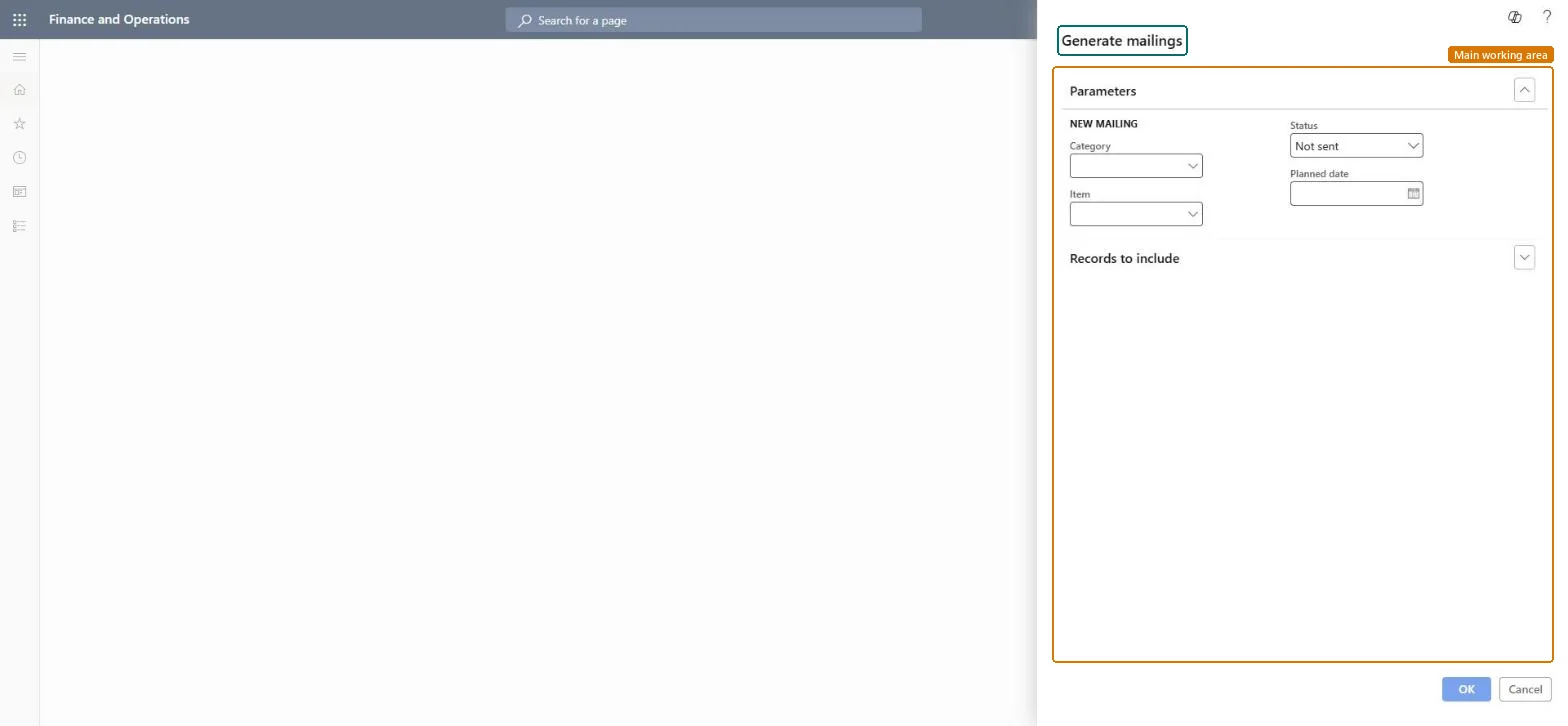
Generate mailings page in Dynamics 365
The page in Dynamics 365. page title tab to open what to set or check
Functional consultant · Solution architect

2Where it fits

Business processIdentify and qualify leads
Menu pathSales and marketing › Periodic tasks › Mailings › Generate mailings
Set up firstMailing categories Microsoft Learn Mailing items Microsoft Learn
Used next byMailings Microsoft Learn
Related pagesAll campaigns Microsoft Learn
In this processFollow up on mailings
End user · Functional consultant

3How to do it

About the examples: Examples and screenshots in this guide use BEAT, a demo company in a Dynamics 365 test environment. Use your own company's codes and values instead of copying them.

When to run it

When to run itWhen you prepare a mailing and need a mailing list for a mailing category and item.
How oftenOn demand, once per mailing, and again if the target group changes before it goes out.
What the output showsA new or updated mailing list with one mailing per recipient that matches the query. Too many or too few recipients usually means the query filter is too wide or too narrow.

Source: Microsoft Learn

Setup steps on this page

Generate a mailing list

Create the mailings for one mailing category and item from a filtered query.

Steps from Microsoft

  1. Go to Sales and marketing > Periodic tasks > Mailings > Generate mailings.
  2. Select the mailing Category, the Item and the Status the mailing list should get.
  3. Set the Planned date for the mailing.
  4. To narrow the target group, select Select and enter values in the filter fields of the query.
  5. Select OK, then open Mailings and filter on the category and item to count the mailings created.

Source: Microsoft Learn

Fields on the page

FieldWhat it meansExample
CategoryThe mailing category of the new or updated mailing list.Microsoft Learn CATALOG
ItemThe mailing item of the mailing list.Microsoft Learn SPRING-2027
StatusThe status the mailings get; Not sent is the default.Microsoft Learn Not sent
Planned dateThe date for the mailing.Microsoft Learn 3/1/2027
Records to includeThe query that selects the recipients; select Select and enter values in its filter fields.Microsoft Learn

Common errors and fixes

MessageWhat to do
A recipient that must be added to an existing mailing list can't be entered by hand.When you update an existing mailing list you can't add a recipient manually; change the query filter and generate the mailings again. Microsoft Learn

Test checklist

  1. Run Generate mailings for category CATALOG, item SPRING-2027, filtered to 3 known customers.
  2. Open Mailings and filter on CATALOG and SPRING-2027.
  3. Check that exactly 3 mailings with status Not sent and planned date 3/1/2027 are listed.

Source: Microsoft Learn

Functional consultant

4Setup decisions

Setup stepRecommended value and whyDecision, common mistake and test
Generate a mailing listSet Category, Item, Status Not sent and the Planned date, and always narrow the query with Select before you select OK.Every recipient that matches the query gets a mailing; when you update an existing list you can't add recipients by hand.Should a changed target group be handled by regenerating the mailing list or by editing mailings?Running it without narrowing the query, so the list includes recipients outside the target group.Test: Generate mailings for a filtered group

Feature management and licence

Licence or add-inOn the live system, Sales manager, Marketing manager and Information technology manager can run this task. No feature in Feature management is needed.

Checked in Dynamics 365

Solution architect

5Design impact

Shared or per companyThe recipients selected by the query, for one mailing category and item at a time. Microsoft Learn
Can it be undoneReversible: Mailings that were created can be edited or deleted on the Mailings page.
If you change it laterCreates or updates mailing records for the recipients that match the query. Mailings are part of the built-in marketing features; companies that run Dynamics 365 Sales usually connect it through prospect-to-cash in dual-write instead. Microsoft Learn
Technical architect

6Technical

Menu itemaction:smmMailingGenerate Checked in Dynamics 365
FormDialog Checked in Dynamics 365
Roles to set it up and use itTo use itSales manager TradeSalesManagerMarketing manager CRMMarketingManagerInformation technology manager SysServerITManagerGive people one of these roles. On this system, 3 roles can run this page.Checked in Dynamics 365
Developer

7Developer

Open it by URLhttps://<your-environment>/?mi=action:smmMailingGenerate
Data migrationLoad order: Generate mailings has no data entity in Data management. It creates mailings from the query, so run it again in the target system instead of moving mailings.Checked in Dynamics 365
Everyone

8Sources

To cite this step: SM-JOB-030, Generate a mailing list. Beyond ERP Atlas Hub, 2026-11-11. https://www.beyonderp.cloud/atlas/step/SM-JOB-030