Marketing manager, Information technology manager, Sales manager
Business process
Identify and qualify leads
Menu item
smmMailings
Main table
smmMailings
Setup steps
1 on this page
Show what matters for
PAGE GUIDEWhat the page does and how to use it8 sections. Choose a role to highlight what matters to you.
Everyone
1What it is and why
What it is
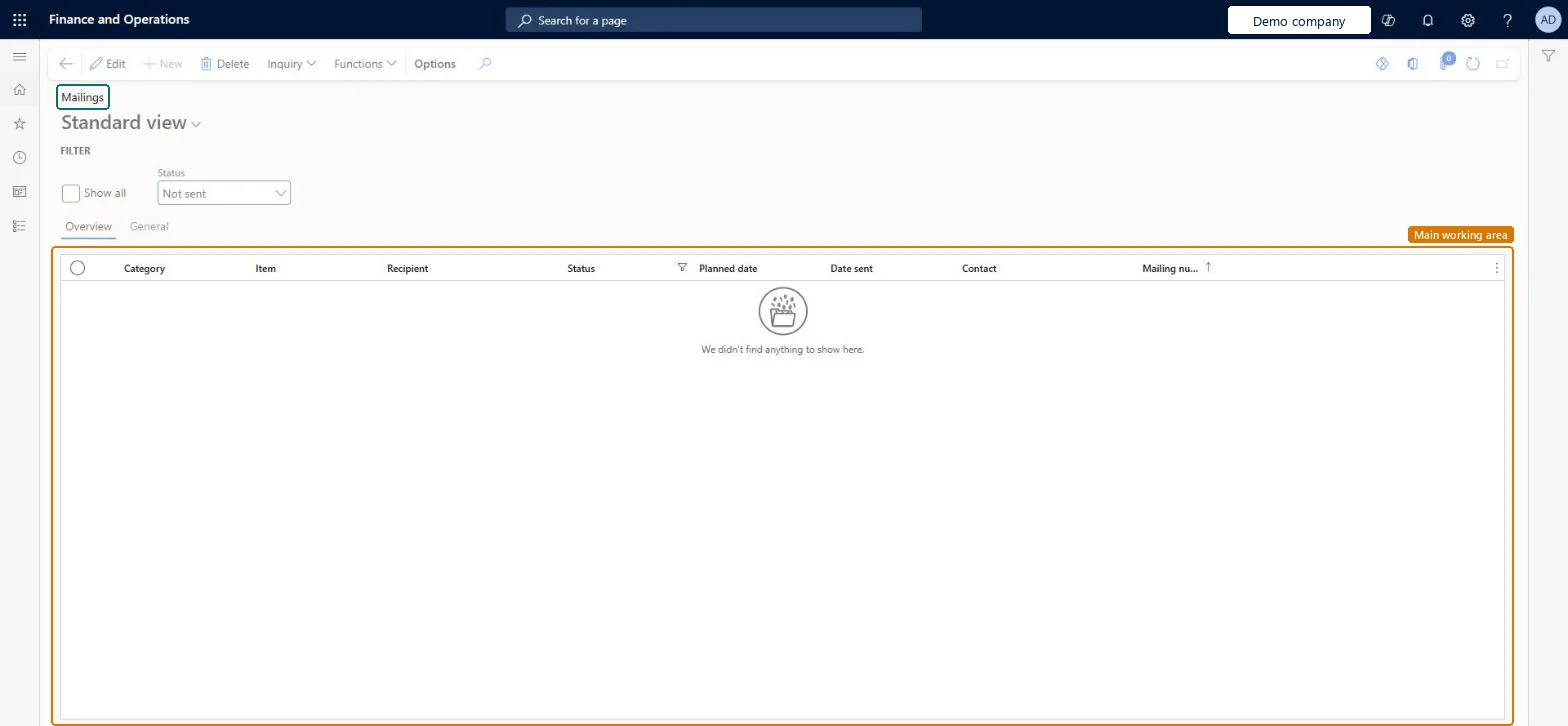
A list page that shows mailings with their category, item, recipient, status, planned date, date sent, contact and mailing number.
What you do here
Use it to follow up on the mailings of a campaign: filter them by status, check planned and sent dates, and correct or remove a mailing before it goes out.
Example
For example, the BEAT marketing manager filters on status Not sent, finds 250 mailings for item SPRING-2027 with planned date 3/1/2027, and deletes the 2 mailings for a customer who asked not to be contacted.
The page in Dynamics 365. page title tab to open what to set or check
About the examples: Examples and screenshots in this guide use BEAT, a demo company in a Dynamics 365 test environment. Use your own company's codes and values instead of copying them.
When to run it
When to run it
When you follow up on planned and sent mailings, or need to correct or remove one before it goes out.
How often
On demand, during a mailing campaign.
What the output shows
A list of mailings with category, item, recipient, status, planned date, date sent, contact and mailing number.
Source: Checked in Dynamics 365
Setup steps on this page
Follow up on mailings
Check and correct the mailings of a campaign before they go out.
How to use it
Go to Sales and marketing > Periodic tasks > Mailings > Mailings.
In the Filter section, select the Status to follow up, or select Show all.
Review Category, Item, Recipient, Planned date and Date sent for the campaign's mailings.
Select Edit to change a mailing, for example its planned date, or Delete to remove a mailing that must not be sent.
Count the mailings still at Not sent for the campaign and compare it with the number generated.
Source: Checked in Dynamics 365
Fields on the page
Field
What it means
Example
Show all
Select it to list every mailing instead of only the selected Status.Checked in Dynamics 365
Status
The status filter at the top of the page; Not sent is the default.Checked in Dynamics 365
Not sent
Category
The mailing category of the mailing.Checked in Dynamics 365
CATALOG
Item
The mailing item of the mailing.Checked in Dynamics 365
Set the Status filter first (Not sent while preparing a campaign), or select Show all when you reconcile a whole campaign.The page opens filtered on Not sent, so mailings in any other status are hidden until you change the filter.
Hard to reverse: Edits can be changed back. A deleted mailing is removed; generate the mailing list again with Generate mailings to recreate it. Microsoft Learn
If you change it later
Edit and Delete change or remove mailing records. Mailings belong to the built-in marketing features; companies that use Dynamics 365 Sales connect it through prospect-to-cash in dual-write. Microsoft Learn
Technical architect
6Technical
Menu item
smmMailingsChecked in Dynamics 365
Form
smmMailingsChecked in Dynamics 365
Table
smmMailingsShown as “Mailings” in Record infoKey field: ContactPersonIdChecked in Dynamics 365
Who can open it
PrivilegesMaintain mailings smmMailingsMaintainView mailings smmMailingsViewDutiesEnable the Sales and marketing process smmCRMProcessEnableInquire into Sales and marketing reference data smmCRMReferenceDataInquireEnable marketing process smmMarketingProcessEnable3 security rolesMarketing manager CRMMarketingManagerInformation technology manager SysServerITManagerSales manager TradeSalesManagerChecked in Dynamics 365
Roles to set it up and use it
To set it up or change itSales manager TradeSalesManagerMarketing manager CRMMarketingManagerInformation technology manager SysServerITManagerGive people one of these roles. On this system, 3 roles can open this page.Checked in Dynamics 365
Actions on the page
Options: Personalize, Page options, ShareChecked in Dynamics 365
Developer
7Developer
Open it by URL
https://<your-environment>/?mi=smmMailings
Data migration
Load order: Mailings has no data entity in Data management. Generate the mailings again in the target system with Generate mailings.Checked in Dynamics 365