Sales and marketingInquiries and reportsCustomer statistics
output:CustGrossMarginbyAccount_NA
Business process
Measure sales performance
Menu item
output:CustGrossMarginbyAccount_NA
Setup steps
1 on this page
Show what matters for
SETUP GUIDEHow to set it up8 sections. Choose a role to highlight what matters to you.
Everyone
1What it is and why
What it is
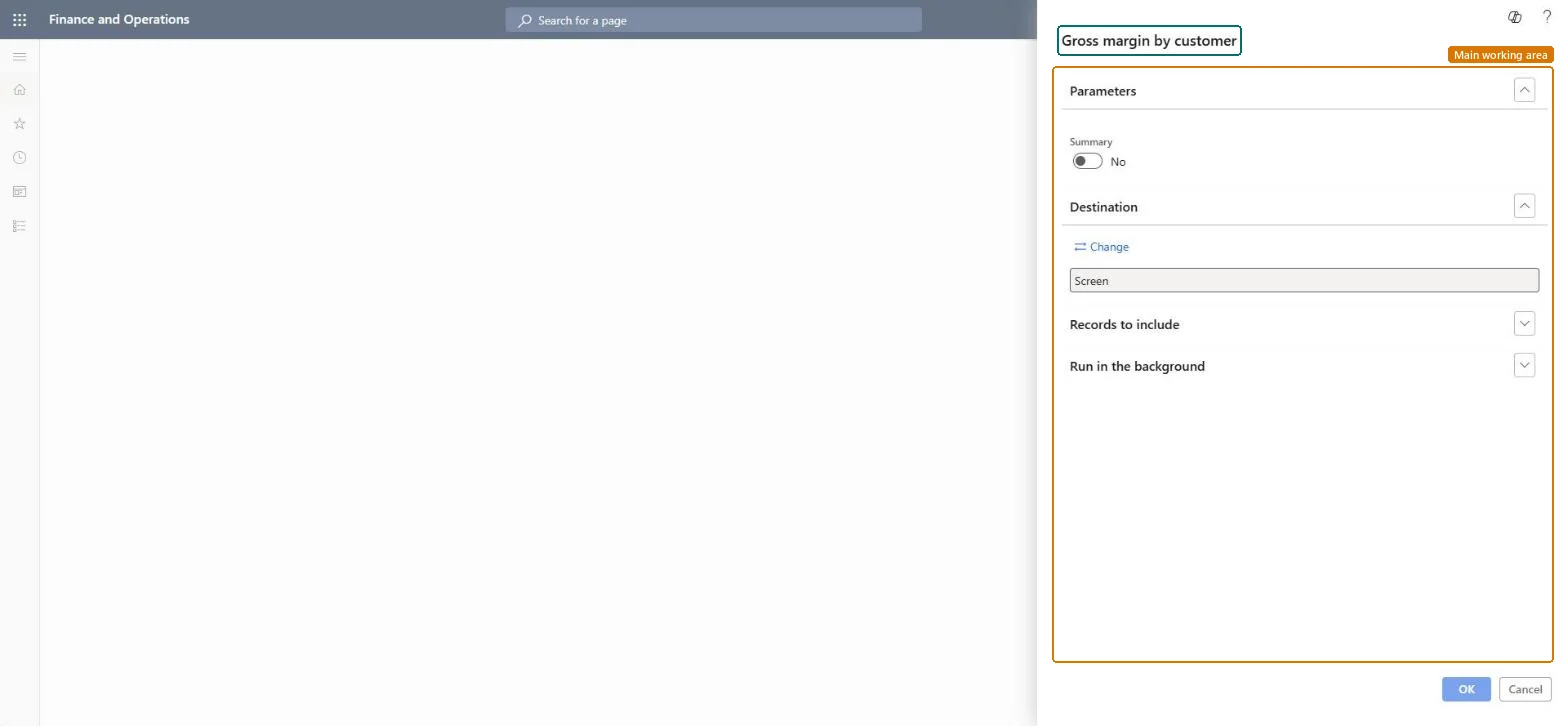
A United States and Canada report that shows sales order information with sales amount, cost, gross profit and gross profit percentage, sorted by customer, as a summary or with each order's details.
What you do here
Use it to review the gross profit earned per customer and find customers with low or negative margins.
Example
For example, BEAT's US legal entity reviews October: BEAT-000123 has sales of 85,000.00, cost of 71,400.00 and a gross profit of 16.00 percent, against 28.00 percent on average, so its discounts are reviewed.
The page in Dynamics 365. page title tab to open what to set or check
About the examples: Examples and screenshots in this guide use BEAT, a demo company in a Dynamics 365 test environment. Use your own company's codes and values instead of copying them.
When to run it
When to run it
At period end, or when you review pricing per customer.
How often
On demand, often monthly.
What the output shows
Sales amount, cost, gross profit and gross profit percentage per customer, with sales order details when Summary is off.
The report isn't available or can't be run in your legal entity.
It is a United States and Canada report: Microsoft documents the _NA reports as available only to legal entities whose primary address is in Canada or the United States. Use the Sales and profitability performance Power BI content elsewhere. Microsoft Learn
Test checklist
Pick one customer with invoiced sales.
Run the report with Summary Yes for it.
Check that sales amount minus cost equals the gross profit shown.
Decide Summary first: a total per customer for the overview, details for the follow-up.The summary shows which customers to look at; the details show which orders cause it.
On the live system, Accounts receivable manager, Accounting manager, Auditor, Financial controller and Chief executive officer use this page; 6 roles can run it in total. No Feature management feature is needed to open it.
Checked in Dynamics 365
Solution architect
5Design impact
Shared or per company
Per company: the report reads the data of the legal entity you run it in. To compare legal entities, run it in each one. Checked in Dynamics 365
Can it be undone
Reversible: Running the inquiry or report changes no data.
Feature or country
US, CA
If you change it later
Figures are read at run time, so run the report again after more invoices are posted. Microsoft documents the _NA reports as available only to legal entities whose primary address is in Canada or the United States. Microsoft Learn
Technical architect
6Technical
Menu item
output:CustGrossMarginbyAccount_NAChecked in Dynamics 365
Form
SysOperationTemplateFormChecked in Dynamics 365
Roles to set it up and use it
To use itAccounts receivable manager CustInvoiceAccountsReceivableManagerAccounting manager LedgerAccountingManagerAuditor AuditPolicyManagerFinancial controller LedgerFinancialControllerChief executive officer CompanyChiefExecutiveOfficerGive people one of these roles. On this system, 6 roles can run this page.Checked in Dynamics 365
Load order: Gross margin by customer has no data entity in Data management. It is a report: it reads sales and cost data and stores nothing of its own.Checked in Dynamics 365